
Make and revoke API keys
For OwnersChecked against the app on October 5, 2026
Settings → API keys lets your own programs use HiloVoice: read your calls, leads, appointments, contacts and campaigns, keep your contacts in step, and add people to campaigns. Each program presents a key. A key acts as the person who made it, with their rights.
Before you start
- You're an Owner or Admin. Builders and Analysts don't see API keys in Settings; opened another way, the page says Only an owner or admin can see and make API keys.
- Your plan includes The HiloVoice API. Where it doesn't, New key is greyed out, with a lock showing the plan that has it, such as Growth and up.
- Settings is in the account menu at the foot of the sidebar.
- An organization can have 20 keys at once.
The keys list
Each key shows the name you gave it, its first characters, such as hv_Ab12Cd3…, who made it and
when, and when it was last used, or not used yet. The full key is never shown again after you make
it. To tell which key a program has, compare its first characters.
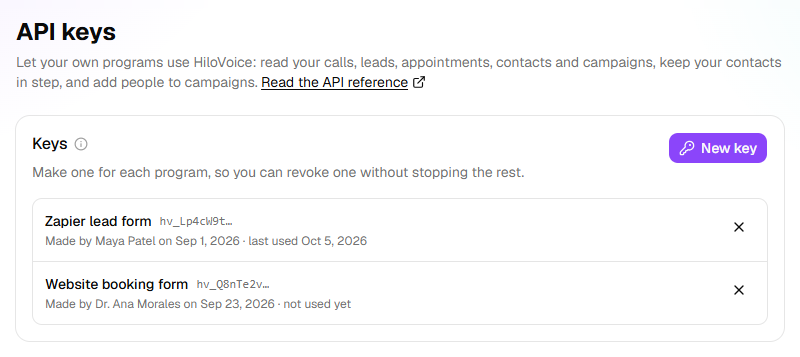
Read the API reference, under the page title, opens the reference for the HiloVoice API in a new tab: every request a program can make, and what it gets back.
Steps
Make a key
Open Settings → API keys and click New key.
Under What will use it?, type a name for the program, such as
Our CRM sync.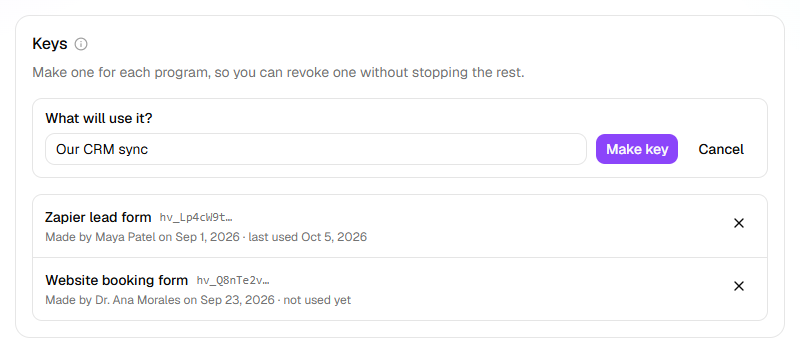
Click Make key. The Copy your key now dialog opens.
Click the copy button beside the key. A message says Key copied.
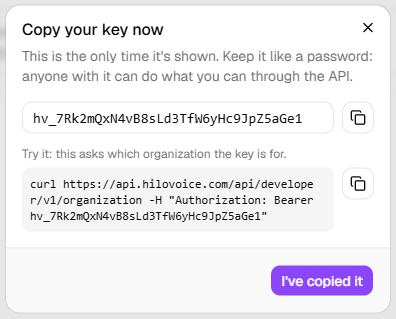
Paste the key into your program, or somewhere safe, before you close the dialog.
Click I've copied it.
The dialog also has a request to try the key with, under Try it: this asks which organization the key is for. Its copy button copies it whole.
Important: The key is shown this once. Keep it like a password: anyone with it can do what you can through the API. If you lose it, revoke it and make a new one.
Tip: Make one key for each program. Then you can revoke one without stopping the rest.
Revoke a key
- On API keys, click the X beside the key.
- Read Revoke "<name>"?, then click Revoke. A message says Revoked "<name>". Programs using it stop working now.
Important: A revoked key can't be brought back. Programs using it stop working at once; make a new key to replace it.
What happens next
- A key works from the moment it's made. Its row shows when it was last used.
- A key stops working, on the program's next request, when:
- it's revoked;
- the person who made it leaves the team, is removed, or is no longer an Owner or Admin;
- your plan stops including The HiloVoice API. It works again when the plan includes it.
- Making and revoking keys is recorded under Settings → Activity, in API keys. Not every plan includes the activity log.
If it does not work
| You see | Why | What to do |
|---|---|---|
| There's no API keys in Settings | Your role is Builder or Analyst | Ask an owner or admin to make the key, or to change your role. |
| New key is greyed out, with a lock such as Growth and up | Your plan doesn't include the API | An owner can change the plan under Settings → Billing. |
| An organization can have 20 keys at once. Revoke one you no longer use first. | There are 20 keys already | Revoke one you no longer use. |
| Couldn't make the key. | Making the key failed | Try again. |
| Your program is told This API key doesn't work: it may have been revoked. An owner or admin can make a new one under Settings → API keys. | The key was revoked, or was copied wrongly | Make a new key, and copy it whole. |
| Your program is told The person who made this API key is no longer an owner or admin here, so it no longer works. An owner or admin can make a new one under Settings → API keys. | Its maker left, was removed or has another role | Make a new key yourself. |
| Your program is told That isn't a HiloVoice API key. Send one as "Authorization: Bearer hv_…"; an owner or admin makes keys under Settings → API keys. | The program isn't sending the key the right way | Check the request against Read the API reference. |
| Your program is told The HiloVoice API is on <plan> and up. An owner can change the plan under Settings → Billing. | The plan no longer includes the API | An owner can change the plan. The key works again once it does. |
Read next
- Manage members and roles — who is an Owner or Admin
- Plans, minutes and limits — which plans include the HiloVoice API
- Check who did what in the activity log — where keys made and revoked are recorded