
Set when an outbound agent may call
For BuildersChecked against the app on October 1, 2026
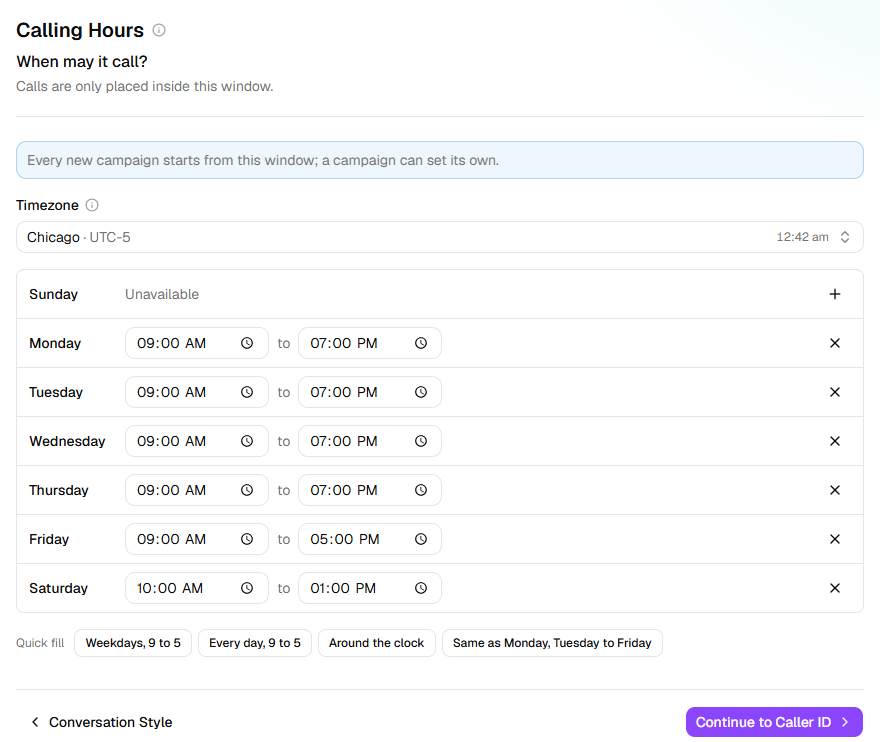
The Calling Hours step sets the days and times an outbound agent (Confirmations, Detail checks, Feedback or Follow-ups) may call people. Every new campaign for the agent starts from this window, and a campaign only calls inside its window. A Receptionist has Hours of Operation instead: see Set your opening hours.
Before you start
- The agent is a Confirmations, Detail checks, Feedback or Follow-ups agent.
- Know which time zone the people you call are in. Until you choose one on this step, the agent uses your organization's, set under Settings → Organization.
Steps
Open Agents and click the agent.
In the step rail, click Calling Hours.
Under Timezone, choose the zone the times are read in: normally the one the people you're calling are in. Search for a city, country or offset; each zone shows its time now.
Set the days calls may go out. Click + beside a day, then set when the window opens and closes that day. Click X to make a day Unavailable again. A Quick fill (Weekdays, 9 to 5, Every day, 9 to 5 or Around the clock) replaces the whole week.
Warning: Calling outside reasonable hours is restricted in many places. Check what applies where the people you call are, and keep the window inside it.
If the agent is live, publish the change on Review & Go Live. A new campaign takes its window from the published agent.
The step is ticked in the rail once at least one day has hours.
What happens next
- A new campaign for this agent starts with this window and time zone. To change them for one campaign, open its Settings and go to When calls may go out. There the campaign can also call each person on their own clock, Each person's own, when known, from a time zone column in its list.
- Campaigns made before the change keep the window they started with.
- A campaign holds every call until its window is open, retries included. When someone asks to be called back at a time outside the window, that call waits until the window opens.
- If someone asks when they can call back, the agent gives them these hours.
- Leave the week empty and the step reads No window set — a new campaign calls on weekdays, 9 AM to 6 PM. You can change a campaign's window on the campaign.
- A call you place yourself from Try it, with Call me, rings when you click, whatever the window.
If it does not work
| You see | Why | What to do |
|---|---|---|
| Closing time has to be later than opening time. under a day | The day ends before it starts. A day's hours can't run past midnight. | Set a later closing time. |
| A campaign calls at the old times | It was made before the change, or before you published it, and keeps its own window | Change the window in the campaign's Settings, while the campaign is Draft, Scheduled or Paused. |
| Calls go out at the wrong hour for the people you call | The Timezone isn't theirs | Choose their zone here, or set the campaign to Each person's own, when known. |
Related
- Campaigns and recipients — how a campaign works through its list, and when it tries again
- Give an outbound agent a caller ID — the number these calls come from
- Set a follow-up's goal — how far apart a Follow-ups agent's calls are
- Set your opening hours — the same week, for a Receptionist