
Shape how a call sounds
For BuildersChecked against the app on October 1, 2026
Conversation Style sets how the agent conducts a call: who speaks first, how it asks, how long a call may run, how it puts a caller on hold, and whether calls are recorded. Every kind of agent has it, and it starts filled in, so it always has a tick. For a Receptionist, the greeting is here too. An outbound agent's first words are on its Opening step instead.
Before you start
- You're an Owner, Admin or Builder.
- Try a call first with Try it. Most of these settings are worth changing once you've heard something you want different.
Steps
Open Agents, click the agent, and click Conversation Style in the step rail.
A new agent starts with Sound as natural as possible on, so the row says On. If you've turned any of its settings off since, click Turn on beside it to put them all back. A message lists what changed, with Undo. It also puts a quiet office's sound behind the agent, unless it already has one.
On the Conversation tab, under Who speaks first, choose The agent to answer with a greeting, the way a receptionist would, or The caller to pick up, give the recording notice and wait. A new agent starts on The agent. An outbound agent must speak first: leave it on The agent.
For a Receptionist that speaks first, write the Greeting: name the business, then invite the caller to say why they rang, such as
Thanks for calling Maple Street Dental — how can I help?A new Receptionist starts withThanks for calling {{agent_company_name}}, this is {{agent_name}}. How can I help you today?Or click Write it for me. Type{{to drop in the agent's name.Click the play button beside the bubble under the greeting to hear it in the agent's voice. Left empty, the agent only introduces itself.
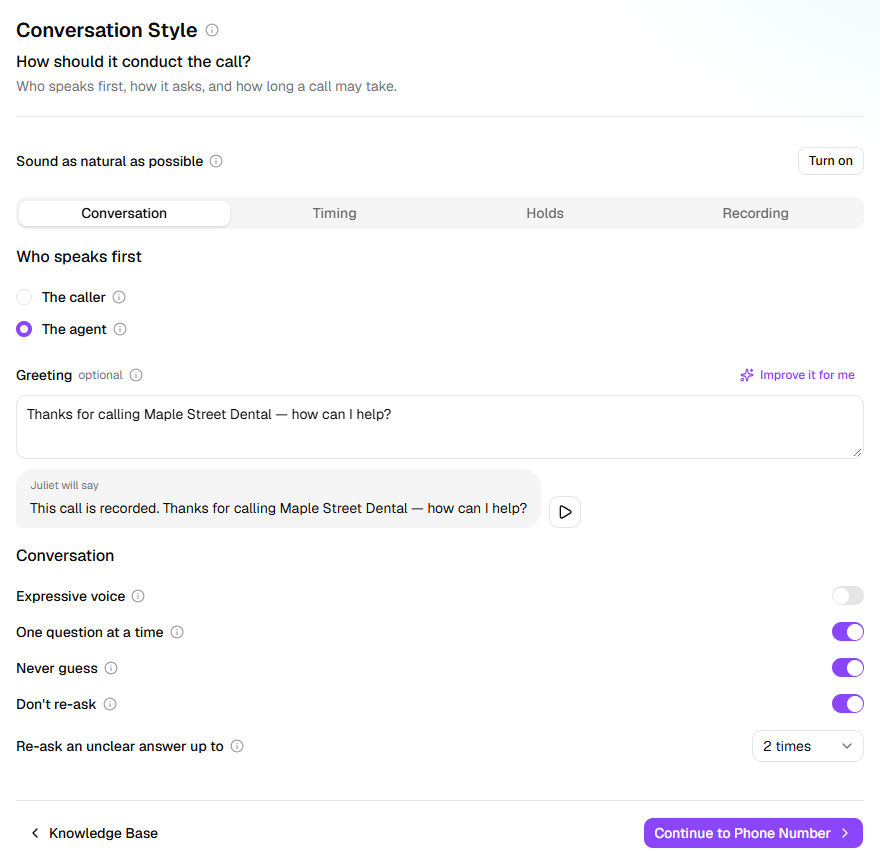
Under Conversation, switch One question at a time, Never guess and Don't re-ask on or off. Point at the info icon beside each to see what it does.
On the Timing, Holds and Recording tabs, change any setting that doesn't suit your callers. Each picker says its default.
What the tabs hold
| Tab | Setting | What it does |
|---|---|---|
| Conversation | Expressive voice | The voice follows the mood of the call: calmer when a caller is upset or hurting, warmer with good news. While it's on, Voice quality and Pace in Voice settings don't apply. |
| Conversation | Re-ask an unclear answer up to | How many times the agent asks again before moving on without the answer. More gets fuller answers, but tries callers' patience. |
| Timing | Maximum length | The call ends at the limit however it's going. 10 minutes by default. |
| Timing | Check in after silence | How long the agent stays quiet after the caller stops talking before asking if they're still there. 20 seconds by default. |
| Timing | Reply after a pause | Quickly, the default, keeps the call moving. Patiently suits callers who stop to think or read out a long number. |
| Timing | Acknowledge before answering | On for a new agent, with Sound as natural as possible. New: try it on one agent first. When an answer takes a moment, the caller hears a short Okay. or Alright. instead of silence. Fillers and interruptions sets the words. |
| Timing | Hang up after silence | Ends the call when the caller has said nothing for this long. Never, by default. |
| Holds | Allow hold | On for a new agent. When someone asks for a moment, the agent waits quietly, for up to 90 seconds unless you change it, then offers to call back. |
| Holds | Hold while looking things up | On by default. While the agent checks a record or the calendar, the caller hears a short "one moment" and typing or hold music. Past 15 seconds, it apologises and offers to call back. |
| Recording | Record calls | On by default: each call's recording plays from its page. Off, only the transcript is kept. |
| Recording | Say the call is recorded | Off for a new agent. On, every call opens with it, before the greeting, in a standard voice of its own, and the caller can't talk over it. Wording changes what it says. |
Warning: Some US states need everyone on a call to agree to it being recorded, and a transcript counts. Turn Say the call is recorded on unless you're sure none of your callers need it.
What happens next
- Changes save as you make them. Click Try it to hear them; if the agent waits for the caller, say hello once you're connected.
- Review & Go Live shows the first words under In short: Opens with “<notice and greeting>”, or Gives the recording notice, then waits for the caller to speak first.
- On a live agent, callers get your changes when you publish them.
If it does not work
| You see | Why | What to do |
|---|---|---|
| There's no Greeting box | The caller is chosen, or the agent places calls | Choose The agent. An outbound agent's first words are on its Opening step. |
| On Review & Go Live, This agent places calls, so it has to speak first — set that on the Opening step. | An outbound agent is set to wait for The caller | Choose The agent under Who speaks first, or click Make the agent speak first on Opening. |
| On Review & Go Live, The greeting doesn't mention <business name> — check it names the right business, or change the business name on the Business Information step. | The greeting names another business, or none | Put the business name in the greeting. It's a warning; the agent can still go live. |
| On Review & Go Live, The greeting is over 500 characters. | The greeting is too long to say | Cut it to a sentence or two. |
| Pause recording on transfer can't be switched | The agent is a Receptionist | Nothing to do: for a Receptionist, the recording ends when the call is handed to a person. |
| Couldn't write that just now. Try again, or write it yourself. | Write it for me didn't work this time | Try again, or type the greeting yourself. |
Related
- Write an outbound agent's opening — an outbound agent's first words
- Name the agent and give it a purpose — the voice, and Voice settings
- Hand calls to a person — when a call goes to someone on your team
- Review and go live — check the agent, then put it on calls