
Manage members and roles
For OwnersChecked against the app on October 1, 2026
Settings → Team lists everyone in your organization, with their role. Owners and Admins invite people there, change their roles and remove them. Anyone can leave. What each role may do is in Roles and permissions.
Before you start
- You're an Owner or Admin. Builders and Analysts can see the team, and leave it.
- Only an Owner can make someone an Owner, or change or remove an Owner.
- Settings is in the account menu at the foot of the sidebar.
- There's no limit on how many people you invite.
The team list
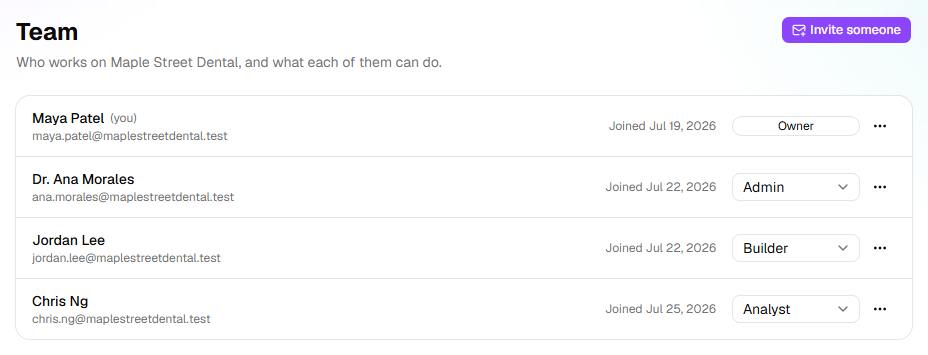
Each row shows a person's name, their email, when they joined, their role and a ⋯ menu. Your own row says (you). Invitations not yet accepted are listed under Invitations, each with its role, who sent it and the date its link stops working.
Steps
Invite someone
- Open Settings → Team and click Invite someone.
- Under Their email, type their address.
- Under Role, choose Admin, Builder or Analyst. Builder is chosen to start. The info icon beside Role says what each can do.
- Click Send the invitation. The dialog says Invitation sent to <email>, with the link it sent, in case you want to pass it on yourself.
- Click Done.
They get an email, <your name> invited you to <organization> on HiloVoice, with a Join the team button. The link works for a week, once, and only for the address you typed. Someone new makes an account with that address; someone with an account logs in. Then they click Join <organization>.
Nobody is invited as an Owner. Invite them as an Admin, then hand ownership over.
Change an invitation
- Send again sends a new link, good for another week. The old link stops working.
- To change an invitation's role, invite the same address again with the new role.
- The X beside an invitation takes it back at once: Invitation taken back.
Change someone's role
On Team, find the person.
Choose the new role in the box beside their name. A message says Role changed.
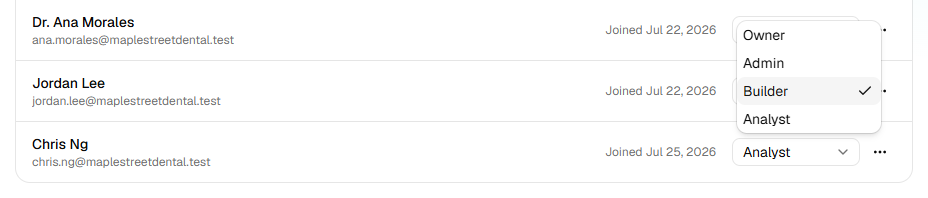
Any role but Owner applies at once, with no question first. An Admin can choose Admin, Builder or Analyst; an Owner can also choose Owner, which makes the person an Owner alongside you. That one asks first: read Make <name> an owner?, then click Make them an owner. A message says <name> is an owner now. An organization can have more than one.
Hand ownership over
Open the ⋯ menu on the person's row, and click Hand ownership over.

Read Make <name> the owner?, then click Make them the owner. A message says <name> is the owner now.
Important: You become an Admin. Only an Owner can make you an Owner again.
Remove someone
- Open the ⋯ menu on their row, and click Remove from the team.
- Read Remove <name> from the team?, then click Remove. A message says <name> is off the team.
Leave the team
- Open the ⋯ menu on your own row, and click Leave the team.
- Read Leave <organization>?, then click Leave. You lose access to its agents, calls and leads, and HiloVoice opens another of your organizations.
What happens next
- A new role, or a removal, applies from the person's next click. Their screen catches up when it next refreshes.
- Nothing a person made moves when they leave or are removed. Agents, campaigns, calls, leads and contacts belong to the organization, and their name stays on what they did.
- An API key stops working when the person who made it leaves, or is no longer an Owner or Admin. An owner or admin makes a new one under Settings → API keys.
- Owners and Admins are told <name> joined the team when someone accepts an invitation. Role changes, removals and people leaving send no notification, and nobody is emailed about them.
- Settings → Activity records each invitation, join, role change, removal, departure and hand-over, under People. Not every plan includes the activity log.
If it does not work
| You see | Why | What to do |
|---|---|---|
| There's no Invite someone button | Your role is Builder or Analyst | Ask an owner or admin to invite them, or to change your role. |
| That isn't an email address. | The address is incomplete | Check it, such as [email protected]. |
| <address> is on the team already. | They're a member already | Change their role instead. |
| Ask another owner or admin to change your own role. | Nobody changes their own role | Ask another owner or admin. |
| Only an owner can make someone an owner, or change an owner's role. | You're an Admin | Ask an owner. |
| Only an owner can remove an owner. | You're an Admin | Ask an owner. |
| Hand ownership over before you leave: every organization keeps an owner. | You're the only Owner | Hand ownership over, or make someone else an Owner, then leave. |
| That invitation was accepted already; remove them from the team instead. | They joined before you took it back | Remove them from the team. |
| They see That invitation has expired or been taken back. Ask whoever invited you for a new one. | The link is over a week old, was taken back, or was replaced by Send again | An expired or taken-back invitation leaves Invitations: invite them again. After Send again, only the newest email's link works. |
| They see You're signed in as <address>. This invitation is for <address>: log out and sign in with that address to accept it. | They're signed in with another address | They click Log out, then sign in, or make an account, with the invited address. |
| Send them the link yourself | HiloVoice couldn't email them just now | Copy the link from the dialog and send it another way. It still works only for that address. |
| Your role here is Analyst: you can look at everything, but not change it. An owner or admin can make you a builder. | Analysts can't change the team | Ask an owner or admin. |
Read next
- Roles and permissions — what each role can do
- Invite your team — the first invitations, when you set up
- Change your organization's settings — name, time zone, country and leads
- Plans, minutes and limits — who can see and change billing