
Get started with the guided welcome
For OwnersChecked against the app on October 21, 2026
After you sign up, HiloVoice may open the guided welcome instead of the steps in Create your account. It asks how your calls go and who's on your team, shows what missed calls may be costing you, and suggests the agent to start with. Then you choose its voice and hear it, as in the other welcome. It takes about five minutes, and no customer hears anything until you say so.
The bar across the top shows the five parts: Meet HiloVoice, Your business, Your team, Your plan and Make it yours. On a phone, the line under it says where you are, such as Step 2 of 5 · Your business.
Before you start
- Know your business's name and what kind of business it is. Your website's address helps too: HiloVoice reads your hours, services and common questions from it while you answer the rest.
- Rough numbers are fine. Nothing you say here is final, and you can change the agent afterwards.
- If someone else will set up your agents, have their email address to hand, to invite them.
- To hear your agent ring you, have your mobile phone to hand.
Steps
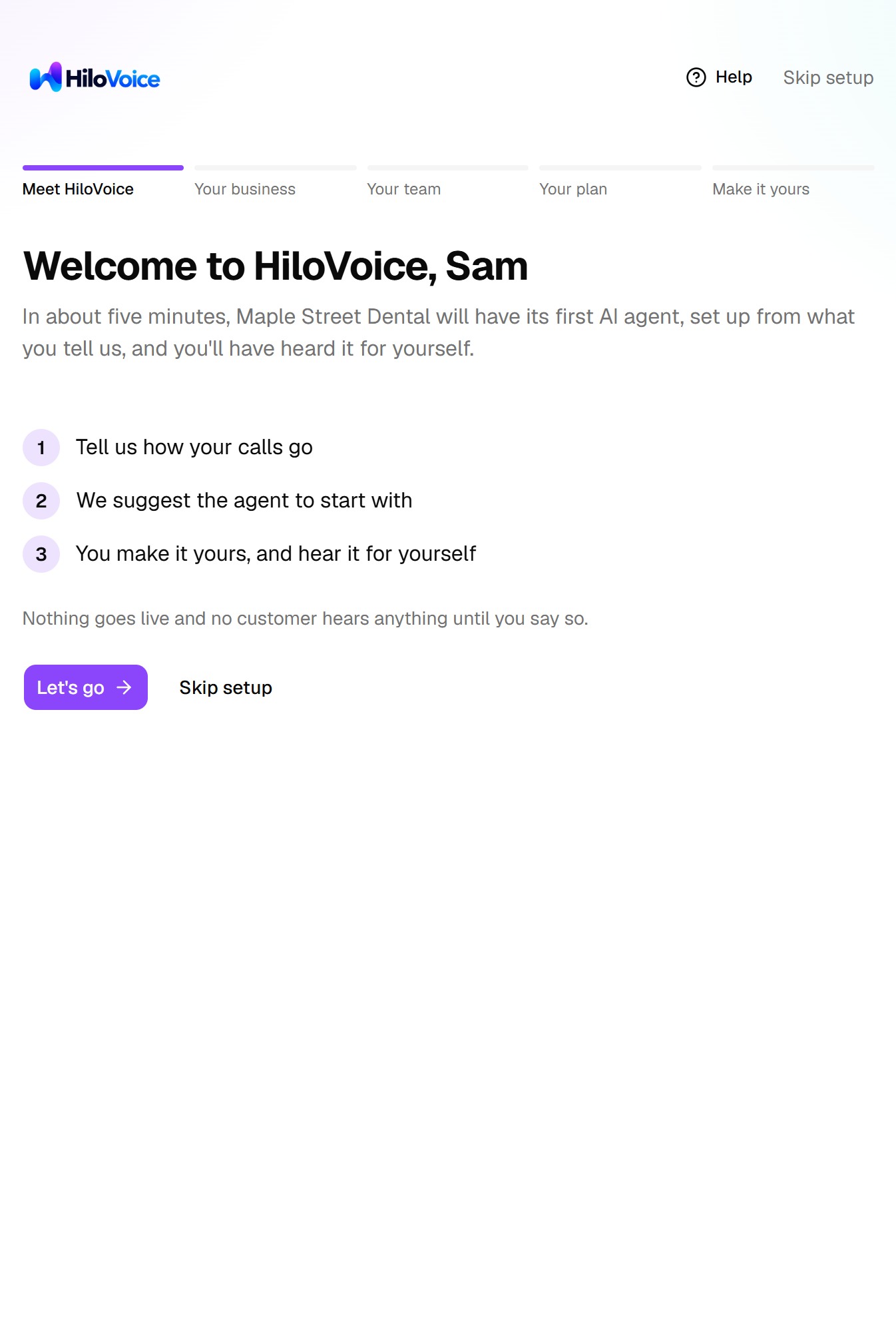
Welcome to HiloVoice, <your first name> lists what's ahead. Click Let's go.
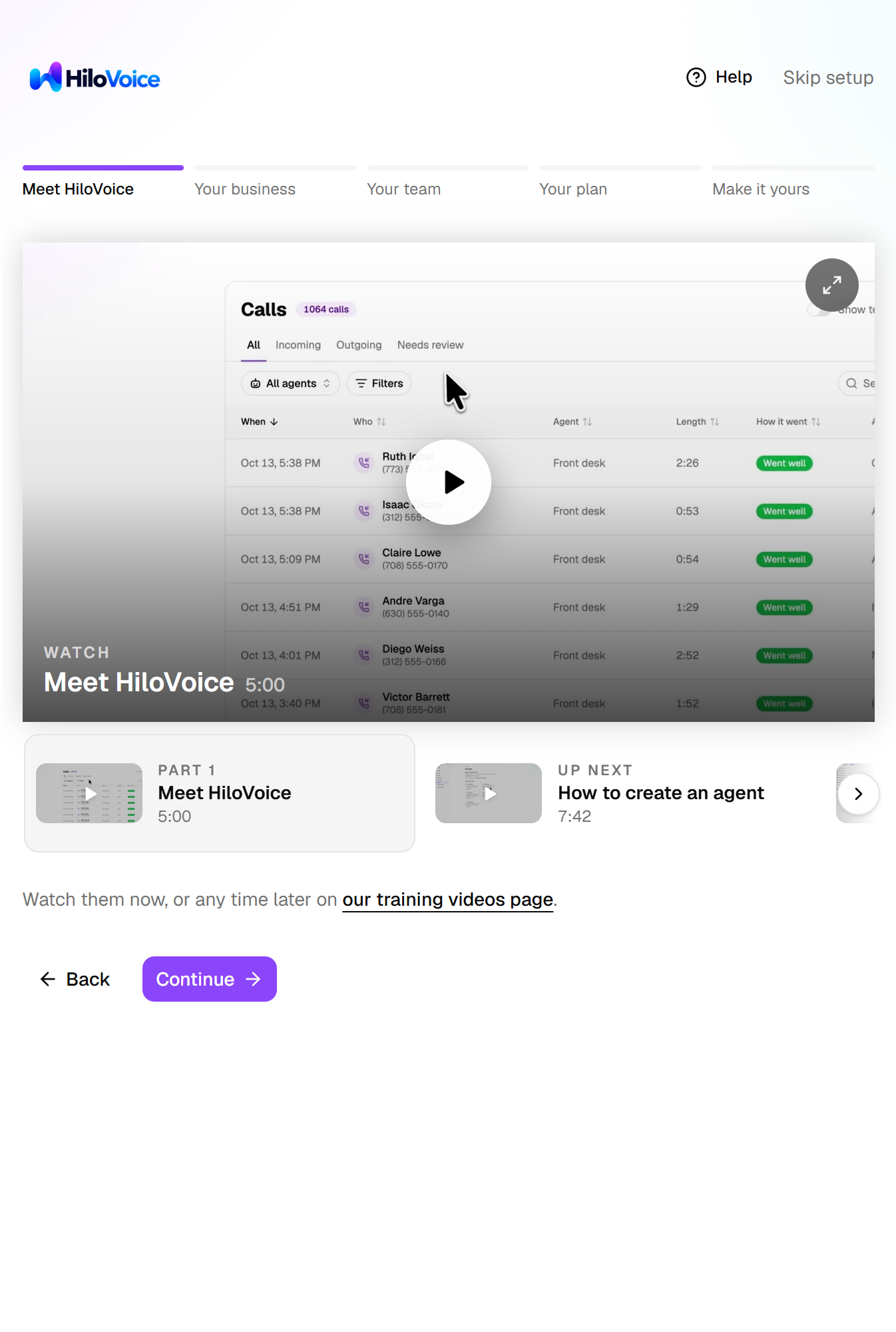
The training videos come next, from what HiloVoice is to setting up each part. Watch any you like, now or later on the training videos page, and click Continue.
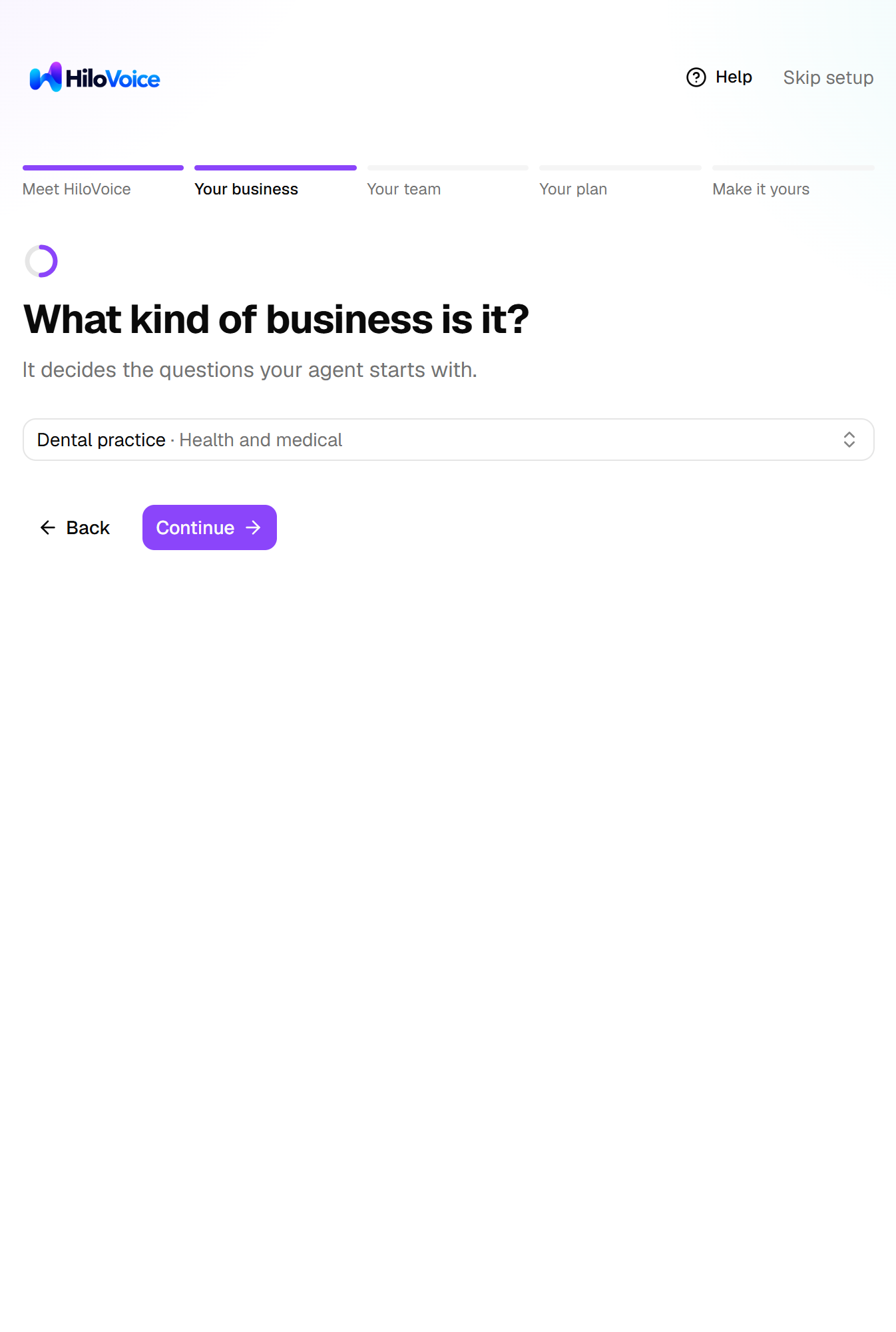
Your business, one question at a time. Click Continue after each:
- What's your business called? Check the name.
- What's your business phone number? Type the number your customers call you on.
- Does it have a website? Type it if you have one, or click Skip.
- What kind of business is it? Open the list and choose yours, such as Dental practice: type to search it, or type your own if it isn't there.
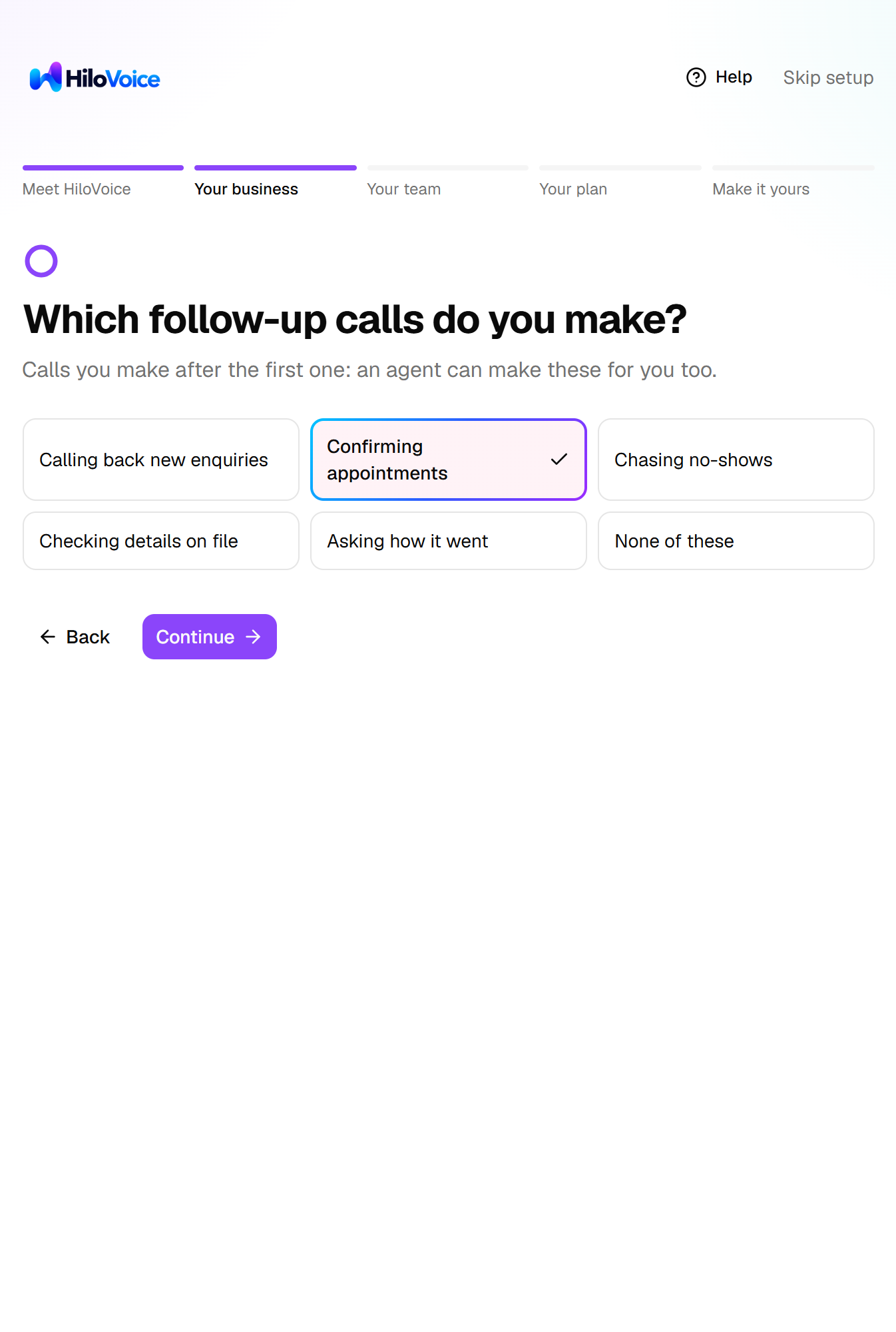
Your calls, four more questions one at a time (see Your calls). Click Continue after each.
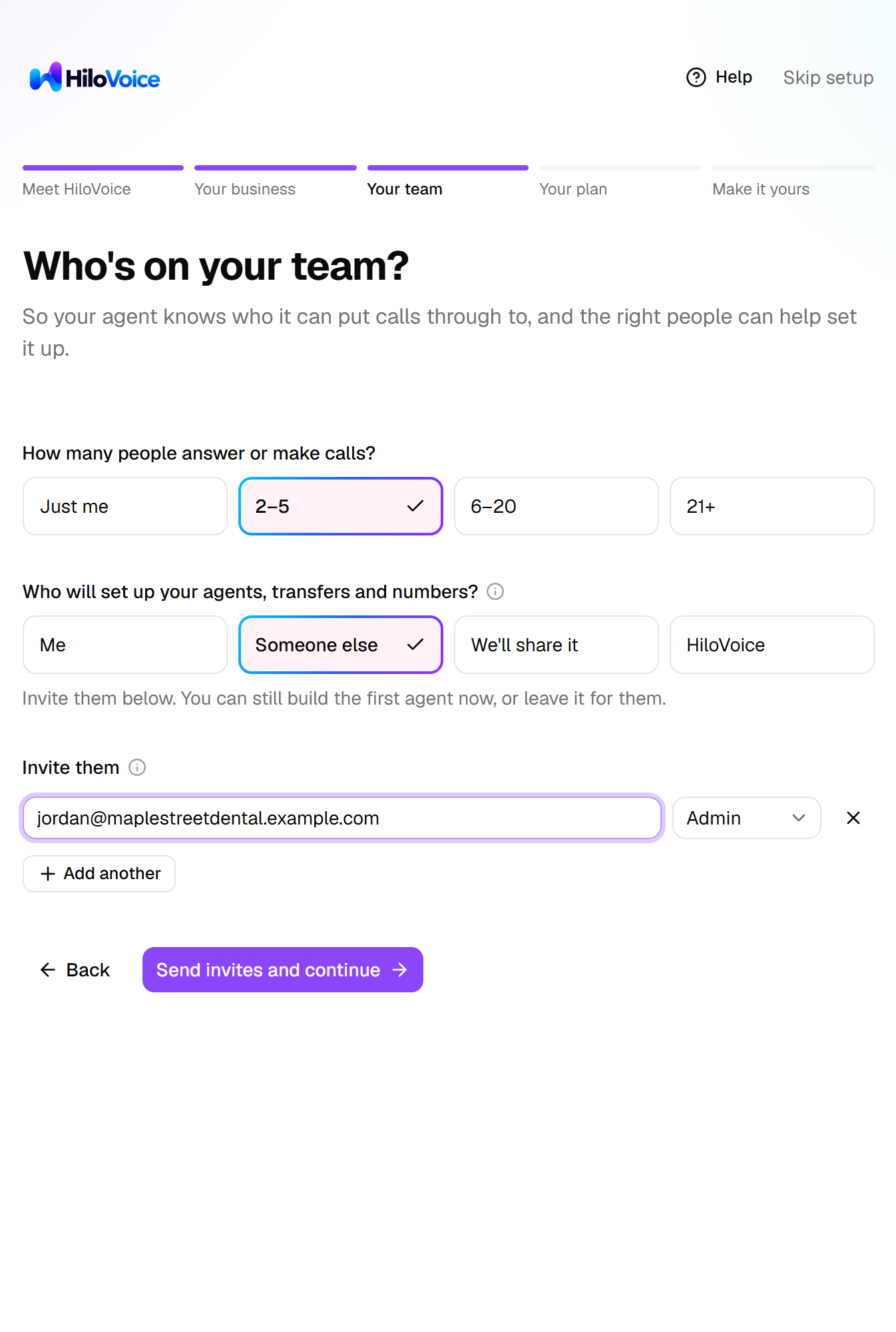
On Who's on your team?, say how many people answer or make calls and who will set things up. To invite someone, type their email and choose their role. Click Continue, or Send invites and continue.
On Here's your plan for <your business>, check the numbers and the agent HiloVoice suggests (see Your plan). Click I'm ready to create my agent. It takes about a minute.
Choose your agent's voice from the four shown, or from Other voice under them, then its name and how it answers or opens a call. Then click Bring <name> to life.
Hear it: have it call your phone, or talk to it in your browser. Click I've heard <name>. Usage opens, and the tour of the menu starts.
From Your business to Your plan, each page has Back. On the business and call questions it goes back one question. What you answer is saved as you move on. If you close the tab before your agent is built, the welcome opens where you left off.
Your calls
- About how many calls a week? Click the range, such as 50–100. Under it, HiloVoice says it in words, such as That's about 10 a day.
- Do more calls come in, or go out? Click one, from All coming in to All going out. Calls coming in are customers ringing you. Calls going out are you ringing them, to confirm, follow up or ask for feedback.
- When do calls slip through? Click each that's true: When we're busy, After hours, Weekends, Lunch breaks, or Hardly ever.
- Which follow-up calls do you make? Click each you make: Calling back new enquiries, Confirming appointments, Chasing no-shows, Checking details on file, Asking how it went, or None of these.
Your team
- Who will set up your agents, transfers and numbers? offers Me, Someone else, We'll share it and HiloVoice. Someone else opens a row to invite them, as an Admin, who can do everything but hand over ownership. HiloVoice shows the number to call our AI receptionist, (855) 557-4549, to have it set up with you. You can still build your first agent meanwhile.
- Invite teammates opens the same rows when you set things up yourself. Each person gets an email with a link to join. Click the X to remove a row before you send it. A tick shows each invitation that went. Invite your team explains the roles.
Your plan
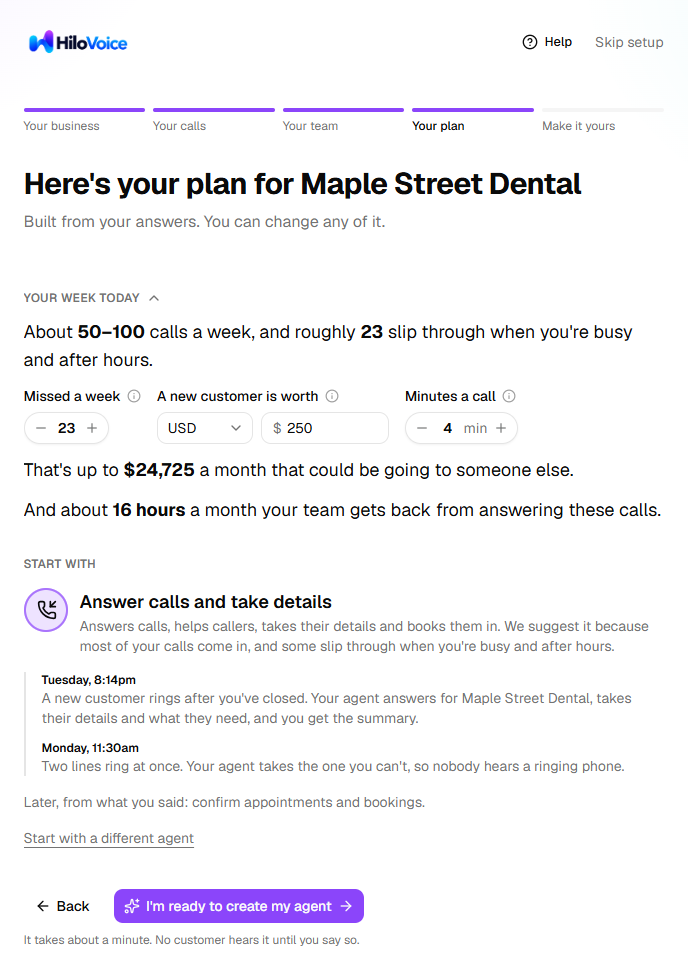
- Your week today is open to start: click it to fold it away. It turns your answers into an estimate of the calls you miss each week. Change Missed a week if you know better, and A new customer is worth to what one is worth to you. HiloVoice fills in its estimate for businesses like yours to start from. The line under them shows what that comes to in a month.
- Minutes a call is about how long one of these calls takes someone on your team (or you, if you answered Just me), 4 to start with. The line under the money says how many hours a month you or your team get back: the calls your agent would answer, or make if it's one that calls people, at those minutes each.
- The currency beside A new customer is worth starts as the one for where your browser is set, such as GBP in the UK, or USD. To change it, click it and choose yours. HiloVoice uses it wherever it shows what your agent is worth to you, such as on Usage.
- Start with is the agent HiloVoice suggests, and why:
- When most of your calls come in, it's a receptionist that answers them.
- When most go out, it's an agent that makes the calls you said you make, such as confirming appointments.
- If you came from a template on the HiloVoice website, it's the agent you chose there.
- Later, from what you said names the other agents your answers point to. You can add them once your first agent is working.
- To start with another kind of agent, click Start with a different agent and choose one. A kind your plan doesn't include shows a lock.
If HiloVoice is still reading your website when you click I'm ready to create my agent, the page says Finishing reading your website. It builds as soon as the reading is done. To build now, click Build it without the website.
Make it yours
These are the welcome's last two pages, as in Create your account.
- For a receptionist, the page is Meet your receptionist. How they answer is the greeting callers hear.
- For an agent that makes calls, the page is Meet your agent. How they open the call is what people hear when it calls them. You hear it in your browser, because it doesn't ring your phone.
To shape more than its voice, name and greeting, click Go to full setup. The agent's full setup opens, with what you chose kept as a draft. There you can change the questions it asks, your hours, appointments, transfers to your team, answers to common questions and more. After you've heard it, the same link is under Want it to do more, or say things differently?
If you said calls slip through after hours or at weekends, your receptionist starts out doing everything after hours that it does in the day, not only taking messages.
Skip the rest
To leave the guided welcome, click Skip setup, at the top of any page or next to Let's go on the first page. Skip the guided setup? offers:
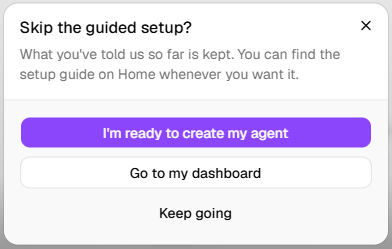
- I'm ready to create my agent: the page for making an agent opens, with your kind of business and the suggested agent filled in.
- Go to my dashboard: Usage opens.
- Keep going: back to where you were.
What you've answered is kept either way.
What happens next
- Everything in Create your account applies: you're the Owner, your free trial has started, and the email to confirm your address is on its way.
- What you said about missed calls is kept. Usage shows it beside what your agent answers once it's live.
- The people you invited get their email. Until they join, Settings → Team lists them under the invitations still open.
- Your agent is ready but has no phone number yet, so no caller can reach it. Set up your first agent gives it one.
If it does not work
| You see | Why | What to do |
|---|---|---|
| Couldn't save your answers just now. They're kept here, and saved again on the next step. | Your answers didn't reach HiloVoice that time | Carry on. They're saved with the next page's answers. |
| That isn't an email address. under an invite row | The address is mistyped | Fix it, or click the X to remove the row. Then click Send invites and continue again. |
| <email> is on the team already. under an invite row | That person has joined already | Click the X to remove the row, then click Continue. |
| A line saying the build didn't work, and Try again | HiloVoice couldn't build the agent that time | Click Try again. If it still fails, click Skip setup, then I'm ready to create my agent. |
| Something went wrong. Please try again. on What kind of business is it? | Your business couldn't be saved | Check your connection, then click Continue again. |
| Your business couldn't be loaded. Check your connection and try again. | The welcome couldn't fetch your business | Check your connection, then click Try again. |
Read next
- Set up your first agent: the rest of your agent's setup, and a number to answer
- Invite your team: logins and roles for the people who work with you
- Agent types: what each kind of agent does
- Get help: the setup guide, the tour, and how to reach support