
Change your organization's settings
For OwnersChecked against the app on October 1, 2026
Settings → Organization holds what every agent works from: your organization's name, the time zone its hours are read on, and the country whose phone numbers and emergency number apply. It also decides how leads are counted, and gives you a copy of everything. How often one number may call you is set under Call limits, on Settings → Blocked numbers.
Before you start
- You're an Owner or Admin. Everyone else can look at these settings, but not change them.
- Settings is in the account menu at the foot of the sidebar.
Steps
Change the name, phone number, time zone or country
Open Settings → Organization.
Under Details, change the Name, Business phone number, Time zone or Country. Search the time zone by city, country or offset, and the country by name or dialling code.
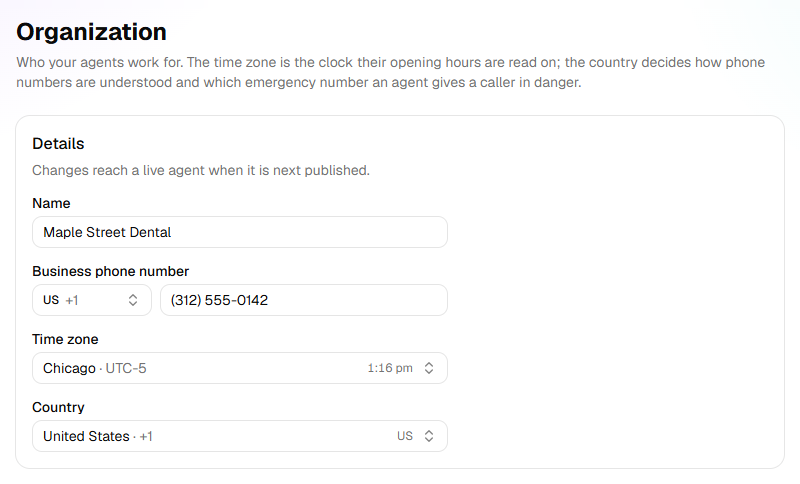
Click Save. Discard puts back what was saved.
A message says Organization updated — agents pick up the time zone and country on their next publish.
If they're already right, click These are right under them instead (it shows until the details are checked). Either one ticks Check your business details in the setup guide.
| Setting | What it decides |
|---|---|
| Name | Your organization's name in HiloVoice, in its emails, and under a Receptionist's name on its public page. A new agent starts with it as its business name; after that, each agent's own is on its Business Information step. |
| Business phone number | The number your customers call you on today, kept with your details. Choose its country, then type the number. It's needed to save the details: an organization made before HiloVoice asked for it adds it the next time. |
| Time zone | The clock an agent's hours are read on, unless the agent has a Timezone of its own on Hours of Operation or Calling Hours. |
| Country | How phone numbers written without a country code are understood, and which emergency number an agent gives a caller in danger. |
Important: A live agent keeps the old time zone and country until it's published again. Open each live agent: where it says An update is ready. Publish it to give callers the latest., click Publish update.
Choose how leads are counted
On Settings → Organization, find Leads.
Switch Combine leads across agents on or off. It saves at once.
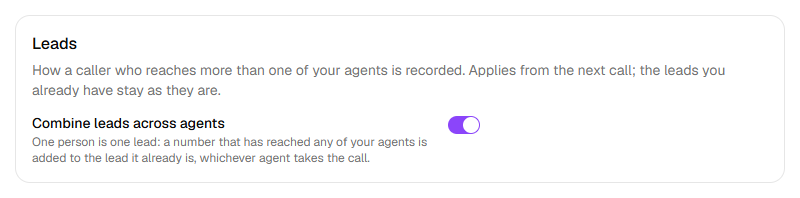
With it on, as it starts: One person is one lead: a number that has reached any of your agents is added to the lead it already is, whichever agent takes the call. With it off, each agent keeps its own leads, and a number that reaches two agents is two leads. The change applies from the next call; the leads you have stay as they are.
Limit how often one number can call
Open Settings → Blocked numbers. Call limits is at the top of the page.
Choose a limit on each row, or leave it at No limit. Every row starts at No limit.
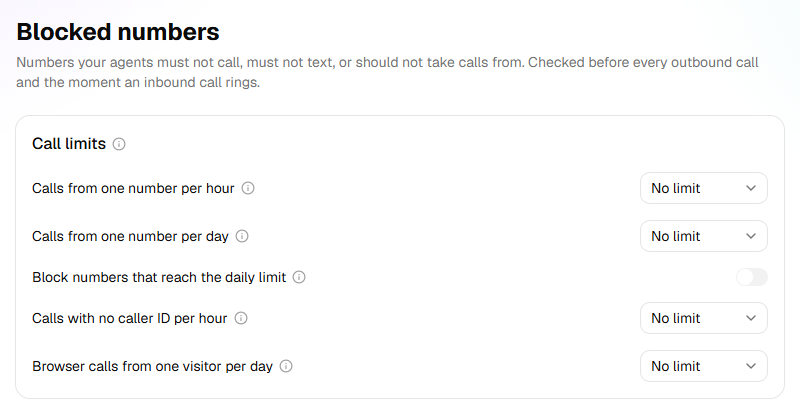
To block a number that reaches its daily limit, switch on Block numbers that reach the daily limit.
Click Save limits. A message says Call limits saved.
| Limit | What it counts | A caller over it |
|---|---|---|
| Calls from one number per hour | Calls from one number in the last 60 minutes, to any agent on any of your lines | Hears We've had several calls from this number recently, so we can't take another one right now. Please try again later. Goodbye. |
| Calls from one number per day | The same, over the last 24 hours | Hears the same. With Block numbers that reach the daily limit on, the number also goes on the block list as Don't take calls from it, with the reason Automatic: <n> calls in 24 hours. |
| Calls with no caller ID per hour | Every call with a hidden number, all together, in the last 60 minutes | Hears We can't take another call from a hidden number right now. Please call back with your number showing, or try again later. Goodbye. |
| Browser calls from one visitor per day | Calls from your Receptionists' public pages, by the visitor's internet address, over the last 24 hours | Sees That's as many calls as this page takes from one visitor in a day. Please try again tomorrow. |
- Callers on your Transfer list are never turned away, and test calls are never counted.
- A turned-away call still counts, so a number that keeps calling stays turned away.
- A turned-away call shows on Calls marked Over call limit. It doesn't count towards your minutes.
- New limits apply from the next call. There's nothing to publish.
Tip: If your phone company forwards calls without the caller's number, those calls count as having no caller ID. Set Calls with no caller ID per hour with that in mind.
Download everything
- On Settings → Organization, under Download everything, click Download everything. While it works, the button says Putting it together…. A big organization can take a minute.
- Your browser saves a .zip file named after your organization and today's date.
Inside, README.txt says what each file is: your settings and call limits, every agent as it's set
up, every call with what it collected and what was said, and your leads, contacts and campaigns, as
spreadsheets (CSV) and JSON. Times are in UTC. Call recordings and the files callers sent aren't in
it: open a call to play or download those.
Close the organization
Owners only. Download everything first if you want a copy.
- On Settings → Organization, under Close the organization, click Close and the organization's name.
- Read what it does, type the organization's name, and click Close it.
At once, calls stop: its agents are paused, running campaigns pause, and anyone who rings is turned away. The phone numbers HiloVoice rents you are released, and a released number can't be got back. A paid plan ends when its period does. Everything else is kept for 30 days, and nothing in it can be changed. Its pages say it's closed and the date it will be deleted.
To undo it within the 30 days, an owner opens the organization and clicks Reopen it. Its agents and campaigns stay paused until you resume them. After the 30 days, everything in it is deleted for good; the people on its team keep their own accounts.
What happens next
- Every change here, and every download, is recorded on Settings → Activity, if your plan includes it.
- Changing the name shows at once wherever the organization is named.
Not on this page
- Leaving the organization: Leave the team, on Settings → Team.
- Deleting your own account: Delete your account, on Settings → Profile. You type the email you sign in with. If you're the only owner of an organization, close it or make someone else an owner first.
- How agents say names: pronunciations belong to the whole organization, but you set them from an agent's Business Information step.
- Rehearsals of a new version: there's no setting for them. HiloVoice turns them on for an organization.
If it does not work
| You see | Why | What to do |
|---|---|---|
| Only an owner or admin can change the organization. | Your role is Builder or Analyst | Ask an owner or admin. |
| Combine leads across agents is greyed out | Your role is Builder or Analyst | Ask an owner or admin. |
| Only an owner or admin can change these. under Call limits | Your role is Builder or Analyst | Ask an owner or admin. |
| The daily limit can't be lower than the hourly one. | The daily limit is lower than the hourly one | Raise the daily limit, or lower the hourly one. |
| Only an owner or admin can download everything. | Your role is Builder or Analyst | Ask an owner or admin. |
| Couldn't put the download together. Try again in a moment. | The download couldn't be made this time | Try again in a moment. |
| An agent still uses the old time zone | It hasn't been published since, or it has a Timezone of its own | Publish it, or change the zone on its Hours of Operation or Calling Hours step. |
| A real customer was turned away | They called more often than a limit allows | Raise the limit. If their number was blocked automatically, remove it from the list on Settings → Blocked numbers. |
Read next
- Manage members and roles — who can change these settings
- Calls, leads and contacts — what a lead is
- Block a number — the block list under the call limits
- Plans, minutes and limits — the limits your plan sets