
Send messages after a call
For BuildersChecked against the app on October 1, 2026
Once a call has ended, HiloVoice can text or email the person, tell your team, ask for a review, or pass the call on to another system. The agent isn't told about any of this. An outbound agent (Confirmations, Detail checks, Feedback, Follow-ups) sets it on its After the Call step. A Receptionist sets it on Caller Handling: on each kind of caller's After the call tab, or under After every call when kinds of caller are off. Which calls each list follows is under When each list runs, below.
Before you start
- You're an Owner, Admin or Builder.
- To email the person, the agent has to collect their email address: on a Receptionist, tick Email address under a kind's Contact details to ask for. An outbound agent can also use the email on their contact from the campaign's list.
- Post to Slack, Send to Zapier and Send to your CRM are offered once that service is connected under Settings → Integrations.
Steps
Add a text or an email
- Open the list. On an outbound agent, open Optional in the step rail and click After the Call. On a Receptionist, click Caller Handling, then a kind of caller and its After the call tab, or use After every call.
- Click Add an action, then Send a text or Send an email. The first of each goes to the person on the call: Send it to the caller is ticked (Send it to the person called on an outbound agent). For your team instead, untick it and type the number or address under Send it to. Add one message per person.
- Write the Message. Type
{{anywhere for a list of what you can drop in: the caller's answers (on an outbound agent, also what the campaign's list says about them),{{agent_name}},{{agent_company_name}},{{outcome}},{{caller_number}},{{call_summary}}, or{{call_details}}for every answer at once, followed by any appointment the call booked, moved or cancelled and its time. A message to your team can also carry{{call_link}}and{{lead_link}}: short links that open the call or the lead without signing in ({{lead_link}}needs Create a lead on the same list). A detail the call didn't capture comes out blank. - An email has an optional Subject, and starts Formatted: headings, bold, lists and links, with Insert call details for the call's summary and a table of every answer and appointment. HiloVoice sends a plain-text copy alongside. Untick Formatted for plain text; your words are kept.
- Use a template fills in words saved for your organization. Save as template saves these for every agent; a name already in use is rewritten with them.
Ask for a review
Click Add an action, then Ask for a review. A ready-made text appears: Thanks for speaking with {{agent_company_name}} today! If you have a moment, we'd love a review: {{review_link}}. Change the words if you like, but keep
{{review_link}}.Under Send it to the caller by (Send it to the person called by), choose Text or Email. The email comes ready-made too, with a Leave a review link.
Paste Your review link. On Google: your Business Profile, then Ask for reviews, then copy the link (it starts
https://g.page/r/). Any review site's page works. Pasted withouthttps://, HiloVoice adds it when you leave the box.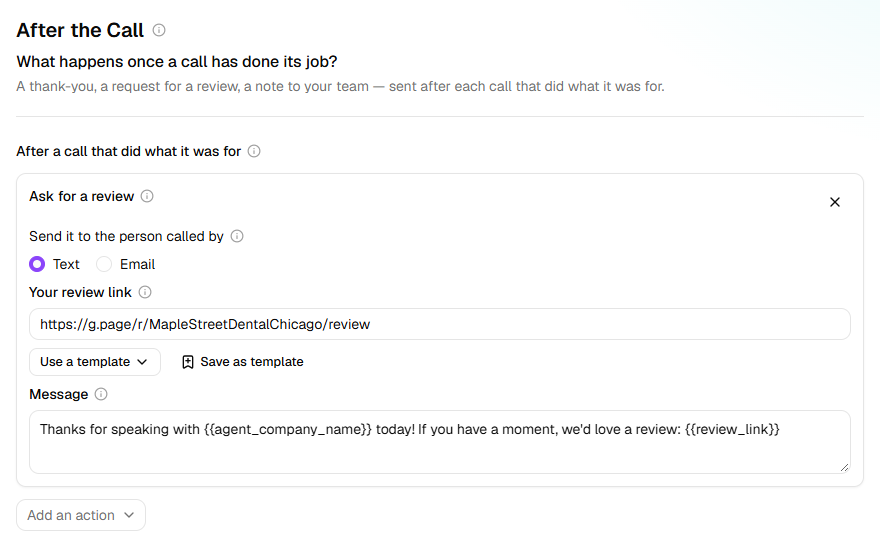
Everyone the list covers is asked, whatever they said on the call: Google doesn't allow asking only the people likely to leave a good review. A list holds one review request, and a thank-you can go to the same person alongside it. A new request starts with the link the agent uses elsewhere.
Other actions
- Call a webhook: HiloVoice POSTs a
call.completedevent, with the outcome, what was captured and a summary, to the URL to POST to. With a Signing secret, each delivery carriesX-HiloVoice-Signatureso your system can check it came from HiloVoice. - Post to Slack: who called, which agent and how it ended, in your connected channel.
- Send to Zapier: the call and its answers, for a Zap to carry anywhere.
- Send to your CRM: what the call captured, into the CRM you connected.
- Create a lead: puts the caller on the Leads page. On a Receptionist, ticking a kind on Lead Capture adds it for you.
What happens next
- Changes take effect when you publish on Review & Go Live.
- Each call's After the call tab on Calls lists every action as Done, Pending, Retrying, Skipped or Failed, with the reason when it didn't go out, and Because: which list it came from.
- An action that fails for a reason that may pass, such as a site that was down, is tried again a few times. If it fails for good, owners, admins and builders get a notification.
When each list runs
| List | Runs after |
|---|---|
| After the Call, on an outbound agent | Each call that reached the person and did what it called for. Never a voicemail or no answer: the campaign tries again. |
| After every call, on a Receptionist | Each call that did what it was for, including one where Caller Screening turned the caller away. Not one that was cut short or went nowhere. |
| A kind of caller's After the call tab | Each call the agent took to be that kind of caller. |
The first two don't run after a call the agent put through to a person. On an outbound agent, a call did what it called for when it ended:
- confirmed or cancelled, on Confirmations;
- verified, with or without changes, on Detail checks;
- with every question answered, on Feedback;
- with the goal completed, on Follow-ups.
If it does not work
| You see | Why | What to do |
|---|---|---|
| Test calls don't send texts. or Test calls don't send emails. | The call was a test from Try it | Messages go out on real calls only. Ring a Receptionist's number from your own phone to see one. |
| The caller's number isn't known for this call. | No number came with the call, and the caller gave none | Ask for one: tick Phone number under the kind's Contact details to ask for. |
| <number> is on the do-not-text list. | The number is marked Don't text this number under Settings → Blocked numbers | Nothing to fix: HiloVoice never texts it. |
| The caller didn't give an email address on this call. or No email address for the person called: the call didn't collect one and their contact has none. | There was no address to send to | Have the agent ask for one, or put emails in the campaign's list. |
| No email sender is connected. Connect one under Integrations and emails will go out. | There's no email sender to send from | Connect one under Settings → Integrations. |
| On Review & Go Live: After the call: the email has nobody to send it to. or After the call: the email has nothing to say. | The email is missing who it goes to, or its words | Tick Send it to the caller or fill in Send it to, and write the Message. |
| On Review & Go Live: After the call: the text message asking for a review needs your review link. | Your review link is empty | Paste your review page's link. |
| On Review & Go Live: After the call: the text message has an unfinished {{ — pick a detail from the list or remove the braces. | A {{ was opened and never closed | Pick a detail from the list, or delete the braces. |
On a kind of caller's list, the last two start with the kind's name instead of After the call, and a message missing who it goes to or its words is reported as This can't be saved yet when you close the kind.
Related
- Handle each kind of caller — a Receptionist's lists, kind by kind
- Turn callers into leads — Create a lead, and who becomes one
- Campaigns and recipients — why a voicemail or no answer is called again
- Calls, leads and contacts — the After the call tab on a call