
Describe the business
For BuildersChecked against the app on October 1, 2026
Business Information is the first step for every kind of agent: a Receptionist, an outbound agent or a Follow-ups agent. It holds the business name the agent says, and the industry HiloVoice writes the agent's first draft for: what it asks, the answers it may give, and when it hands a call to a person. The services you offer and the areas you cover are optional. They help the agent tell what a call is about, and whether someone is in range.
Before you start
- You're an Owner, Admin or Builder.
- If you want HiloVoice to write the agent's first draft, do it before you work on the other steps. Create it for me replaces most of what's on them.
Steps
Open Agents and click the agent. Its builder opens on Business Information.
In Business name, type the name callers know you by, such as
Maple Street Dental: the trading name, not the legal one. Callers hear it in the greeting.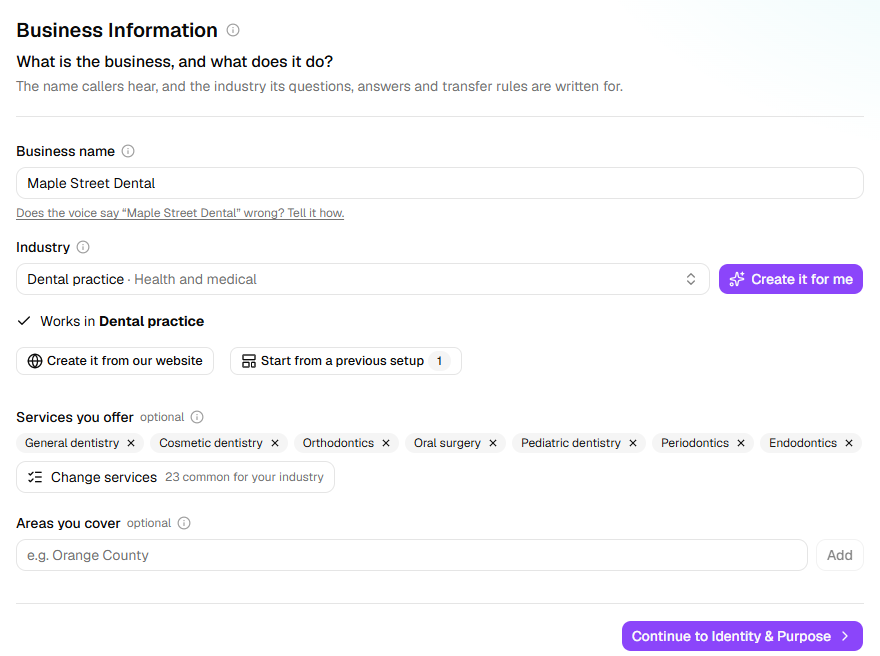
If the voice says the name wrong, click the line under the box: Does the voice say “<business name>” wrong? Tell it how. Type the name the way it sounds, with capitals on the part you stress and hyphens between syllables. Click Hear it until it sounds right, then Save.
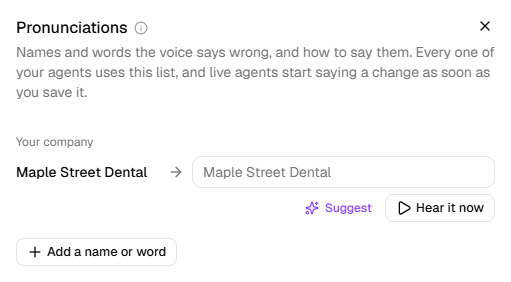
Important: Pronunciations belong to your whole organization, not to this agent. Every agent uses the list, and live agents start saying a change as soon as you save it, without publishing.
Under Industry, choose the closest match, or type your own. Be specific:
Personal injury lawgets better questions thanLegal. The step now says Works in <industry>.Click Create it for me. If the agent is already partly filled in, HiloVoice asks first; click Recreate it. Writing takes about half a minute, then the builder opens on this step again.
Important: On an agent you've already filled in, Create it for me replaces its questions, answers, opening hours and other settings, and Undo can't bring them back.
Under Services you offer, click Choose services. Tick what you provide, add any that are missing under Add your own, and click Done.
Under Areas you cover, type each city, county, state or region, and press Enter.
Create it from your website
Instead of steps 4 and 5, HiloVoice can read your website and write the first draft from it. Like Create it for me, it replaces most of what the agent had.
- Click Create it from our website. If the agent is already partly filled in, HiloVoice asks first; click Continue.
- Type your address, such as
maplestreetdental.com, and click Read it. Reading takes a minute or two. - Check each part of Here's what we found on <site>: the industry, business name, services, opening hours, areas and suggested answers. Change or remove anything that's wrong. The industry is needed.
- Leave Keep the site's text as a document the agent can answer from ticked if you want the agent to answer from your site's pages.
- Click Create the agent.
HiloVoice keeps what it found on each site your organization reads. For your next agent, the button becomes Use details from <site>: it opens the same check straight away, with no wait, and says when the site was read. Click Read it again there if your site has changed since. Another website reads a different site; typing a site already read uses what was kept.
Start from a previous setup
Every starting point HiloVoice writes for your organization is kept. Once there's one for this kind of agent, Start from a previous setup appears on this step. Click it, then click the setup you want, to copy it into this agent. If the agent already has questions or answers, HiloVoice asks first, Replace your current setup?; click Replace it. Undo takes it back.
What happens next
- The step gets a tick once it has a business name, as long as it isn't Your Company, the stand-in a new agent can start with.
- After Create it for me, the agent has new questions, answers, opening hours and transfer rules. It keeps its business name, its names and voices, your services and areas, and any documents you uploaded. Go through the steps, then try a call.
- With services listed, a question can be asked only for some of them, on the questions step.
- On a live agent, callers get your changes when you publish them. Pronunciations are the exception.
Note: Create it for me writes one starting point for each industry and kind of agent. Clicking it again for the same industry brings back the same one. For a different result, describe the industry more precisely.
If it does not work
| You see | Why | What to do |
|---|---|---|
| Create it for me is greyed out | No industry is chosen | Choose or type an industry first. |
| We couldn't create a starting point for this industry right now. Please try again, or start from the general template. | HiloVoice couldn't write the starting point this time. The agent keeps what it had. | Click Create it for me again in a few minutes. |
| That doesn't look like a website address. Try something like yourfirm.com. | What you typed isn't a web address | Type the address on its own, such as yourfirm.com. |
| <site> couldn't be reached. Check the address. or <site> took too long to answer. | HiloVoice couldn't open your site | Check the address and click Read it again, or choose the industry yourself. |
| The site loads most of its content with scripts, which HiloVoice can't read — little was found on it. You can upload a document or type answers instead. | Your site builds its pages in a way HiloVoice can't read | Fill in what's missing before you click Create the agent, and add answers on Knowledge Base later. |
| That service was removed from 2 questions. | Those questions were asked only for the service you removed | Nothing to fix. Check the questions on the questions step. |
| On Review & Go Live, The agent needs a business name. | Business name is empty | Type the business name on this step. |
| On Review & Go Live, “Your Company” is still in the purpose — put <business name> there. | The draft still uses the stand-in name somewhere | Click the line to open that step, and put your business name in. |
Related
- How the builder works — the steps, saving and publishing
- Name the agent and give it a purpose — the next step
- Choose what the agent asks — questions asked only for some services
- Give the agent answers — answers and documents, your website among them