
Manage your own account
For OperatorsChecked against the app on October 5, 2026
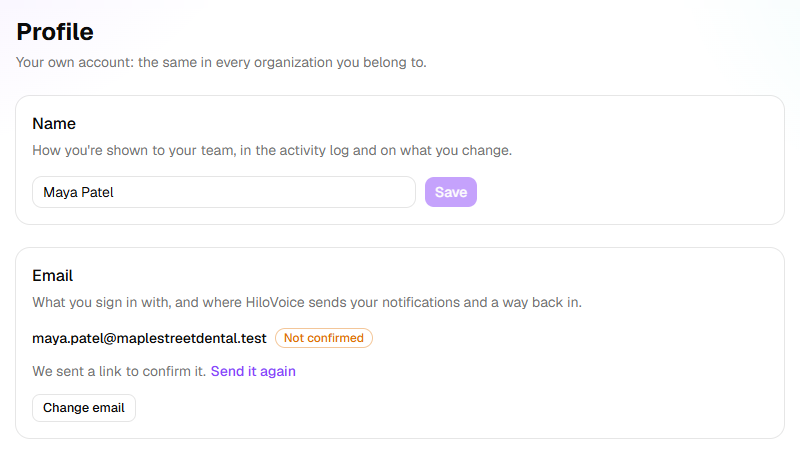
Settings → Profile is your own account: your name, the email you sign in with, your password, and the other devices you're signed in on. It's the same in every organization you belong to. Settings → Preferences sets how HiloVoice looks for you, light or dark, on the device you're using.
Before you start
- Anyone can change their own account, whatever their role.
- If you signed up with Continue with Google, your account has no password until you set one. Set one first to change your email: see Set a password, below.
- Settings is in the account menu at the foot of the sidebar. Profile and Preferences are under You.
Steps
Change your name
- Open Settings → Profile.
- Under Name, type your name as your team should see it.
- Click Save. A message says Name saved.
Your name shows to your team, in the activity log, and on what you change.
Change the email you sign in with
Changing your email needs your password. Without one, Email says To change your email, set a password first, under Password and devices. in place of Change email.
On Settings → Profile, under Email, click Change email.
In Change your email, type the New email, and Your current password.
Click Send the link. A message says A link is on its way to <new address>.
Open the email at the new address and click its link.
The page that opens says Your email is changed and You sign in with <new address> from now on. Until you click the link, nothing changes: Email says Moving to <new address> once you open the link we sent there. Until then, you sign in with <old address>. The link works once, for 72 hours. Asking again sends a new link, and the one before stops working.
Your notification emails go to the address you sign in with, so they move with it.
Confirm your email
Beside your address, Email says Confirmed or Not confirmed. While it isn't confirmed, a line over the other pages says Confirm your email: we sent a link to <address>. Its X puts it away for this visit.
- Open the email from HiloVoice and click its link. The page says Your email is confirmed.
- If it didn't arrive, click Send it again, under Email or on the line over the page.
Change your password
On Settings → Profile, under Password and devices, click Change password.

Type your Current password.
Type the New password, at least 8 characters, and type it again under The same again. The meter under it says how strong it is.
Click Change password. A message says Password changed: Every other device has been signed out.
You stay signed in on this device.
Set a password
If you signed up with Continue with Google, Password and devices says You sign in with Google, so your account has no password. and has Email me a link to set a password in place of Change password.
- On Settings → Profile, under Password and devices, click Email me a link to set a password. A message says Check your email for a link to set a password.
- Open the email from HiloVoice and click its link. It works once, for an hour.
- On Choose a new password, type a New password of at least 8 characters, and type it again under The same again.
- Click Save and sign in. A message says Your password is changed: Every other device has been signed out. You're signed in here.
You can then sign in with your email and password as well as with Google, and Change password and Change email appear on Settings → Profile.
Sign out your other devices
- On Settings → Profile, under Password and devices, click Sign out other devices.
A message says how many it signed out, such as Signed out of 2 other devices, or You weren't signed in anywhere else. You stay signed in here. Use it after signing in on a shared computer, or when a device is lost.
Choose light or dark
Open Settings → Preferences.
Under Theme, click Light, Dark or Match my device.
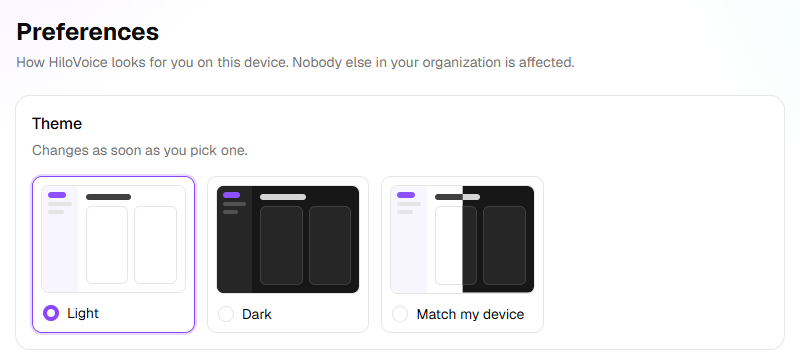
The change is made as soon as you click, with nothing to save. Match my device follows your computer's or phone's own light or dark setting. HiloVoice starts in Light.
The theme is kept on this device only, in this browser. Nobody else in your organization is affected, and another device keeps its own.
Delete your account
- On Settings → Profile, under Delete your account, click Delete my account….
- Read Delete your account?, then type the email you sign in with under Type <your address> to confirm.
- Click Delete my account. Keep it closes the box instead.
A message says Your account is deleted, and you're signed out.
Important: Deleting your account can't be undone. Your name, email, password and preferences go, along with your notifications and support requests, and you're taken off every team. You can't sign in again.
What you made for an organization stays its own: agents, leads, notes and the rest. Each team's Activity records that you deleted your account and left the team.
If you're the only owner of an organization, you can't delete your account until it has another owner, or until it's closed. Make a teammate an owner on Settings → Team, or close the organization on Settings → Organization. An organization that's already closed doesn't stop you.
What happens next
- A new name shows wherever you're named, in every organization.
- A new password, or Sign out other devices, signs you out everywhere but here. Sign in again on those devices.
- To leave one organization but keep your account, use Leave the team on Settings → Team.
If it does not work
| You see | Why | What to do |
|---|---|---|
| That isn't your current password. | The password you typed isn't the one you sign in with | Type it again. If you've forgotten it, log out and click Forgot your password? on the log-in page. |
| No email after Email me a link to set a password | Three links went to you within the hour, or it went to spam | Check your spam folder for the latest one, or try again later. |
| Too many tries just now. Wait a minute and try again. | Email me a link to set a password was clicked too often in a short time | Wait a minute, then click it again. |
| That isn't an email address. | The new address isn't written as an email address | Check it for typing mistakes. |
| That's the address you sign in with already. | The new address is the one you have | Nothing to change. |
| That address is on another HiloVoice account. | Someone already signs in with it, perhaps you, with a second account | Use another address, or delete the other account first. |
| Several links have gone out this hour already. Check your inbox and spam folder, or try again later. | Three links of one kind went to you within the hour | Look for the last one, which is the one that works, or try again later. |
| The email couldn't be sent just now. Try again in a minute. | The email didn't go | Try again in a minute. |
| That link has expired or been used. Ask for a new one. | The link is more than 72 hours old, was used already, or a newer one replaced it | Send a new one from Settings → Profile. |
| That address is on another HiloVoice account now, so this account can't move to it. | Someone signed up with the new address after you asked for the change | Choose another address. |
| A password is at least 8 characters. | The new password is too short | Choose a longer one. |
| The two new passwords aren't the same. | The same again doesn't match New password | Type them again. |
| You're the only owner of <organization>. Close it under Settings → Organization, or make someone else an owner, then delete your account. | Your organization would be left with nobody in charge | Make a teammate an owner on Settings → Team, or close the organization. |
| The theme went back to light | You're on another device or browser, or its stored settings were cleared | Choose it again on Settings → Preferences. |
Read next
- Create your account — signing up, and confirming your email
- Keep up with notifications — what's emailed to you, and how to choose
- Manage members and roles — making someone else an owner
- Change your organization's settings — closing an organization