
Write an outbound agent's opening
For BuildersChecked against the app on October 1, 2026
The person your agent calls didn't ask for the call. The Opening step sets what they hear when they pick up, whether the agent checks it has the right person before saying why it's calling, and what it does when someone else, or a machine, answers. Every outbound agent has this step: Confirmations, Detail checks, Feedback and Follow-ups. A Receptionist's first words are its greeting, on Conversation Style.
Before you start
- Set the business name on Business Information, and the agent's name and voice on Identity & Purpose. The opening uses both, and you can hear it in that voice.
- To greet people with a detail from the campaign's list, such as their first name, add it on the Details step (Questions for Feedback and Follow-ups), with Where it comes from set to We already know it.
Steps
Open Agents and click the agent.
In the step rail, click Opening.
Under Opening line, write what the agent says first: who it is, why it's calling and how long it will take, then ask if they have a moment. Keep it to a sentence or two; a long opening gets interrupted. Type
{{to drop in a detail you hold, such as their first name. Write it for me drafts a line; with text in the box it reads Improve it for me.The bubble under the box shows what the agent will say, and its play button says it in the agent's voice. For a Follow-ups agent, ask for the person by name and say only that it's about a follow-up item: the agent says what it's about once it has the right person.
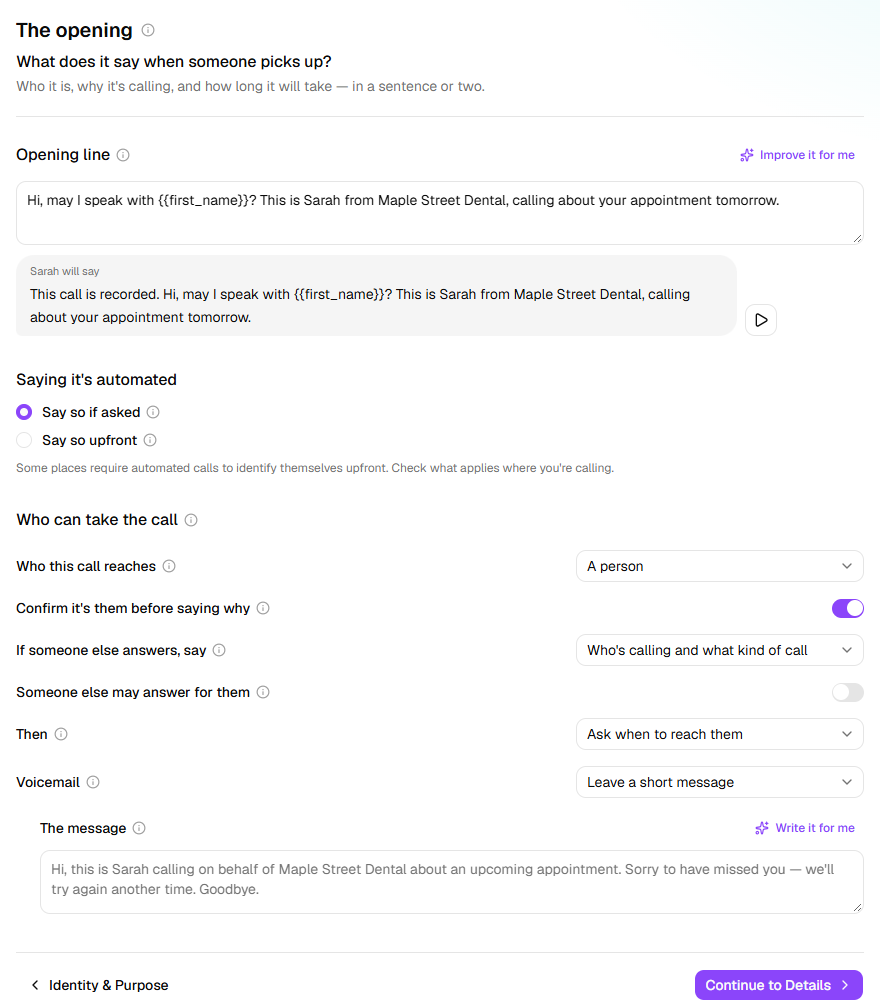
Under Saying it's automated, choose Say so upfront to open every call with This is an automated call., or Say so if asked. Either way, the agent answers honestly when someone asks whether it's a person.
Warning: Some places require automated calls to say so upfront. Check what applies where you're calling.
Under Who can take the call, set Who this call reaches. With A person, the agent asks for them by name. With A business, whoever answers is the way in: under Ask for, type the role or department, such as
accounts payable.For a person, set Confirm it's them before saying why, what to tell anyone else under If someone else answers, say, and what the agent does Then. Confirmations and Feedback also have Someone else may answer for them, so someone else, such as a household member, can answer in the person's place.
Under Voicemail, choose Leave a short message or Hang up without a message. For your own words, write them under The message: who called, for whom, and that you'll try again, never the matter itself. Left empty, HiloVoice leaves the message shown in the box. A Follow-ups agent sets its voicemail on its Goal step instead.
What the settings start as
| Setting | Confirmations | Detail checks | Feedback | Follow-ups |
|---|---|---|---|---|
| Confirm it's them before saying why | On | Always on | Off | Always on |
| If someone else answers, say | Who's calling and what kind of call | Only that it's a follow-up item | Who's calling and what kind of call | Only that it's a follow-up item |
| Then | Ask when to reach them | Ask when to reach them | Thank them and end the call | Ask when to reach them |
| Voicemail | Leave a short message | Leave a short message | Hang up without a message | On the Goal step |
What happens next
- Calls use the new opening once you publish on Review & Go Live.
- With Say the call is recorded on, under the Recording tab of Conversation Style, every call opens with that notice, before your opening line. With Say so upfront, This is an automated call. comes next. The bubble shows both. A line that already says the call is recorded, such as on a recorded line, doesn't get the notice twice.
- The person can't talk over the notices or the opening line. Anything they say meanwhile is heard once it ends.
- With the opening line empty, the agent only introduces itself, with its name and the business's.
- Someone else answering isn't a wrong number. The person was out, so the campaign tries again on its retry schedule.
- A call that reaches voicemail is recorded as voicemail. The campaign's Try again after settings decide whether the person is called again.
- Calling a business, the agent presses through recorded menus. One that leads nowhere after two rounds ends the call with reached a phone menu on the person's row, so you can give a direct line.
If it does not work
| You see | Why | What to do |
|---|---|---|
| This agent places calls but is set to wait for the other person to speak first, so it would answer with silence. | Conversation Style is set for the other person to speak first | Click Make the agent speak first. |
| The opening line is over 500 characters. on Review & Go Live | The opening line is too long | Shorten it to 500 characters or fewer. |
| “Your Company” is still in the opening line — put <business> there. | The line still has the stand-in name it started with | Type your business name, or type {{ and choose The agent's company name. |
| The opening line doesn't mention <business> — check it names the right business, or change the business name on the Business Information step. | The line names another business, or none | Name the business in the line, or correct the name on Business Information. |
| The play button beside the bubble is greyed out | The agent has no voice yet | Choose one on Voice & Purpose. |
Related
- Set a follow-up's goal — a Follow-ups agent's job, and its voicemail
- Shape how a call sounds — who speaks first, and the recording notice
- Set when an outbound agent may call — the hours these calls go out in
- Campaigns and recipients — retries, and what each person's row shows