
Ask for feedback after a visit
For BuildersChecked against the app on October 1, 2026
A Feedback agent calls people after a visit or a job, asks your questions in order, and records the answers. With Ask for a review on its After the Call step, everyone who answers its questions is then sent your review link. This playbook builds one for Maple Street Dental, which calls patients two days after their visit, and runs it on the first list. It starts from an organization with no agents. The choices that matter here are how few questions it asks, what happens to an unhappy patient, and the review request.
Before you start
- You're an Owner, Admin or Builder.
- The agent needs a number to call from. If your organization has none, an Owner or Admin gets one on the agent's Caller ID step.
- Campaigns are on your plan. If they aren't, New campaign is greyed out and names the plan that has them.
- Your review page's link. On Google: your Business Profile, then Ask for reviews, then copy the link.
- To send the request by email rather than by text, an email sender connected under Settings → Integrations.
- The patients you saw on a day, as a spreadsheet (CSV, XLSX or XLS): one row per patient, with their phone number and first name.
Steps
Create the agent
- In the menu, open Agents and click Create my first agent (New agent, once you have one).
- Under What kind of business is this?, choose Dental practice.
- Under What should it handle?, choose Feedback. It's offered the name
Feedback calls; typeVisit feedbackif you prefer. - Click Create my agent. The builder opens with a card that says <name> is ready to call for Maple Street Dental.
- On the card, click See the questions. The Questions step opens.
Write the questions
Keep to three or four. Nobody expected the call, and the review request goes only after a call where every question was answered. Choose what the agent asks has every setting.
Read the starting point's questions in order, and click X on the ones you'd cut.
Put the one that matters most first:
On a scale of one to five, how would you rate your visit?, with Answer type set to Number.End on an open one:
Anything you'd like us to know?, answered as Text.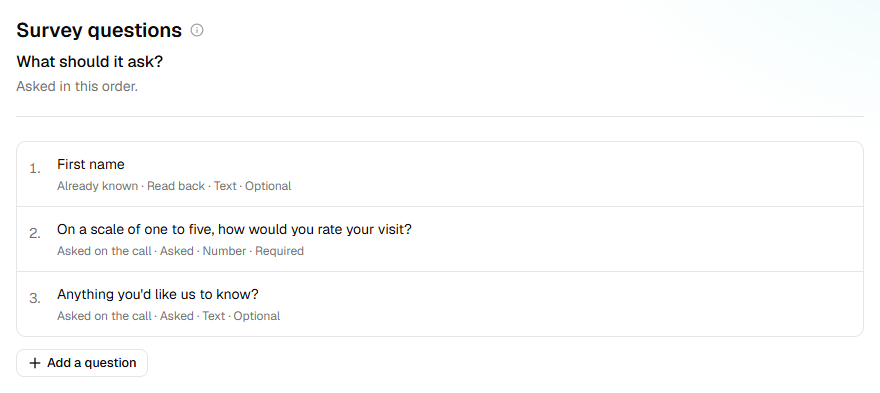
Leave each question's Where it comes from on Ask on the call, where a new question on a Feedback agent starts. Only what your list holds is We already know it.
If there's no first name, click Add a question, type
First name, and choose We already know it. The opening line uses it.
Set the opening
- Click Opening. Under Opening line, write
Hi, may I speak with {{first_name}}? This is Matilda from Maple Street Dental, with a quick question about your visit. It takes two minutes.Type{{to pick the first name from the list. - Switch on Someone else may answer for them, for children's visits: a parent who was there answers in the child's place, and the answers are recorded as theirs.
- Leave Voicemail on Hang up without a message, where a Feedback agent starts.
Catch an unhappy patient
Open Optional in the step rail and click Call Transfers.
Under Flag for review, open the row. Under Flag the call if…, add
The patient is unhappy with their visit, and click Done.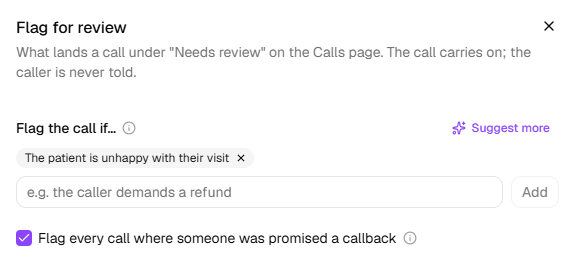
To have such a patient put straight through instead, click Add a transfer for the same situation, to your practice manager.
On Knowledge Base, under The agent never…, add
Offer a refund or a discount — say the practice manager will call.
A flagged call carries on as usual; the patient is never told. Hand calls to a person has every setting.
Ask for a review
- In Optional, click After the Call.
- Click Add an action, then Ask for a review. A ready-made text appears: Thanks for
speaking with {{agent_company_name}} today! If you have a moment, we'd love a review:
{{review_link}}. Change the words if you like, but keep
{{review_link}}. - Under Send it to the person called by, choose Text or Email.
- Paste Your review link.
Note: Every patient who answers the questions is asked, whatever they said: Google doesn't allow asking only the people likely to leave a good review. The request never goes after a voicemail, no answer, or a call that stopped part-way.
Send messages after a call covers the other actions.
Go live
- Click Calling Hours and set when patients may be called.
- Click Caller ID, then Call from this beside the number patients know.
- Click Try it, make up a patient in the boxes, and click Have it call me. Answer once as an unhappy patient. Test calls don't send the review request.
- Click Review & Go Live, fix anything under Is it ready?, and click Go live.
Warning: Calling outside reasonable hours is restricted in many places. Check what applies where your patients are, and keep Calling Hours inside it. You're responsible for your own compliance; see Your responsibilities on calls.
Call the patients you saw
- In the menu, open Campaigns and click New campaign.
- Under Agent, choose the agent. Under Name, type
Visit feedback, 29 September, and click Create. The campaign opens on Add people. - Click Choose a file and pick the patients seen that day. Check that the phone column is Phone number and the first name is First name.
- Click Add <n> rows.
- Open Launch, read Check the settings, and click Launch. Choose Start now, then click Launch.
Tip: Make your first campaign a list of one: yourself, on your own phone. You hear the call as a patient does, and the review request arrives once you've answered every question.
Important: Launching calls real people, inside the calling window, a few at a time. You can pause the campaign at any point.
What happens next
On People, What happened reads completed when every question was answered, partial when some were, and declined when the patient wouldn't take part.
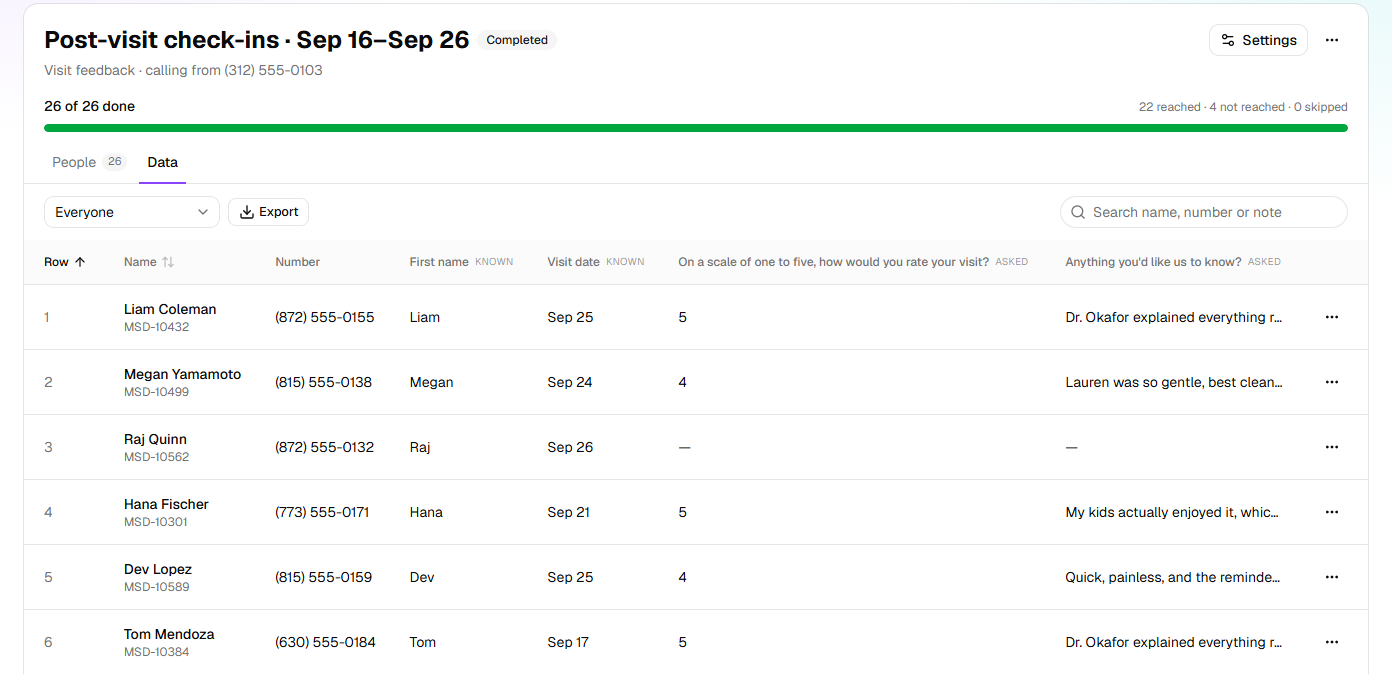
The Data tab has a column for each question, with each patient's answer. Export downloads them all.
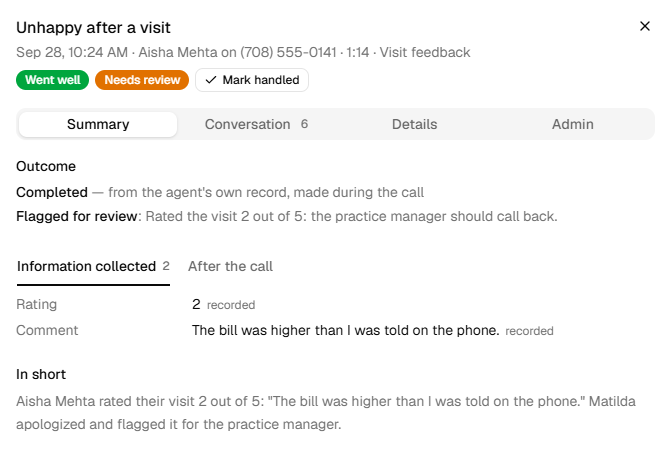
A flagged call waits under Needs review on Calls, with the agent's reason. Once someone has called the patient back, open the call and click Mark handled.
Each call's After the call tab, on Calls, shows whether the review request went out.
Each day's visits are a campaign of their own.
If it does not work
| You see | Why | What to do |
|---|---|---|
| On Review & Go Live: After the call: the text message asking for a review needs your review link. | Your review link is empty | Paste your review page's link. |
| Ask for a review isn't under Add an action | A list holds one review request, and this one has it | Open the one that's there. |
| Test calls don't send texts. on a call's After the call tab | The call came from Try it | Messages go out on real calls only. Run a campaign to your own phone. |
| No email sender is connected. Connect one under Integrations and emails will go out. | The request goes by email, and there's nothing to send it with | Connect an email sender under Settings → Integrations, or send it by Text. |
| No email address for the person called: the call didn't collect one and their contact has none. | Your list has no email for that patient | Add an email column to the list, or send it by Text. |
Read next
- Send messages after a call — texts, emails and review requests
- Monitor a running campaign — statuses, and why a campaign pauses itself
- Review your calls — flagged calls, and marking them handled
- Confirm tomorrow's appointments — the call before the visit