
Set your opening hours
For BuildersChecked against the app on October 1, 2026
The Hours of Operation step tells a Receptionist when you're open. The agent gives callers your hours, says whether you're open right now, and follows your choice for calls that come in while you're closed. It still answers every call, at any hour. Outbound agents have Calling Hours instead: see Set when an outbound agent may call.
Before you start
- The agent is a Receptionist.
- Know which time zone your hours are in. Until you choose one on this step, the agent uses your organization's, set under Settings → Organization.
Steps
Open Agents and click the agent.
In the step rail, click Hours of Operation.
Under Timezone, check the zone. To change it, click it and search for a city, country or offset. Each zone shows its time now, and your own is suggested at the top.
Set each day you're open. Click + beside a day, then set its opening and closing times. Click X to make a day Unavailable again. A day you open starts with the times of one you've already set, or 9 to 5.
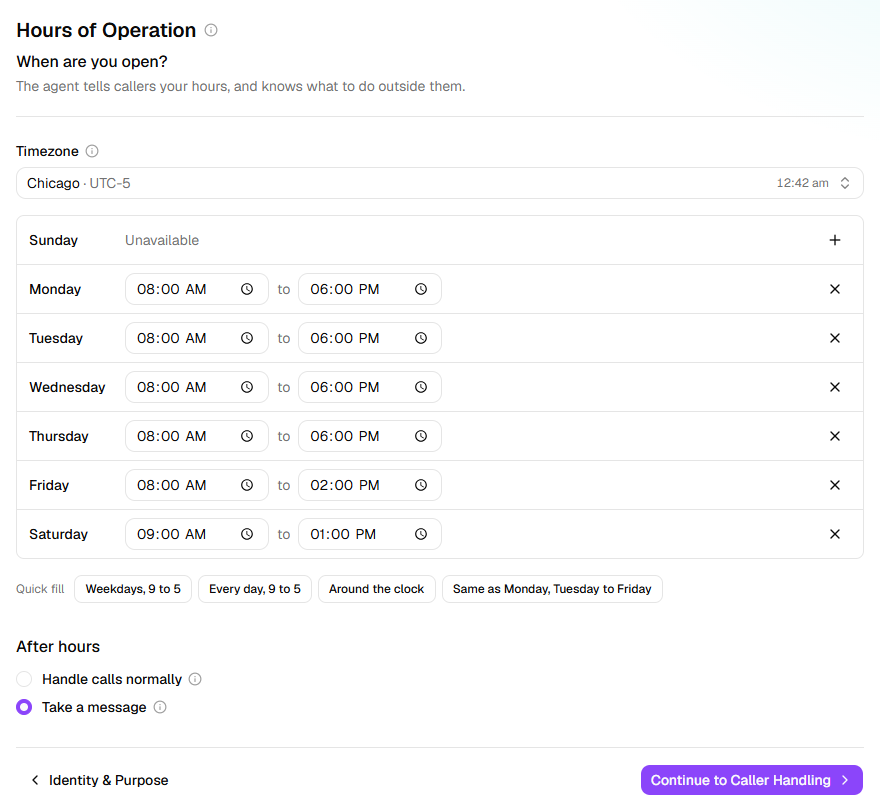
To set the whole week at once, use a Quick fill: Weekdays, 9 to 5, Every day, 9 to 5 or Around the clock. It replaces the whole week. Once Monday is set, Same as Monday, Tuesday to Friday copies it.
Under After hours, choose what the agent does with a call while you're closed. Take a message collects the caller's details and says someone will follow up. Handle calls normally takes the call exactly as it would when you're open.
The step is ticked in the rail once at least one day has hours.
What happens next
- Callers hear the new hours once you publish the agent on Review & Go Live: Go live for a new agent, Publish changes for a live one.
- The agent gives your hours exactly as you set them. It tells a caller you're closed on any day left Unavailable.
- In short, on Review & Go Live, sums them up, for example Open Mon–Fri 9am–5pm; takes a message outside those hours.
- With no hours set, the agent doesn't mention any.
- Other steps use these hours. On Call Transfers, a transfer can ring only During opening hours. On Appointment Booking, a Google Calendar appointment is booked inside them unless you give it hours of its own.
If it does not work
| You see | Why | What to do |
|---|---|---|
| Closing time has to be later than opening time. under a day | The day closes before it opens. A day's hours can't run past midnight. | Set a closing time later than the opening time. |
| The agent says you're open when you're closed, or the other way round | The Timezone isn't the one your hours are in, or the change isn't published yet | Choose the right zone, then publish. |
| A Google Calendar appointment is booked in your opening hours, and none are set — set them, or give the appointment hours of its own. on Review & Go Live | An appointment on a connected Google Calendar has no hours to be booked in | Set hours on this step, or give the appointment its own on Appointment Booking. |
| <name>: it's put through during opening hours, but none are set on the Hours of Operation step. on Review & Go Live | A transfer rings only During opening hours, and there are none | Set hours on this step, or change when that transfer rings on Call Transfers. |
Related
- Handle each kind of caller — what the agent does with each call
- Hand calls to a person — transfers that ring only while you're open
- Book appointments on a call — appointments booked inside your opening hours
- Set when an outbound agent may call — the same week, for calls going out