
Work the Needs a person queue
For BuildersChecked against the app on October 1, 2026
A Follow-ups agent stops when someone on your team should take over: the person is upset, has a question it can't answer, or is in a situation you told it to hand over. They're marked Needs a person, and nobody calls them again until someone deals with it. This topic is how you find them, and what to do with each one. Only Follow-ups campaigns hand people over this way.
Why someone is waiting
The agent hands a person over when:
- the call matches what you wrote under When a team member takes over, on the agent's Goal step;
- the person is upset, makes a complaint or mentions legal action, whatever that box says;
- with that box empty, they also dispute what they've been told, or ask something about the job the agent can't answer;
- the call was flagged for review, and the job isn't done.
A call that reached the goal is Done even if it was flagged. You'll find it under Needs review on Calls.
Before you start
- You're an Owner, Admin or Builder. An Analyst can read the queue but can't change it.
- For the agent to call someone again afterwards, the campaign has to be running, paused or scheduled. Once it's completed or cancelled, the only way to close a row is Mark as done.
Steps
Open the campaign. Beside the progress line under the header, the page says how many need a person.
On People, choose Needs a person in the list that says Everyone.
Read each row's What happened. It ends with Needs a person: and the agent's reason, such as They have an insurance question the front desk needs to check. A long note is cut short in the row: point at it to read all of it.
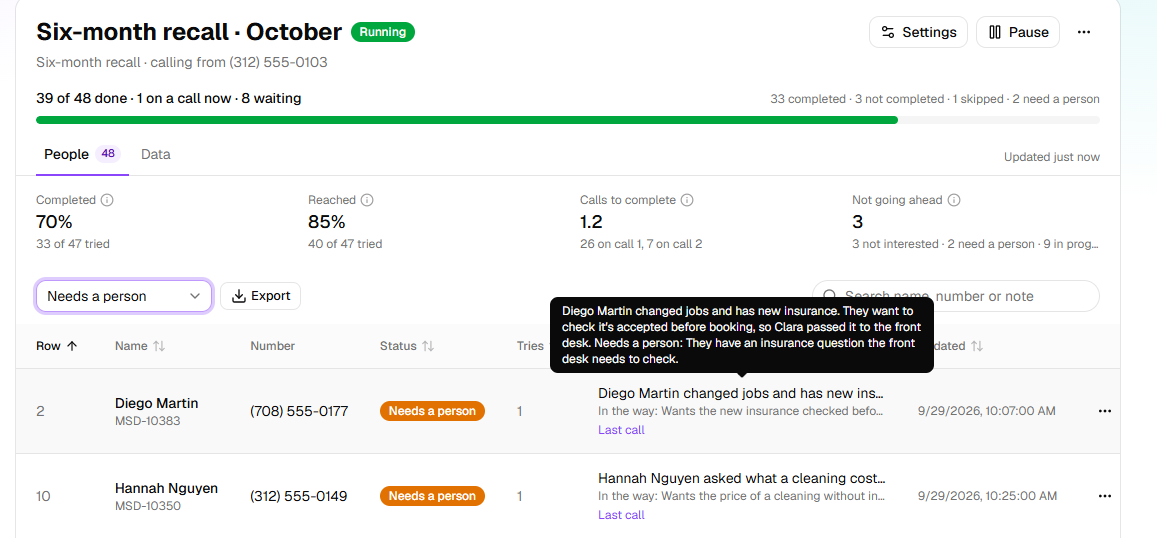
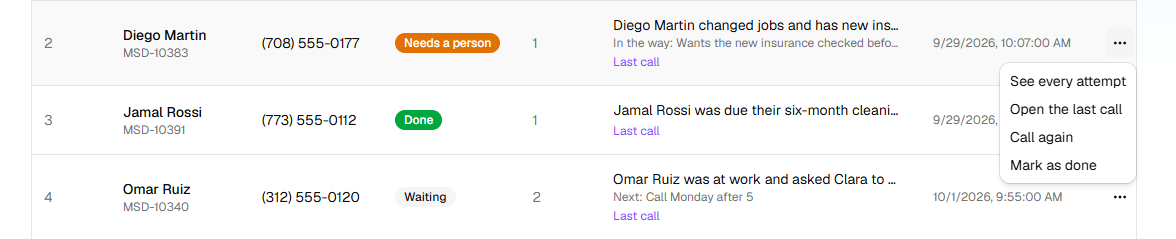
Click … at the end of a row, then See every attempt, for what each call established and the call that handed over. Open the call has the conversation and the recording.
Deal with it yourself: call the person, answer their question, sort out the complaint.
Then close the row from its … menu: Mark as done if the job got done, or Call again to have the agent take it up from where it stopped.
What happens next
- Mark as done makes the row Done, with Marked complete by hand. It counts as completed in the campaign's figures, so use it when the job is done, not to clear the queue.
- Call again puts the person back to Waiting, and they're called as soon as the window allows. The agent reads its notes from the earlier calls, but not your conversation with the person, so call again once whatever stopped it is out of the way. Attempts already made still count: someone who has had them all gets one more call.
- A row you leave as Needs a person doesn't hold the campaign open. When everyone else is settled, the campaign completes, and the bell says how many are waiting for a person. Call again is gone from then on.
- If the person rings the campaign's number back while it's running or paused, the Receptionist who answers is told the job was handed over, and can settle the row itself.
- HiloVoice doesn't notify you about each person. With Slack connected, tick A follow-up needs a person under Post when, and each one is posted to your channel as it happens.
Tip: A paused campaign never completes. If the last people are being settled and you might still want the agent to call someone in the queue, pause the campaign, work the queue, then resume it.
If it does not work
| You see | Why | What to do |
|---|---|---|
| Call again isn't in a row's … menu | The campaign is completed or cancelled | Close the row with Mark as done once the job is done. To have the agent call again, start a new campaign with the person on it. |
| This campaign has ended. Start a new one to call again. | The campaign ended while the page was open | The same. |
| The person is back under Needs a person after Call again | The agent reached the same point again | Clear what stopped it with the person first, or change When a team member takes over on the agent's Goal step and publish. |
| Nobody is ever in Needs a person on a Confirmations, Detail checks or Feedback campaign | Only Follow-ups agents hand people over this way. On the other kinds, a call put through to a person counts as Done. | Look for calls that need your team under Needs review on Calls. |
Read next
- Read a follow-up's progress — what each call established, before you decide
- Call a recipient again — Call again, and Reopen and call again
- Set a follow-up's goal — when the agent hands over
- Connect Slack — hearing about each one as it happens