
Add a lookup source
For OwnersChecked against the app on October 1, 2026
A lookup source is information an agent can search while someone is on the line: a customer by their phone number, an order by its reference, the homes for sale that match what a caller wants. You add sources once, under Settings → Lookups. Each agent then chooses what to look up on its Data Lookups step: see Let the agent check your records.
| Add a source | What it is | Listed as |
|---|---|---|
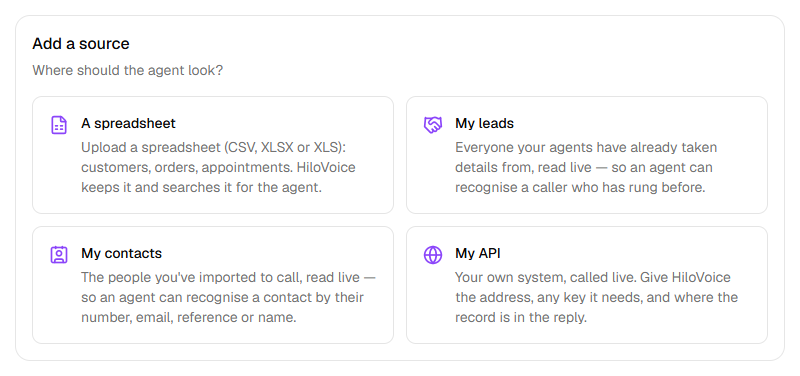
| A spreadsheet | A CSV or Excel file you upload. HiloVoice keeps it and searches it. | Spreadsheet · <n> rows |
| My leads | Everyone your agents have already taken details from, read live, so an agent can recognise a caller who has rung before | Your leads · live |
| My contacts | The people you've imported to call, read live | Your contacts · live |
| My API | Your own system, called during the call | API |
Before you start
- You're an Owner, Admin or Builder.
- A spreadsheet needs its column names in the first row, and up to 10,000 rows below them.
- For your own API: its address, any key it needs, and where the record sits in its reply.
Steps
Upload a spreadsheet
Open Settings → Lookups and, under Add a source, click A spreadsheet.
Give it a Name, such as
Patients.Click Choose file and pick a CSV, XLSX or XLS file. From a workbook with several sheets, choose one under Which sheet.
Check What will be imported: the first rows, as HiloVoice reads them.
Under Columns, set what each one Holds: Phone number, Email address, Person's name or Other text. Switch Searchable off for a column the agent shouldn't search by; it still reads it out of a record it found.
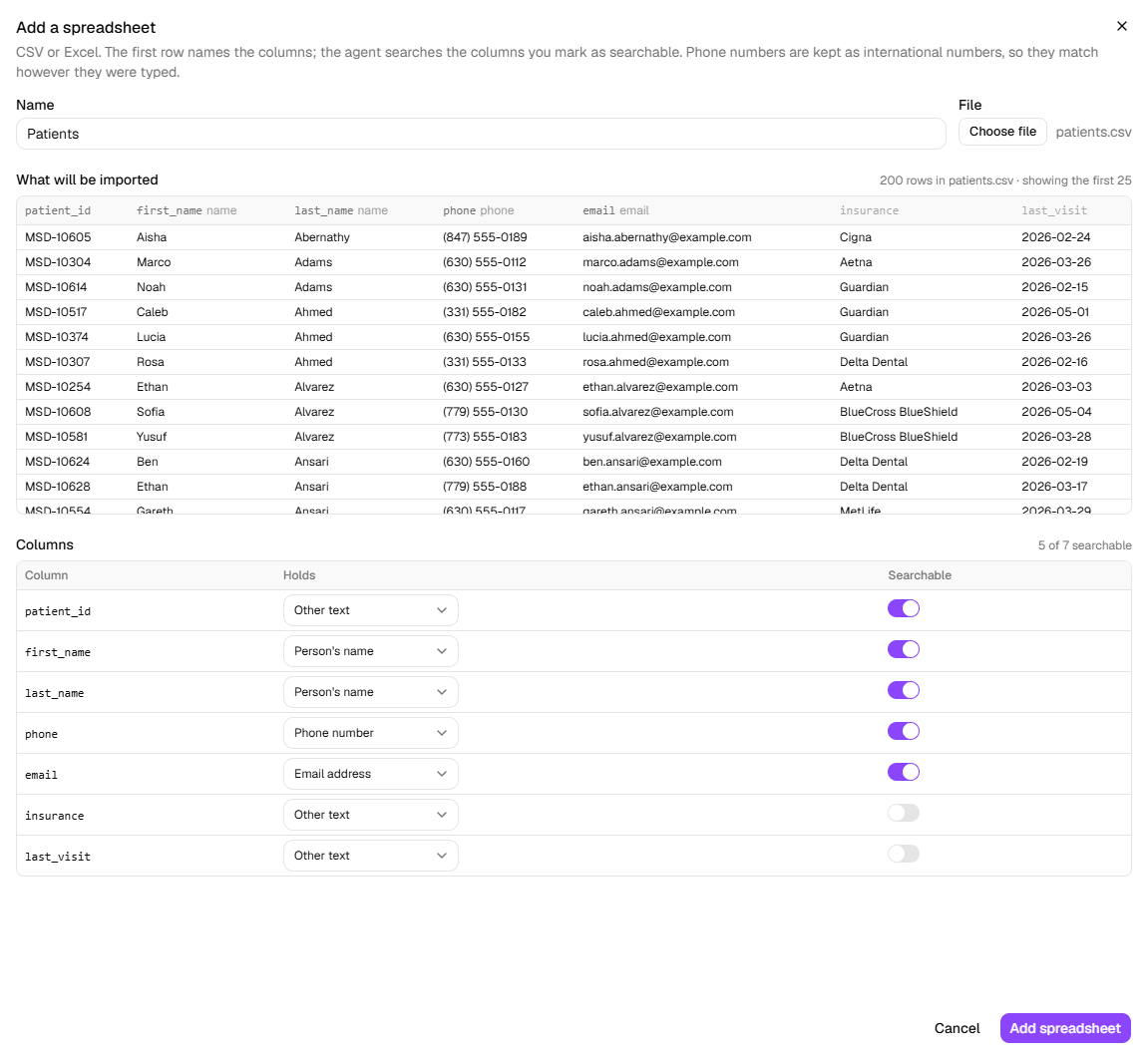
Click Add spreadsheet. A message says <name> added — <n> rows.
Phone numbers are kept as international numbers, so they match however they were typed. To update the data, click the source's pencil, click Choose file under Replace the rows, and click Save: the old rows are replaced.
Add your leads or your contacts
Under Add a source, click My leads or My contacts. There's nothing to set up: a message says Your leads are now a source or Your contacts are now a source. The source reads them as they are at the moment of each call. Each can be added once.
- Your leads is searched by name, phone number and email. A record carries the lead's status, whether they're a current customer, the date of their last call, how many calls, the summary, and every answer their calls captured.
- Your contacts is searched by name, phone number, email and your own reference for them. A record carries their first and last name, time zone, and every other column their import had.
Connect your own API
Under Add a source, click My API.
Give it a Name and choose the Method, GET or POST.
Under Address, type the address with each value the agent supplies in double braces:
https://api.example.com/customers?phone={{phone}}. The drawer lists them under The agent will supply.Under Key header and Key, give the header and the key your API needs, such as
AuthorizationandBearer …. The key is stored encrypted, and the agent never sees it.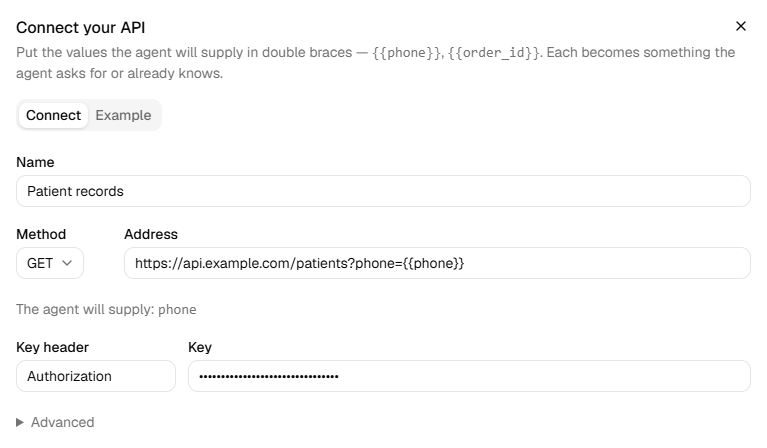
If you need them, open Advanced: Other headers, one per line; for a POST, Body (JSON, with placeholders); Where the record is in the reply, a dot path such as
data.customer(blank when the reply is the record); and Fields to share with the agent (blank shares every field).Click Connect. A message says <name> connected.
Click the source's pencil, open Try a lookup, type a value, and click Look up. You see what the agent would get: the record, No record matched., or why it failed.
The Example tab in the drawer follows one call, from the address to what the agent hears. A 404, or nothing at the record path, counts as no match. A list at the record path gives the agent up to five records, and every value reaches it as text.
What happens next
- Add the source to an agent on its Data Lookups step, then publish. Until then, no agent uses it.
- Available to agents, in a spreadsheet's or API's drawer, switches a source off without removing it. Its Status then reads Disabled, and a lookup on it finds nothing: the agent does what the lookup's If not found says.
- Removing a source asks first, and names the agents that use it. A live agent's lookups on it fail until you take it off the agent's Data Lookups or Caller Screening step and publish. A spreadsheet's rows go with it; your leads and contacts stay as they are.
If it does not work
| You see | Why | What to do |
|---|---|---|
| That's more than 10,000 rows — the most a lookup dataset can hold for now. Split the file, or keep only the rows the agent needs to find. | The file is too long | Split it into two sources, or cut the rows the agent never needs. |
| No columns found — is the first row a header? or The file has no header row. | The first row isn't column names | Add a header row and choose the file again. |
| That workbook has no sheet with a header row. | No sheet in the Excel file starts with column names | Add a header row to the sheet you want. |
| The URL must be an https:// address. | Your API's address isn't https:// | Use its https:// address. |
| In Try a lookup: The lookup service refused HiloVoice's credentials. | Your API turned the key down (401 or 403) | Check Key header and Key. To change the key, type the new one under New key (leave blank to keep the stored one). |
| In Try a lookup: The lookup service answered <code>. or The lookup service did not answer with JSON. | Your API answered with an error, or not with JSON | Check the Address and Method, and what your API sends back. |
| In Try a lookup: Nothing to search by: none of the values given match a searchable column of this dataset. | Every value was typed against a column that isn't searchable | Switch Searchable on for the column, or search by another. |
Read next
- Let the agent check your records — putting a source to work on an agent
- Turn away callers you can't help — a screening rule a source decides
- Calls, leads and contacts — what your leads and contacts hold