
Connect your calendar
For OwnersChecked against the app on October 1, 2026
Connect the calendar your bookings live in, and an agent can find open times and book, move or cancel appointments on the call, with your calendar's own confirmations. You then choose the appointment on each agent's Appointment Booking step: see Book appointments on a call.
| Calendar | You connect it with | Booking on the call needs |
|---|---|---|
| Calendly | A Personal access token | A paid Calendly plan, Standard and up. On the free plan the agent offers your link instead. |
| Cal.com | An API key, starting cal_live_ | Any Cal.com plan |
| Acuity Scheduling | Your User ID and API key. Squarespace Scheduling works the same way. | A paid Acuity plan. On the free plan the key doesn't verify. |
| Square Appointments | A Production Access token, starting EAAA | Appointments Plus or Premium. On the free plan the agent offers your booking site instead. |
| YouCanBookMe | Your Account ID and API key | The Team plan. On other plans the key doesn't verify. |
| HubSpot meetings | Your HubSpot connection, with one more scope | See HubSpot meeting links, below |
| Google Calendar | Signing in with Google | Any Google account |
An Appointlet page books on the call with nothing to connect. Any other booking page is offered to callers as a link.
Before you start
- You're an Owner, Admin or Builder.
- You can sign in to the calendar's account as its owner. On YouCanBookMe, only the owner can make the key.
- Calendars are on every HiloVoice plan. HubSpot is on Growth and up.
Steps
Connect a calendar with a key
Open Settings → Integrations and click the calendar. On the How to tab, click the button that opens its page, such as Open Calendly's API & webhooks page.
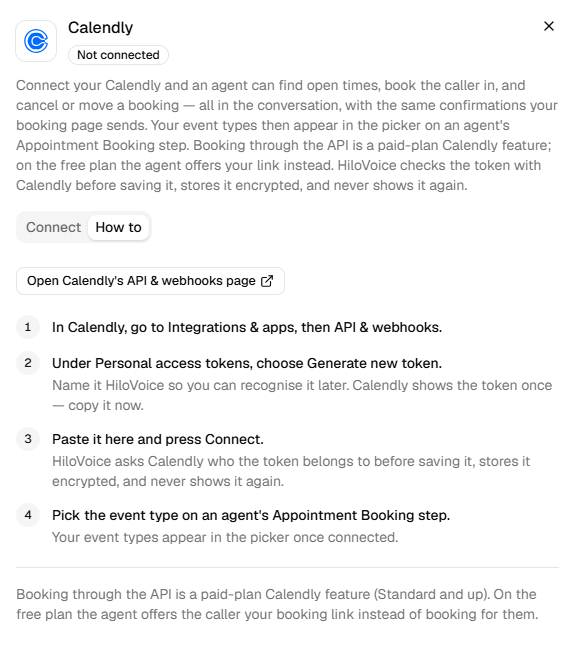
Make a key for HiloVoice there (see the table below) and copy it. Calendly shows its token only once.
Back on the Connect tab, paste it. For Acuity Scheduling, paste the User ID too; for YouCanBookMe, the Account ID (the account's email address works instead).
Click the button to connect it, such as Connect Calendly. HiloVoice checks the key with the calendar before saving it.
The row reads Connected, with the account's name. The calendar's appointment types are now listed under Choose from your calendars, on an agent's Appointment Booking step.
| Calendar | Where the key is made |
|---|---|
| Calendly | Integrations & apps, then API & webhooks. Under Personal access tokens, choose Generate new token. |
| Cal.com | Settings, Developer, API keys, then Add. Set it never to expire: an expiring key stops the agent booking on the day it lapses. |
| Acuity Scheduling | Settings, Integrations, API shows the User ID and the API key. On Squarespace Scheduling: Scheduling, Integrations, API. |
| Square Appointments | In the Square Developer Dashboard, Create app, then its Credentials page, switched to Production. The token must read the merchant, items and locations, and read and write customers and bookings. |
| YouCanBookMe | My Account, Security: copy the account ID, then choose Generate your API key. |
Connect Google Calendar
- On Settings → Integrations, click Google Calendar, then Sign in with Google.
- Choose the Google account whose calendar takes the bookings: a Google Workspace account or a personal Gmail one. A Workspace admin may need to allow HiloVoice first.
- Leave every box ticked and click Continue. HiloVoice asks to see your list of calendars, see when they're busy, and add and remove events. Booking needs all three.
Back on Integrations, a message says Google Calendar connected — <account>.
Google Calendar holds only events, so the appointment itself is set on the agent's Appointment Booking step: the calendar, its name, its length, where it happens, and when it can be booked (the agent's opening hours, unless you give it hours of its own). A booking goes on the calendar as an event with the caller as a guest, and Google emails them the invitation, with a Google Meet link for a video call. Other calendars on the same account, a personal one say, can be kept clear too.
HubSpot meeting links
HubSpot meetings come through the HubSpot integration: give its private app the
scheduler.meetings.meeting-link.read scope as well (see Connect HubSpot). Your meeting
links then appear under Choose from your calendars. HubSpot doesn't let HiloVoice cancel or move
a meeting, so a caller who asks is taken down for someone to do it in HubSpot.
What happens next
- A booking made on a call is the same booking your page makes, with the calendar's own confirmation emails and reminders.
- On Acuity Scheduling and YouCanBookMe, a required question on the booking form is asked on the call and sent with the booking.
- A YouCanBookMe page whose bookings you accept by hand is booked as a request, and the agent says so rather than calling it confirmed.
- Square adds a caller it hasn't seen before as a customer, with the name, email and phone number the agent took.
- Disconnect stops booking on the call: agents set up with that calendar offer the link instead. On Google Calendar, they take the caller's details for a call back.
If it does not work
| You see | Why | What to do |
|---|---|---|
| Calendly rejected that access token., Cal.com rejected the API key. or Square rejected the access token. | The key is wrong, or was deleted or expired | Make a new one and paste it, under Replace credentials if the calendar was connected. |
| Acuity rejected the User ID and API key. Check both, and that the account's plan includes API access (the free plan does not). | The pair doesn't match, or Acuity is on its free plan | Copy both again from Acuity's API page. On the free plan, it can't be connected. |
| YouCanBookMe rejected the account ID and API key. Check both, and that the account's plan includes the API (it is a Team-plan feature). | The pair doesn't match, or the account isn't on the Team plan | Copy both again from Security. On other plans, it can't be connected. |
| Square refused the request: booking through the API needs the Appointments Plus or Premium plan, and a token with the bookings, customers, items and merchant scopes. | The plan or the token's permissions | Check both in Square, then connect again. |
| Google Calendar wasn't connected, with HiloVoice wasn't given access on Google's page. Sign in again and press Continue to connect it. | Google's page was cancelled | Click Sign in with Google again. |
| Google Calendar was connected without permission to … which booking needs. Connect again and leave every box ticked. | A box was unticked on Google's page | Sign in again, with every box ticked. |
| In Choose from your calendars, Couldn't list <calendar>'s event types: … | The calendar turned HiloVoice away, for the reason given | Put it right on the calendar's side (for HubSpot, add the meetings scope), then click Test connection on its row. |
Read next
- Book appointments on a call — choosing the appointment, and who can book
- Connect HubSpot — the private app and its scopes
- What you can connect — how a connection is checked, stored and kept healthy