
Create your account
For OwnersChecked against the app on October 5, 2026
Signing up makes two things at once: a login of your own, and your business's account in HiloVoice, called an organization. Its agents, numbers, calls, leads and team all belong to it, and you're its Owner. HiloVoice then takes you straight to your first receptionist: it learns your business, you choose how it sounds, and you hear it answer, all in a few minutes.
Note: Some new accounts get the guided welcome instead of the steps below. It asks about your calls and team first, then suggests the agent to start with. See Get started with the guided welcome.
Note: If someone invited you to their team, don't sign up here. Open the invitation email and click Join the team. Invite your team shows the rest.
Before you start
- Use your own email address, one you can open now. You log in with it, and HiloVoice sends it a link to confirm it's yours. Each person on your team gets a login of their own when you invite them.
- Or use your Google account, if the page offers Continue with Google.
- Know your business's name. Your website's address helps too: HiloVoice reads your hours, services and common questions from it.
- To hear your receptionist ring you, have your mobile phone to hand.
Steps
On the HiloVoice website, click Create your agent or Start free. The sign-up page opens: Get your AI receptionist.
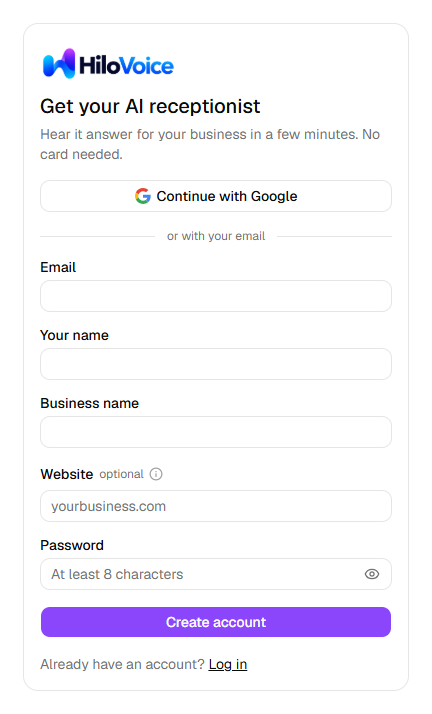
Fill in Email, Your name and Business name. Business name is the name callers hear, such as
Maple Street Dental.Under Website, type your website's address, such as
maplestreetdental.com. It's optional: without it, you choose your kind of business on the next page.Type a Password of at least 8 characters.
Click Create account. HiloVoice makes your organization, logs you in, and opens the first step of getting started.
To use Google instead, click Continue with Google at the top and choose your account. Google doesn't tell HiloVoice about your business, so the first page asks: Tell us about your business. Type your Business name, and your Website if you have one, then click Continue.
The bar across the top shows the four parts that follow: Your business, Your receptionist, Hear it and What's at stake. On a phone, the line under it says where you are, such as Step 2 of 4 · Your receptionist. Finish later, at the top right, takes you to Usage whenever you want to stop, once your business has a name. To pick up where you left off, click Finish the welcome steps at the bottom of your receptionist's first day on Usage. It's there until you close the browser tab.
Your business
With a website, HiloVoice reads it straight away: Reading <your website>. This can take a minute or two. Then Here's what we learned about <your business> lists what it found, such as your opening hours, your services and the questions callers ask. Your receptionist starts with all of it, and you can change any of it later.
Under What kind of business is this?, check the kind of business HiloVoice chose, or choose another. It decides the questions your receptionist starts with.
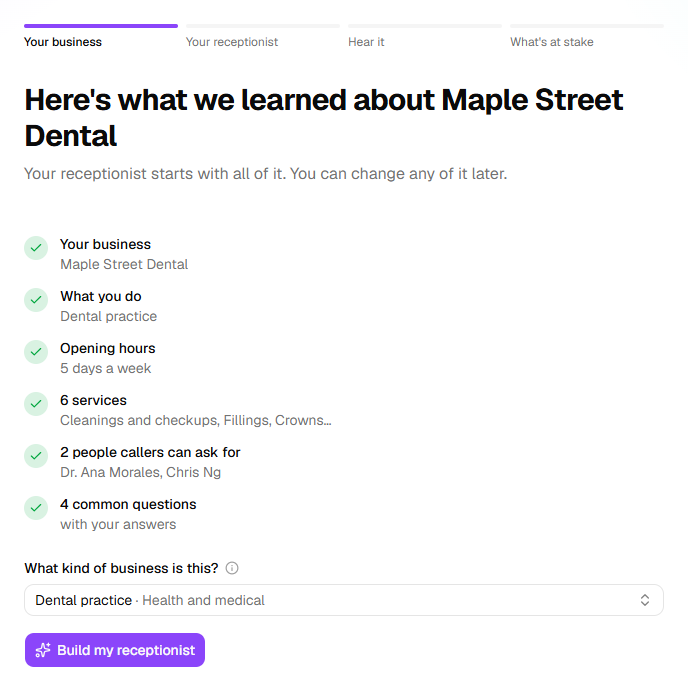
Click Build my receptionist.
Without a website, the page asks What kind of business is <your business>?
- Click your kind of business, such as Dental practice or Plumbing. If it isn't there, search for it under Something else.
- To have HiloVoice read your website after all, type it under Or learn it from your website and click Read it.
- Click Build my receptionist.
While it builds, the page says Building <your business>'s receptionist. It takes about a minute.
Your receptionist
Meet your receptionist offers four voices.
Click the play button on a voice to hear it answer with your business's name. Click the voice to choose it. For another voice, click Other voice under the four. Search the list or narrow it to female or male voices, press play on any of them, and click one to choose it.
Under Their name, keep the voice's name or type another. It's what your receptionist calls itself on the phone.
Under How they answer, change the greeting if you like. It's the first thing callers hear. Click Hear <name> say it to hear it.
Click Bring <name> to life. The page says Getting <name> ready to talk while HiloVoice puts your receptionist live.
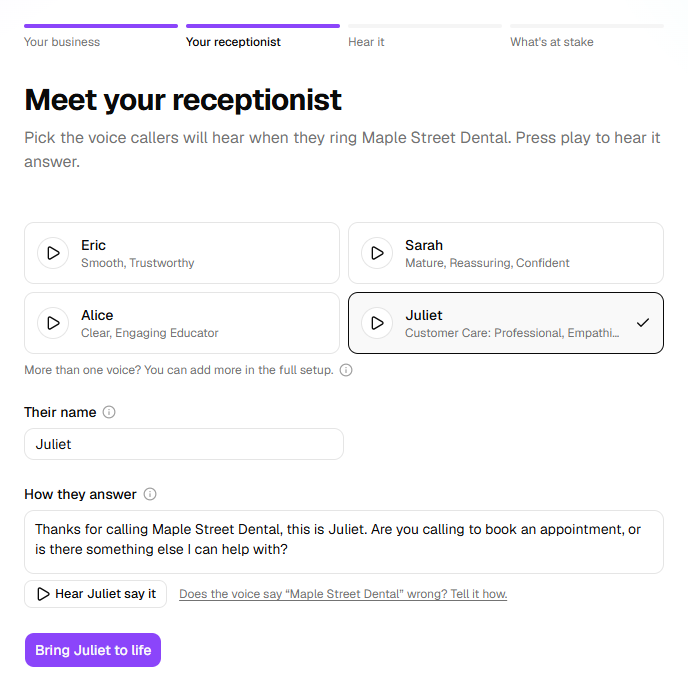
Tip: If the voice says your business's name wrong, click Does the voice say "<your business>" wrong? Tell it how. under the greeting.
Your receptionist is live, but it has no phone number yet, so no caller can reach it. Only you hear it, on the next page.
Hear it
<name> is ready to answer for <your business> offers two ways to hear it.
Under Want <name> to call you right now?, type your mobile number.
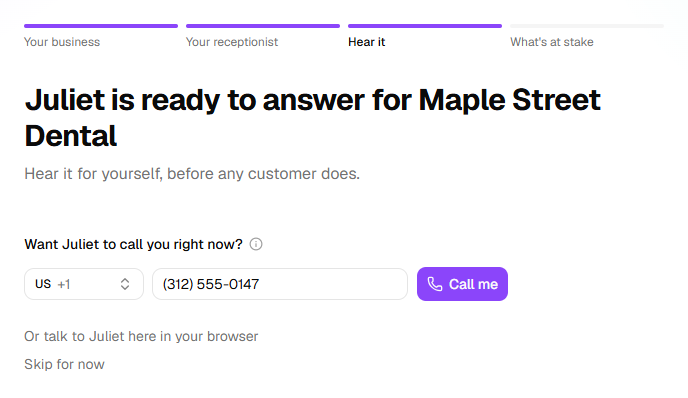
Click Call me. The page says <name> is calling you now.
Pick up, say hello, and ask what your customers ask.
Click I've heard <name>.
To talk to it on your computer instead, click Or talk to <name> here in your browser. It uses your microphone. When you close it, click I've heard <name>. To hear it another time, click Skip for now.
The call to your phone works with a 10-digit US mobile number, rings only the first number you give it each day, and comes at most three times a day. When it can't ring you, the page says why in place of the phone number, such as Calls to your phone aren't available right now. It offers Talk to <name> now in the browser, and Skip for now.
What's at stake
What do missed calls cost you? asks two things, so HiloVoice can show what your receptionist is worth to you.
Under About how many calls do you miss in a week?, click a number, or type one under Other.
Under What's a booking worth to you?, type what a new booking is worth to you, on average. HiloVoice fills in its estimate for businesses like yours to start from.
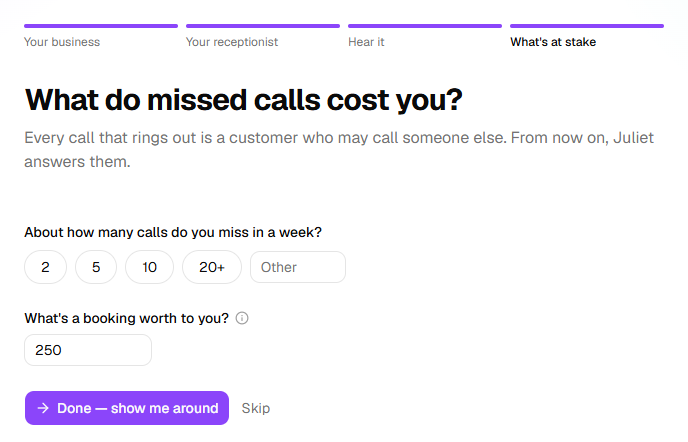
Click Done — show me around. Usage opens, and the tour of the menu starts. To leave both questions unanswered, click Skip. Usage opens without the tour.
Confirm your email
When you sign up, HiloVoice emails you Confirm your email for HiloVoice. Until you open it, a banner over the app's pages says Confirm your email: we sent a link to <your email>. Nothing waits on it, so carry on and confirm when the email arrives.

- Open the email and click Confirm my email. It works on any device, logged in or not.
- The page says Your email is confirmed. Click Continue to HiloVoice, or Log in on a device you're not logged in on.
The link works once, for 72 hours. Send it again, on the banner, sends a new link, and the old one stops working. The X hides the banner until your next visit. Settings → Profile shows your address as Not confirmed or Confirmed, with its own Send it again.
If you signed up with Google, your email is confirmed already: there's no banner and no link.
What happens next
- You're the organization's Owner. You can do everything, from inviting your team to choosing a plan.
- Your organization starts on the free trial, with no card. A banner says what's left of it, such as <name> has <minutes> free minutes of calls on us · <days> days left. A call to your phone from Hear it uses trial minutes, like a call in the browser. Each person gets one trial, so an organization you create later starts without one.
- Welcome to HiloVoice arrives by email, with three steps to your receptionist answering calls.
- HiloVoice set your organization's time zone and country from your browser, which may not be where your business is. Check your business details, the first step on the Setup guide, has you check them. Get help shows the guide.
- Until the first real call, Usage shows your receptionist's first day: hear it, make it yours, and put it on your phone. If you clicked Finish later before it was built, Usage offers Create my receptionist instead.
- If you came from a template on the HiloVoice website, your receptionist starts with the kind of business you chose there.
- HiloVoice keeps what it read from your website. When you make another agent, it offers Use details from <your website>, with no wait. See Describe the business.
- For another business or location, open the organization switcher at the top of the menu and click New organization.
If it does not work
| You see | Why | What to do |
|---|---|---|
| An account with email '<email>' is already registered. | That address has a HiloVoice account already, perhaps one you made with Continue with Google | Click Log in. If you've forgotten the password, click Forgot your password? there. |
| Your business couldn't be loaded. Check your connection and try again. | The welcome steps couldn't fetch your business | Check your connection, then click Try again. |
| We couldn't read <your website>. | HiloVoice couldn't open your website's pages | Click Paste your site's text instead, paste your home, services and contact pages, and click Read this text. Or choose your kind of business and carry on. |
| Couldn't get your receptionist ready. Try again. | Putting your receptionist live didn't finish | Click Bring <name> to life again. |
| Enter a 10-digit US mobile number. | The call to your phone works only with a US mobile number | Click Or talk to <name> here in your browser. |
| <name> only rings the number you gave it first today, so it's always you who answers. | You gave another number earlier today | Use the first number, or talk to it in your browser. |
| No Call me, and a line such as <name> has rung you 3 times today. | Calls to your phone aren't available right now, your receptionist isn't live yet, or it has rung you three times today. The line says which | Click Talk to <name> now, or Skip for now. |
| No email after a few minutes | It's in your spam folder, or the address is mistyped | Check your spam folder, then click Send it again. To fix the address, click Change email under Settings → Profile. |
| That link didn't work, with That link has expired or been used. Ask for a new one. | The link is over 72 hours old, was used already, or a newer one replaced it | Click Send it again, and open the newest email. |
| Several links have gone out this hour already. Check your inbox and spam folder, or try again later. | Three links went out in the last hour, counting the one sent when you signed up | Check your spam folder, or wait an hour. |
| That Google sign-in has expired or was started in another browser. Try again. | The sign-in began in another browser or tab, or took too long | Click Back to log in, then Continue with Google again, in one browser. |
| Google hasn't verified <email> for this Google account, so it can't sign you in. … | Google hasn't confirmed that the address belongs to that Google account | Sign up with your email and a password, or use another Google account. |
| Invalid email or password. when you log in later | The password is wrong, or your account was made with Google and has no password | Click Continue with Google, or click Forgot your password? to set one. |
Read next
- Set up your first agent — the rest of your receptionist's setup, and a number to answer
- Get help — the setup guide, the tour, and how to reach support
- Invite your team — a login and a role for each person who works with you
- A tour of HiloVoice — what each page shows once your agents are at work
- Change your organization's settings — the name, time zone and country
- Plans, minutes and limits — the free trial, and choosing a plan