
Keep your number and forward it to your agent
For OwnersChecked against the app on October 1, 2026
You do not have to give customers a new number. Keep the one they already know and forward it at your phone company to a HiloVoice forwarding number. Callers dial you as always; your agent picks up.
Before you start
- You're an owner or admin of your organization. Setting up forwarding adds a forwarding number to your account.
- You can change call forwarding on your existing line — in your phone company's app or account, on your business phone system, or with a dial code on the phone itself.
Steps
Open the agent and go to its Phone Number step. Under How should people reach your agent?, choose Use my existing number → Set up call forwarding.
Enter your current business number and choose who provides your phone service. If yours isn't listed, choose Other / I'm not sure.
HiloVoice offers a forwarding number, in your business number's area code where it can. Choose Use this number, Find another for the next one, or Search for a number to look by area code or digits. Nothing is added to your account until you choose Use this number.
HiloVoice shows how to forward to your forwarding number on your phone service — dial codes where your phone company has them (Copy puts one on your clipboard), or where to look in your phone system's settings. Open When should HiloVoice answer? to see which calls your phone service can forward: all of them, the ones nobody answers, the ones that come in while you're busy, or calls after hours. You choose that at your phone company; HiloVoice answers whatever it forwards.
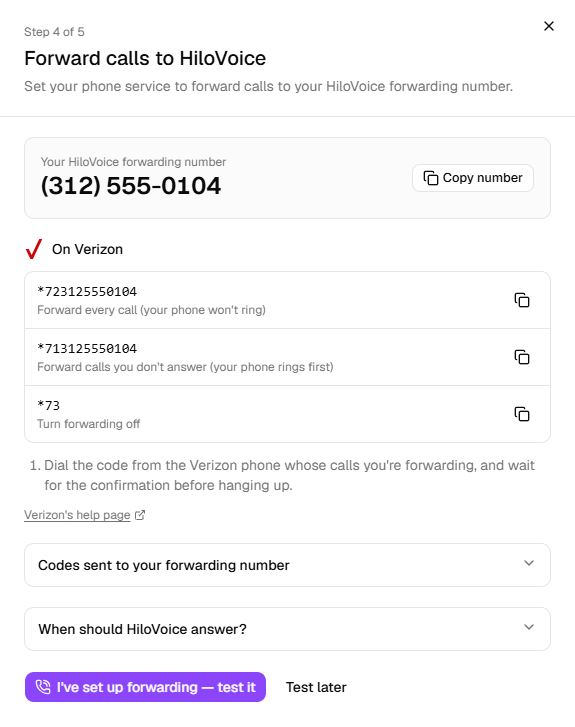
Set up the forwarding, then choose I've set up forwarding — test it, and call your business number from a different phone. The agent answers; you can hang up once it does. Within a few seconds the page says You're connected and shows the number you called from.
You can test before your agent is live: HiloVoice answers the test call itself. The forwarding number starts answering with your agent once the agent goes live. If the page asks you to go live first, do that on Review & Go Live, then come back to Test connection.
What happens next
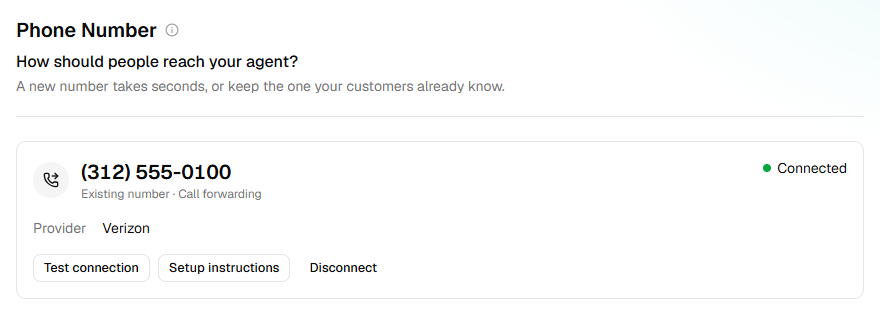
The Phone Number step shows your own number, Existing number · Call forwarding, your phone provider and whether the connection is proven. Test connection runs the test again; Setup instructions shows the forwarding number and the steps again.
Calls appear under Calls like any other. Open one and the details show Dialled — your own number, marked forwarded — when your phone company passes it on.
Opening hours, the block list and call limits all apply to forwarded calls.
If the caller's number doesn't come through
Some phone services put your own number on a forwarded call instead of the caller's. The test catches this: it says Connection detected and that your phone provider didn't pass on the original caller's number. Calls still reach your agent, but it can't see who is calling — it can't recognise returning callers, and texts and callbacks have nowhere to go. HiloVoice treats those calls as coming from a hidden number, so your own number is never mistaken for a caller.
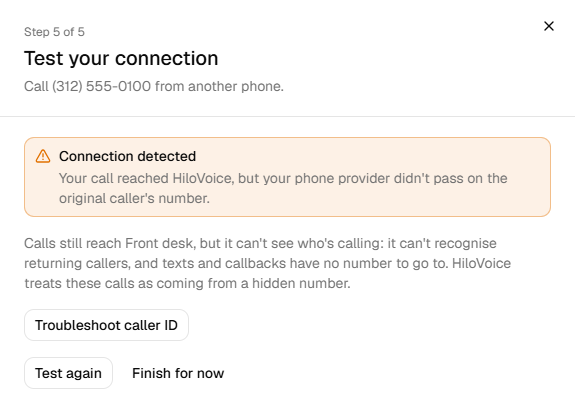
Troubleshoot caller ID lists what usually fixes it: a setting such as Show the original caller's number in your phone system, or forwarding the number itself rather than through a menu or ring group. Then Test again.
If your phone service asks whoever answers to press 1
Some phone services hold a forwarded call until whoever answers presses 1: call screening, or a setting such as Require to press 1 before connecting. Google Voice does it on every forwarded call. HiloVoice presses 1 itself before handing the call to your agent — for Google Voice from the start, and for any other phone service from the first call that asks, which the test shows as Your phone service held the call for a key press. Turning the setting off still gets callers through a few seconds sooner.
Good to know
- Your phone company may charge for forwarded minutes. The forwarding number is local to yours, which usually keeps that cost down — check your plan.
- To stop, choose Disconnect on the Phone Number step, and turn forwarding off at your phone
company too (often
*73), or callers will hear nothing. HiloVoice keeps your forwarding number, so reconnecting later needs no change to your forwarding. - Some phone services — Google Voice among them — confirm a new forwarding number with a code sent to it. Codes sent by text are blocked on forwarding numbers, so choose to get the code by phone call: until your agent is live, HiloVoice answers the forwarding number itself, listens, and shows the code under Codes sent to your forwarding number in the setup steps.
Read next
- Set up your first agent — from an empty account to an agent that answers calls
- Phone numbers and caller ID — how a number relates to an agent