
Connect Zapier
For OwnersChecked against the app on October 1, 2026
Connect a Zap, and HiloVoice sends it every finished call, or only the calls worth a look, and each lead once it's scored. A call arrives with who called, which agent took it, how it ended, every answer, the summary and a link back to the call, but never the transcript. From there, the Zap carries it anywhere Zapier reaches: a row in a sheet, a CRM record, an email.
Before you start
- You're an Owner, Admin or Builder.
- You have a paid Zapier plan: Webhooks by Zapier is one of its premium apps.
Steps
In Zapier, create a Zap. For its trigger, choose Webhooks by Zapier and the Catch Hook event.
Leave Pick off a Child Key blank, and copy the webhook URL. It starts with
https://hooks.zapier.com/hooks/catch/.In HiloVoice, open Settings → Integrations, click Zapier, and paste the URL under Catch Hook URL.
Under Send when, tick what to send (see the table below). Every finished call is ticked to start.
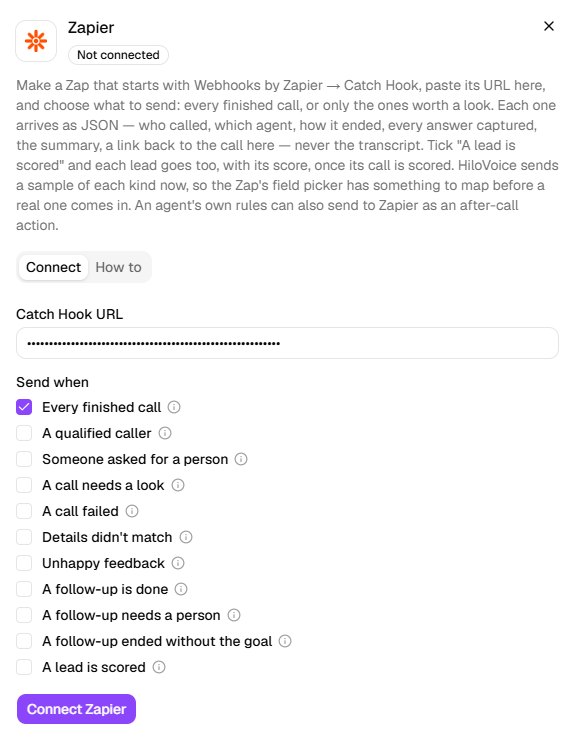
Click Connect Zapier. HiloVoice sends a sample straight away: a believable call with every field filled, marked
sample: true.In Zapier, click Test trigger and pick the sample, the request with event
call.completed.Add the Zap's action, map the fields, and publish the Zap.
| Send when | What's sent |
|---|---|
| Every finished call | Every call, whatever the outcome. With this ticked, the situations below change nothing. |
| A qualified caller, Someone asked for a person, A call needs a look, A call failed, Details didn't match, Unhappy feedback, A follow-up is done, A follow-up needs a person, A follow-up ended without the goal | Only calls that are one of the situations ticked. They mean the same as Slack's Post when (Connect Slack). |
| A lead is scored | Once a call is scored, its lead with the score, as a delivery of its own: event lead.scored. |
What happens next
Each call is one delivery, however many situations it matches. It carries the header X-HiloVoice-Event
(call.completed, or lead.scored for a scored lead), and X-HiloVoice-Delivery-Id, which is unique
to the delivery and safe to deduplicate on. The body holds:
| Field | What it holds |
|---|---|
event | call.completed |
sample | true only on a delivery sent when connecting or testing |
situations | Which situations the call was, such as qualified or review |
call | The agent, the direction, the numbers, when it started and ended, its length, and isTest |
outcome | How it ended, and whether it needs review |
captured and labels | Every answer, keyed by question, and the name of each key |
summary | The call in a few lines |
link | Opens the call in HiloVoice |
attachments | The photos and files the caller sent, with links that download them for a limited time |
campaign | On a campaign's call, the campaign and where the person now stands on it |
appointments | What the call booked, moved or cancelled: the time, where each stands now, and a line such as Booked: Consultation on Tuesday 6 October at 10:30 AM |
A scored lead's body is the lead's own, with its score: Send leads to your own system shows it. A full example of a call is under What HiloVoice sends, on Zapier's How to tab. Test calls from Try it, and calls from blocked numbers, are never sent for Send when.
Tip: Add a Filter step on
samplebeing false, so the deliveries sent when connecting or testing don't run the Zap's action. A filter onsituationsoreventsplits one Zap by kind.
Send one agent's calls
An agent's own Send to Zapier action sends its calls on top of what's ticked, so a call that
matches both is sent twice. It runs on test calls too, with isTest set to true. Add it with Add
an action: see Send messages after a call.
Change what's sent
Click Zapier. Under Send when, the boxes show what's ticked now: change them and click Save. The Catch Hook URL isn't asked for again. A kind newly ticked (calls, or scored leads) is sent a sample, so the Zap has its fields to map.
Warning: A Zap can carry what your agents capture anywhere Zapier reaches. Send it only where you're allowed to keep it. You're responsible for your own compliance.
If it does not work
| You see | Why | What to do |
|---|---|---|
| That isn't a Zapier webhook URL — a Catch Hook starts with https://hooks.zapier.com/. | What's pasted isn't a Catch Hook's URL | Copy the URL from the Zap's Catch Hook trigger. |
| Zapier no longer knows this hook. Open the Zap's trigger step, copy the webhook URL again and connect it. | The Zap or its trigger was deleted or changed | Copy the URL again, and paste it under Replace credentials. |
| Zapier answered <code> to a sample call. | Zapier turned the sample down | Check the Zap is on, then copy its URL again. |
| Could not reach Zapier: … | Zapier didn't answer | Try again in a moment. |
| The Zap's action ran on a sample | Samples are real deliveries | Add a Filter step on sample. |
| On a call's After the call tab: Zapier isn't connected. Connect it under Settings → Integrations. | An agent has Send to Zapier, and Zapier isn't connected | Connect Zapier, or remove the action. |
| Nothing arrives after a call | Only situations are ticked and the call was none of them, or it was a test call | Tick Every finished call, or make a real call. |
Read next
- Send leads to your own system — leads to a web address of your own, signed
- Connect Slack — the same situations, as messages in a channel
- Send messages after a call — Send to Zapier and the other after-call actions