
Get help
For OwnersChecked against the app on October 22, 2026
HiloVoice has five kinds of help. Help, at the top of every page, answers questions about the page you're on or anything else in HiloVoice. The Setup guide, in the account menu at the foot of the sidebar, lists what most businesses do to get going, and ticks each step off once it's done. From its page, Take the tour shows you round the menu a page at a time, and Open the guide opens this guide. Contact support, in the account menu too, sends a question to HiloVoice's team, and keeps their answers in the app.
Before you start
- Everyone in your organization can use all five, whatever their role. Some steps on the setup guide need an Owner or Admin, such as checking the business details or getting a number.
- Your requests to support are your own. Other people in your organization don't see them.
Ask Help
Help, at the top of the page beside the bell, answers questions about using HiloVoice: how to do something, where it is, what to do next, or what something means. It knows which page you're on. In the agent builder, Help is in the bar at the top, beside Try it. In the welcome steps, it's at the top, beside Finish later.
Click Help. The HiloVoice Guide opens beside the page, and says which page you're on. On a phone it fills the screen; Back to the page closes it.
Type your question, or click one of the suggestions, and press Enter. An answer can take up to a minute. Stop cancels it, and your question goes back in the box.
Read the answer: what to do, then the steps, with the app's own labels in bold.
Click a button under the answer to go to the page it names. A button such as Show me rings the control the steps start from, on the page you're on or on the one it takes you to.
Click Guide sources to see the topics the answer came from, and open one to read it in full.
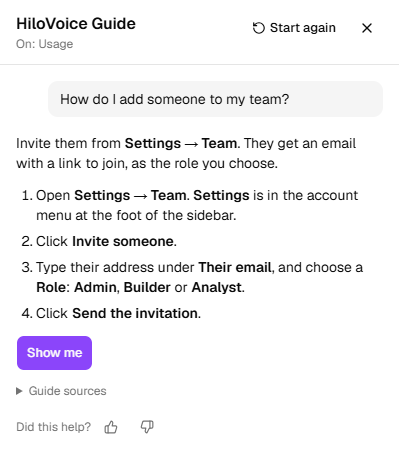
Closing the panel keeps the conversation, and anything you typed but didn't send. It stays while you move around the app or refresh the page, and goes when you sign out or close the browser tab. Start again clears it.
Each organization keeps its own conversation. Switch to another and back, and yours is where you left it.
While the panel is closed, a dot on Help says there's something to come back to. A coloured dot is an answer you haven't read; it pulses while the answer is being written. A grey dot is a conversation, or a question you haven't sent.

Help never changes anything for you. It shows you where to go, and you do it.
Under each answer, Did this help? tells HiloVoice whether it did. What you typed isn't kept.
When Help can't answer, it says so, and offers the guide's topics for the page and Ask the HiloVoice team, which opens a new support request.
Follow the setup guide
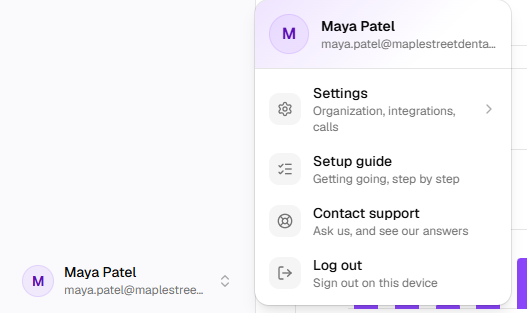
Click your name at the foot of the sidebar, then Setup guide. While there are steps left, the menu also shows Setup guide · <done>/<total>.
Find the highlighted step: it's the next one, with what it asks under it.
Click Show me. The page that does it opens, with the button or section to use ringed for a few seconds.
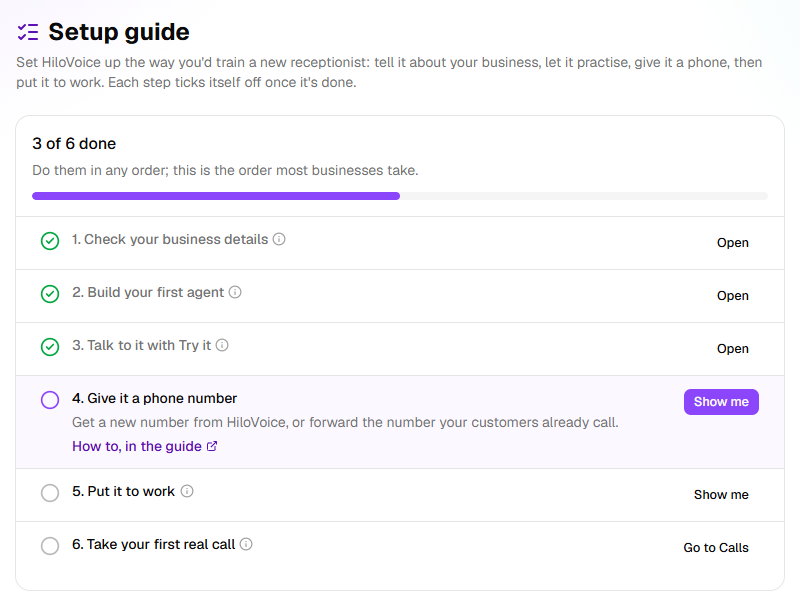
Do the step, then go back to Setup guide. The step is ticked.
The first six steps get an agent answering calls:
| Step | Ticked once |
|---|---|
| Check your business details | Someone clicks These are right under Settings → Organization, or saves a change to the name, time zone or country |
| Build your first agent | Your organization has an agent |
| Talk to it with Try it | Someone has made a test call, such as with Try it |
| Give it a phone number | Your organization has a phone number |
| Put it to work | An agent is live |
| Take your first real call | A real call has come in or gone out. Its button is Go to Calls. |
Under When you're ready are two for later: Invite a teammate and Connect your calendar or CRM. They aren't needed to start taking calls, and the guide is finished without them.
Point at the info icon beside any other step to see what it asks. How to, in the guide opens the topic on it in this guide, in a new tab. A step that's done has Open instead of Show me.
Tip: Do the steps in any order. The guide shows the order most businesses take.
Put the guide away
Until every step is done, the guide shows in the menu and, once your agents have taken a real call, as Finish setting up on Usage. To put it away, click Don't show this again at the foot of the Setup guide page, or on the Finish setting up card. That's for you alone, in this organization: your team still sees it.
The Setup guide stays in your account menu either way. To bring it back to the menu and Usage, click Show the guide in the menu and on Usage again at the foot of the page.
Take the tour
- Click your name at the foot of the sidebar, then Setup guide. Under Find your way around, click Take the tour.
- Read what the first page in the menu is for. The menu entry is ringed, with a card beside it.
- Click Next for each page: Usage, Calls, Leads, Campaigns, Contacts, Agents, Phone numbers, then Settings, in your account menu.
- Click Done on the last one. To stop sooner, click the X, or press Esc.
Back goes to the page before. On a phone, where the menu is folded away, the card sits on its own.
Read the user guide
Click your name at the foot of the sidebar, then Setup guide. Under The user guide, click Open the guide. This guide opens on the HiloVoice website, in a new tab.
Contact support
- Click your name at the foot of the sidebar, then Contact support. Support opens, with New support request over it.
- Under What's it about?, say in a line what it's about, such as
Calls to my new number go to voicemail. - Under Tell us more, say what you were doing, what you expected, and what happened instead.
- To add a screenshot, paste or drop it into Tell us more, or click Attach. Pictures and text files can be attached.
- If you saw an error in the last half hour, leave Include the error you saw ticked. Its reference lets HiloVoice's team find exactly what went wrong, and holds nothing about your calls.
- Click Send request. The page says Sent. We'll answer here and by email., and opens your request.
The request says which organization it's about: the one you're in when you send it. Support also tells HiloVoice's team which page you were on.
Tip: On the Something went wrong page, Contact support opens a new request with that error's reference already in it.
Follow your requests
Support lists your requests under Open and Closed. Each shows its reference, how many messages it holds, and a status:
| Status | Means |
|---|---|
| Waiting on us | HiloVoice's team hasn't answered your last message yet. |
| Answered | HiloVoice's team has answered. Your move. |
| Closed | The request is closed. Write on it again to open it. |
When HiloVoice's team answers, you get an email with the answer, and Support answered: <subject> on the bell. Both open the request.
- Click a request to open it. The whole conversation is there, with any files.
- To write back, type under Your message and click Send. Ctrl+Enter sends too.
- Once it's sorted, click Close request, it's sorted. The page says Closed. Write on it again any time to open it.
Writing on a closed request opens it again, waiting on HiloVoice's team.
If it does not work
| You see | Why | What to do |
|---|---|---|
| No Help at the top of the page | Help isn't switched on for your account yet | Open the user guide from Setup guide, or Contact support, in your account menu. |
| No questions left today. under the box | Help answers a set number of questions a day | Open the user guide from Setup guide in your account menu, or ask again tomorrow. |
| Help couldn't be reached. Check your connection and try again. | The question didn't get through | Click Try again. |
| No Setup guide · <done>/<total> in the menu | Every step is done, or someone clicked Don't show this again | Open Setup guide from your account menu. |
| Check your business details stays unticked | You're a Builder or Analyst, who can't change the details | Ask an Owner or Admin to click These are right under Settings → Organization. |
| <file> can't be attached. Screenshots, pictures and text files can. | The file isn't a picture (PNG, JPEG, GIF, WebP) or a text file (.txt, .log, .csv, .json, .md) | Take a screenshot of it, or copy the text into your message. |
| <file> is over <size> MB. | The file is too big | Crop the screenshot, or send a smaller file. |
| Up to <number> files a message. | Too many files in one message | Send the rest in a second message. |
| A message is up to 5,000 characters. Send the rest in a second one. | The message is too long | Send the rest in a second message. |
| You've opened a few requests in the last hour. Add to one of those, or try again later. | You've opened several requests in the last hour | Write on one of your open requests, or wait an hour. |
| No Include the error you saw | There's been no error on HiloVoice's side in the last half hour | Say in your message what you saw, word for word. |
Read next
- Create your account — signing up, and your first receptionist
- Set up your first agent — the steps the setup guide walks you through
- A tour of HiloVoice — each page in more depth than the tour
- Test an agent with Try it — the guide's third step