
Name the agent and give it a purpose
For BuildersChecked against the app on October 1, 2026
Voice & Purpose is the second step for every kind of agent. It sets who callers hear: the name the agent gives and the voice it speaks in. It also holds the agent's Purpose, one sentence on what a good call achieves, and its Personality. A Follow-ups agent has no Purpose box: its purpose is the goal on its Goal step.
Before you start
- You're an Owner, Admin or Builder.
- Turn your sound on. Every voice can be heard before you pick it.
Steps
Open Agents and click the agent.
In the step rail, click Voice & Purpose.
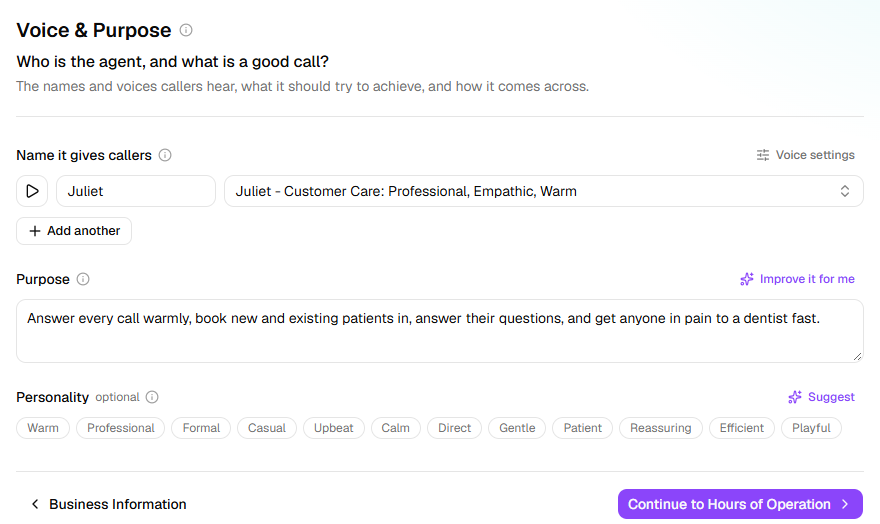
Under Name it gives callers, click the voice box beside the name. Search, or narrow the list with Female or Male, and click the play button beside a voice to hear the greeting in it.
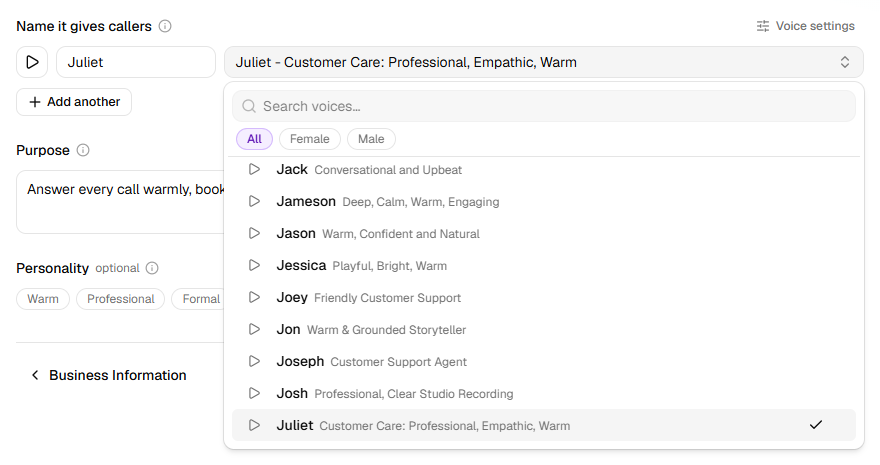
Click the voice you want. The name box takes the voice's name, unless you've typed a name of your own.
To use another name, type it in the name box, such as
Riley. A real first name works better than a job title.In Purpose, write one sentence on what a good call achieves, such as
Book the caller in, or take the details someone at the practice needs to call them back.Or click Write it for me. The agent comes back to it whenever a conversation wanders.Under Personality, pick up to three traits, or click Suggest. Point at a trait to see what it does. Opposites replace each other, such as Formal and Casual; with none picked, the agent sounds plain and warm.
The step gets a tick once the agent has a name, a voice and a purpose.
Answer as more than one person
An agent can answer as up to six people, each with a name and a voice of their own. Each call is taken by one of them, a different one each time: the greeting says whoever it is, and the call's page shows who spoke.
- Under Name it gives callers, click Add another. The new row opens its voice list.
- Pick a voice. The row takes the voice's name; type over it to use your own.
The step then says who takes calls, such as Calls are taken by Sarah, Tom or Priya — a different one each time. To remove someone, click the X at the end of their row. Removing the first row hands its place in the greeting to the next person with a name and a voice.
Voice settings
Voice settings, beside Name it gives callers, holds what is the same for every voice the agent speaks in. Each change saves as you make it; click Done to close it.
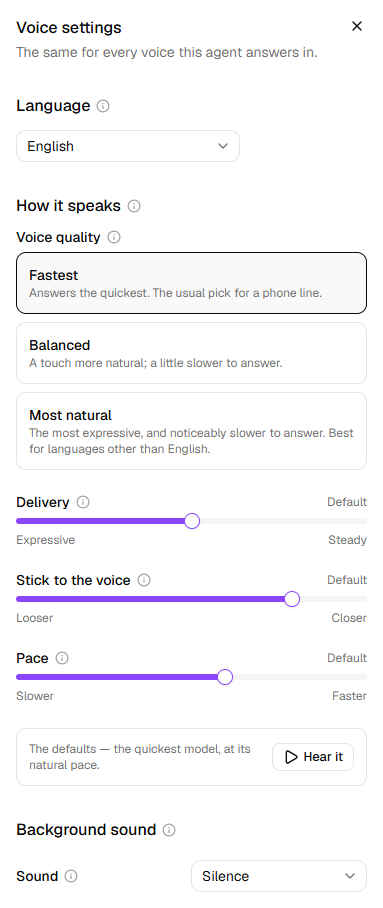
| Setting | What it does | Default |
|---|---|---|
| Language | What the agent speaks: English, Spanish, French, German, Italian, Portuguese, Dutch, Polish or Swedish. A caller who starts in another language is followed for the rest of the call. | English |
| Voice quality | Fastest, Balanced or Most natural. The more natural, the slower it answers. Most natural suits languages other than English. | Fastest |
| Delivery, Stick to the voice, Pace | How evenly it speaks, how close it stays to the voice, and how fast it talks. Hear it plays the greeting with them; Back to the defaults resets them. | Default |
| Background sound | The room the agent seems to sit in, such as Quiet office or Restaurant, and how loud it is. | Quiet office, for a new agent |
Tip: Leave Voice quality on Fastest unless you've heard something you want to change. On a phone call, a pause before each reply is what callers notice most.
Voice quality and Pace don't apply while Expressive voice is on, on the Conversation Style step: it sets its own pace, and Pace can't be changed until it's off.
What happens next
- The agent speaks in the voice you chose, and gives callers the name beside it.
- Review & Go Live sums it up under In short, such as Speaks in the <voice> voice, with a quiet office in the background.
- The name callers hear isn't the agent's name in your list of agents. Change that one with Rename, in the … menu next to the agent's name.
- On a live agent, callers get your changes when you publish them.
If it does not work
| You see | Why | What to do |
|---|---|---|
| The play button beside a name is greyed out | That row has no voice yet | Pick a voice in the row. |
| Pick a voice, or remove the row. or Give them a name, or remove the row. | An extra person is half set up | Finish the row, or click its X. |
| The <voice> voice is no longer available for calls — pick another. | That voice can't be used on calls any more | Pick another voice for that row. |
| That voice is no longer available. Choose another one. | The same, found when the agent was saved or published | Pick another voice on this step, then publish again. |
| A trait is greyed out | Three are picked already | Unpick one first. A picked trait's opposite stays available, and picking it swaps them. |
| Add another is greyed out, and the step says An agent can be up to 6 people. | The agent answers as six people already | Remove someone first. |
| Couldn't write that just now. Try again, or write it yourself. | Write it for me or Suggest didn't work this time | Try again, or type it yourself. |
| On Review & Go Live, The agent needs a purpose. | Purpose is empty | Write one sentence in Purpose. |
| There's no Purpose box | The agent is a Follow-ups agent | Write its goal on the Goal step. |
Related
- Describe the business — the business name, and how the voice says it
- Shape how a call sounds — the greeting, and Expressive voice
- Set a follow-up's goal — a Follow-ups agent's purpose
- Review and go live — check the agent, then put it on calls