
Handle each kind of caller
For BuildersChecked against the app on October 1, 2026
A Receptionist hears from very different people on one number: new enquiries, existing clients, other businesses, sales calls. On the Caller Handling step you give each kind of caller its own questions and its own ending. The agent works out which kind it has from what the caller says; it never asks anyone to pick a category. The step is on a Receptionist only.
Before you start
- You're an Owner, Admin or Builder.
- The questions themselves are written on Intake Questions. This step decides who hears them.
- To recognise callers from your own records, add a source under Settings → Lookups first.
Steps
Open Agents, click the agent, and click Caller Handling in the step rail.
Switch on Treat kinds of caller differently. Five kinds appear: Potential new clients, Existing clients, Other service providers, Spam and cold sales calls and Anyone else. Once the agent has an industry, they're named in your trade's words: patients rather than clients, say. Each row shows how many questions that kind hears and how its call ends.
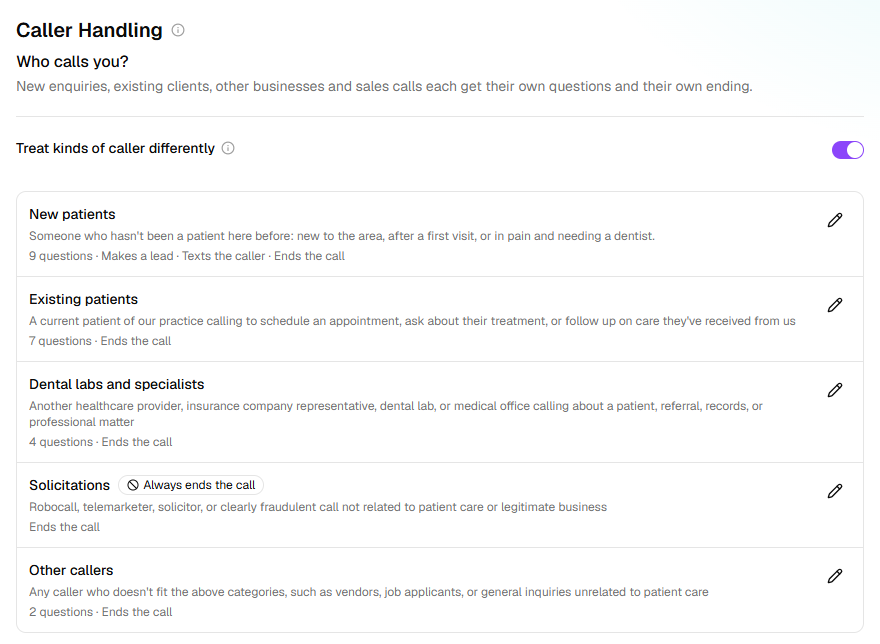
To add a kind of your own, type its name under Add a kind of caller (
Insurance adjusters, say) and click Add. It goes in above Anyone else and opens straight away.Click a kind to open it. Under How to recognise them, describe these callers the way you'd brief a new receptionist; the agent gets your words as written. Write it for me drafts them.
On the During the call tab, tick the Contact details to ask for: Full name, Phone number, Email address, Best time to call back, Address, Referral source. Each one ticked is a question on Intake Questions, limited to the kinds that ask for it. Write anything else as a question there and limit it with Only for certain callers….
On the After the call tab, click Add an action to say how the call ends and what happens once it has. See How each call ends, below.
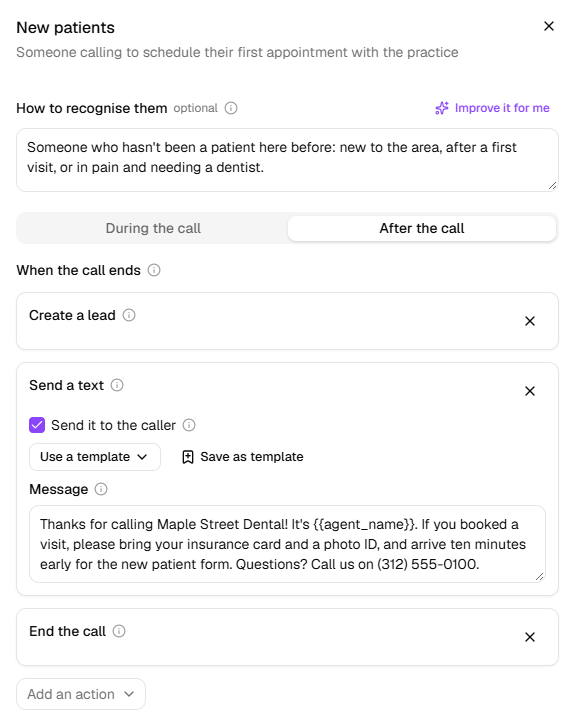
Click Done, then open the next kind.
Spam and cold sales calls is marked Always ends the call: the agent ends it as soon as it's sure, and that can't be changed.
Recognising an existing client
On Existing clients, the During the call tab starts with How to identify them: what the
agent goes on. Tick The number they're calling from, Their full name, Their email
address, Something else (say what under What to ask for, their matter reference for
example) or A record in your lookups. Without that last one, the agent asks for these but can't
search your records. With it, HiloVoice checks the caller's number against the lookup marked
Recognises callers on Data Lookups before the agent answers, and the agent still confirms
their name against the record.
Any kind but spam can also be Confirmed by a lookup, on its During the call tab. Their
number is checked against a source before the agent answers, and they count as that kind only if the
source says so. Under What counts, choose A record for their number exists, or A field on
their record reads a certain way (on the leads list, the field customer is yes, say).
How each call ends
Under How the call ends, choose End the call (every kind starts with it) or Transfer the call and where it goes. Adding one takes the other away. Under Afterwards are Send a text, Send an email, Ask for a review, Create a lead and Call a webhook, plus Post to Slack, Send to Zapier and Send to your CRM once those are connected under Settings → Integrations. Send messages after a call covers each one.
A kind's list runs after each call the agent took to be that kind of caller.
With kinds of caller off
Everyone hears the same questions, and the step shows a single list instead: After every call. It runs after every call that did what it was for, not one that was cut short or went nowhere.
Switching kinds off keeps what you set for each kind, for when you switch back. Meanwhile their endings don't run, and a question limited to some kinds is asked of everyone. With kinds on, After every call stays on the step while it holds anything, and runs as well as each kind's own list.
What happens next
- Changes reach callers once you publish: Go live on Review & Go Live, or Publish changes once the agent is live.
- Ticking a kind under Who becomes a lead on Lead Capture adds Create a lead to its list here, and the other way round.
- After each call, the call's After the call tab on Calls shows what ran and whether it went out.
- Remove this kind of caller, at the foot of a kind you added, also removes the questions asked of that kind alone. It says how many before you click.
If it does not work
| You see | Why | What to do |
|---|---|---|
| Needs a lookup source: upload a spreadsheet or use the leads list under Settings → Lookups. | Confirmed by a lookup has nothing to check against | Add a source under Settings → Lookups, then switch it on. |
| There's already a kind of caller called that. | Two kinds can't share a name | Choose another name. |
| Add a kind of caller is greyed out, and its hint says You've added 5, the most an agent can have. Remove one to add another. | An agent can add five kinds of its own | Remove one you added before adding another. |
| This can't be saved yet (or A few things need fixing before this can be saved), naming a kind of caller and After the call | A text, email, transfer or webhook on that kind's list is missing who it goes to, its words, its number or its address | Open the kind and finish the action, or remove it with X. |
| This can't be saved yet, with Say what the agent should ask for under "Something else". | Something else is ticked with nothing under What to ask for | Type what to ask for, or untick it. |
| On Review & Go Live: <kind>: the call is transferred, but there's no number to transfer it to. | Transfer the call has nowhere to go | On that kind's After the call tab, choose where the call goes. |
| On Review & Go Live: <kind>: the text message goes to the caller twice. | The same message is on the list twice for one person | Remove one. A thank-you and Ask for a review can both go to the caller. |
Related
- Choose what the agent asks — the questions each kind of caller hears
- Send messages after a call — texts, emails and review requests after a call
- Turn callers into leads — which kinds of caller become leads
- Hand calls to a person — transfers for any caller, whatever their kind
- Let the agent check your records — the lookup that recognises callers