
Set up your first agent
For OwnersChecked against the app on October 1, 2026
A Receptionist answers your business line. It greets callers, answers their questions, takes their details and books them in, and hands them to a person when it should. This topic takes you from an empty account to an agent that answers calls, in about fifteen minutes.
Before you start
- You're the owner or an admin of your organization. Getting the agent a number is theirs to do.
- To keep the number your customers already know, have Keep your number and forward it to your agent open as well.
Steps
In the menu, open Agents and click Create my first agent. Once you have an agent, the button is New agent.
Under What kind of business is this?, choose the closest match. HiloVoice writes the agent's questions, answers and hand-offs for that kind of business. To have it read your website instead, click Create it from our website.
Under What should it handle?, choose Receptionist. Keep the name it offers, or type your own: it's how the agent appears in your list, not what it says on the phone. Click Create my agent.
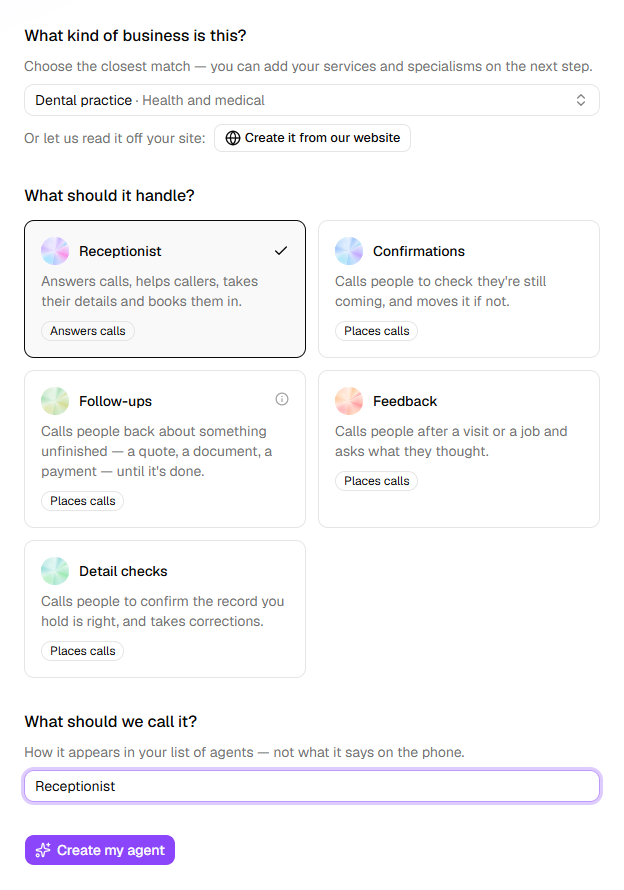
HiloVoice builds a first draft in about half a minute. You can carry on elsewhere; it tells you when the draft is ready.
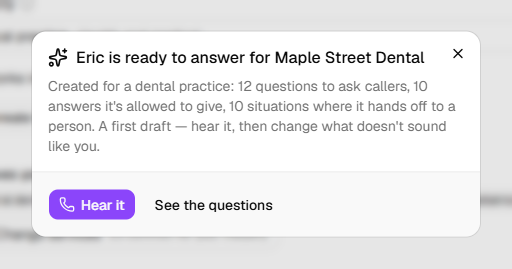
The agent's builder opens on what it made: how many questions it asks callers, how many answers it may give, and when it hands a caller to a person. Click Hear it to talk to it, or See the questions to read them.
Go down the steps on the left, from the top, and change anything that doesn't sound like your business. A tick means a step is done; a ring means it still needs you.
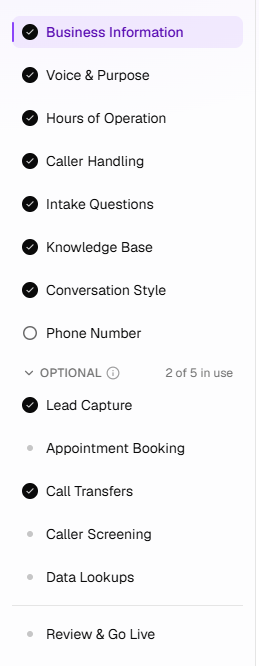
Step What you decide there Business Information The business name callers hear, and the kind of business the agent is written for Voice & Purpose The agent's name and voice, and what a good call achieves Hours of Operation When you're open, and what the agent does outside those hours Caller Handling Who calls you (new enquiries, existing clients, sales calls), and how each kind of call ends Intake Questions What the agent asks, in order Knowledge Base The answers it may give, and documents it can read from Conversation Style Who speaks first, how it asks, and how long a call may take Phone Number How people reach your agent (step 6) Under Optional are steps most agents go live without: Lead Capture, Appointment Booking, Call Transfers, Caller Screening and Data Lookups. Open one when you need it.
To hear a change, click Try it at the top, then Start the call, and talk to the agent from your browser. Test calls are kept under Calls.
On the Phone Number step, choose how people reach your agent:
- Get a new number: click Get a number, type an area code or a city, and click Search. Click Buy next to the number you want, then Buy number. It's your agent's number straight away.
- Use my business number: click Forward my number to keep the number your customers already know. Keep your number and forward it to your agent walks you through it.
- Connect my phone provider, under More ways: for a business phone system that connects to HiloVoice directly, with no forwarding. Most businesses use one of the other two. Not every plan includes it; where yours doesn't, it shows the plan that does.
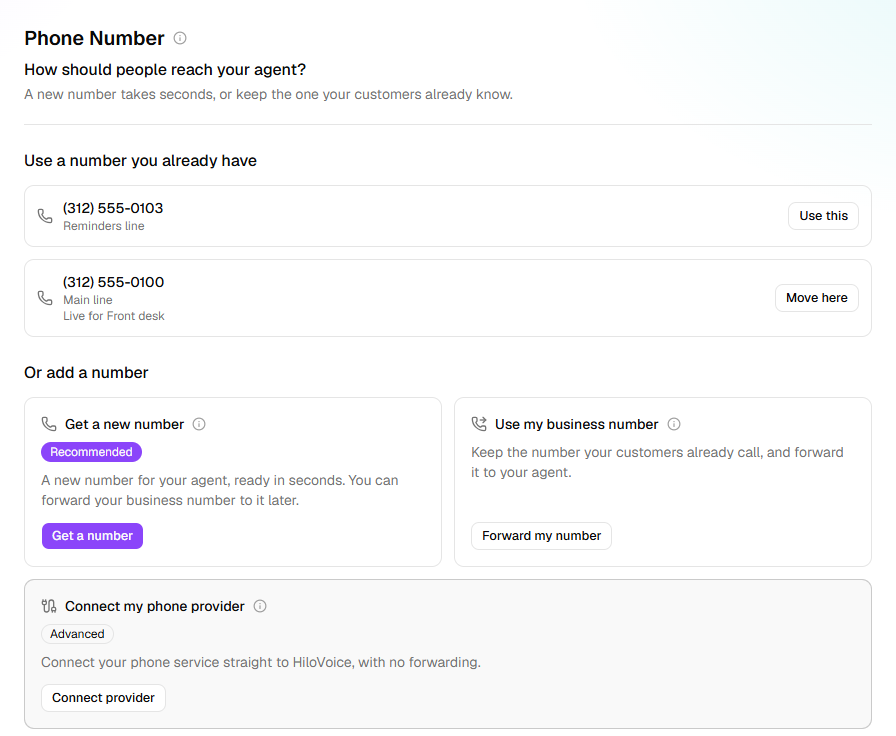
Important: A number you get is yours as soon as you confirm it, and it counts towards the numbers your plan includes.
On Review & Go Live, look down Is it ready?, then click Go live.

Important: Going live puts the agent on real calls. From then on, people who ring its number talk to it.
What happens next
- The page says the agent is live and gives its number. Ring it from your own phone to hear the agent answer, just as your callers will.
- The calls it takes appear under Calls, and the people it takes details from appear under Leads.
- If it has no number yet, it goes live anyway and starts answering once it has one.
- Changes you make later wait in a draft until you click Publish changes. Callers hear the live version until then.
- Setup guide, in the menu, ticks off what you've done and suggests what to do next.
If it does not work
- "Couldn't create a starting point for that industry — you can try again from the builder." The agent is still made, from HiloVoice's general starting point, and its builder opens. On its first step, Business Information, click Create it for me to try the industry again.
- "An owner or admin can get a number or set up forwarding." Your role here is Builder or Analyst. Ask an owner or admin to do the Phone Number step, or to make you an admin.
- "HiloVoice needs your microphone for this. Allow it in your browser, then try again." Your browser blocked the microphone for Try it. Allow it for HiloVoice in the browser's address bar, then click Try again.
Read next
- Keep your number and forward it to your agent — keep the number your customers know
- The five kinds of agent — the Receptionist, and the four kinds that make calls for you
- Phone numbers and caller ID — how a number relates to an agent
- Roles and permissions — who on your team can do what