
How the builder works
For BuildersChecked against the app on October 1, 2026
Every agent is set up in its builder: a page of its own, with the agent's steps down the left and the step you're on beside them. Receptionists and the four outbound kinds share the builder, but each kind gets its own steps. Click an agent on the Agents page to open its builder. Owners, Admins and Builders can change and publish agents; an Analyst can look, but nothing they change is saved.
How an agent starts
New agent, on the Agents page, asks three things in turn:
- What kind of business is this? Choose the closest match, or click Create it from our website to have HiloVoice read it off your site.
- What should it handle? The kind of agent: Receptionist, Confirmations, Detail checks, Feedback or Follow-ups. The kind is fixed once the agent is made.
- What should we call it? The name in your list of agents, not what it says on the phone.
Create my agent has HiloVoice write a first draft for that kind of business: the questions it asks, the answers it may give, and when it hands a call to a person. It takes about half a minute, and you can carry on elsewhere meanwhile. The builder then opens on what it made, with Hear it to talk to the agent and See the questions to read them. Go down the steps and change what doesn't sound like your business. Skip — I'll set it up myself starts the agent from HiloVoice's general starting point instead; Copy one of your agents starts it from one you already have.
The steps
The steps run in the order a first agent is built in. Continue, at the foot of each step, takes you to the next.
| Kind | Steps | Under Optional |
|---|---|---|
| Receptionist | Business Information, Voice & Purpose, Hours of Operation, Caller Handling, Intake Questions, Knowledge Base, Conversation Style, Phone Number | Lead Capture, Appointment Booking, Call Transfers, Caller Screening, Data Lookups |
| Confirmations, Detail checks, Feedback | Business Information, Voice & Purpose, Opening, Details (Feedback: Questions), Knowledge Base, Conversation Style, Calling Hours, Caller ID | Appointment Booking, After the Call, Call Transfers, Data Lookups |
| Follow-ups | Business Information, Voice & Purpose, Goal, Opening, Knowledge Base, Conversation Style, Calling Hours, Caller ID | Questions, Appointment Booking, After the Call, Call Transfers, Data Lookups |
Every kind ends with Review & Go Live. Each step has a mark beside its name:
- A tick: the step is done.
- A ring: the step still needs you. It fills in as you complete the step's parts. Not every ring stops the agent going live: a Receptionist with no number can go live, and starts answering once it has one.
- A faint dot: the step is fine left alone, like an optional step you haven't used.
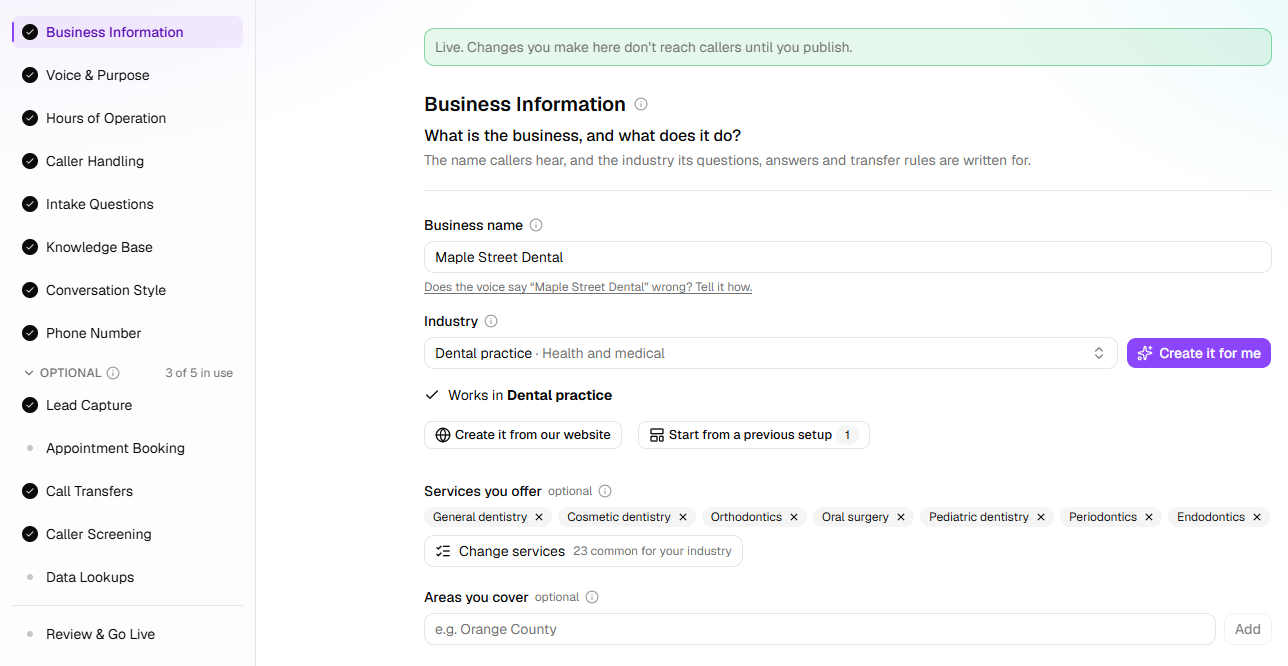
Optional holds the steps most agents go live without; its heading says how many are in use, such as 2 of 5 in use. Continue steps over the group on the way to Review & Go Live. Above the steps, a line such as 3 things to do before it can go live counts what still stops the agent going live; click it to see the list.
Saving, undo and redo
There is no Save button. Each change is saved a moment after you make it, and the bar at the top says Saving, then Saved. If a save fails, a message says why, and the bar says Not saved — retry: click it to try again. Something half filled in, such as a question with no wording yet, is saved once you finish it.
Undo and Redo are in the bar at the top, or press Ctrl+Z and Ctrl+Y (⌘Z and ⇧⌘Z on a Mac). Undo takes you to the step the change was made on, and a burst of typing counts as one change. The builder remembers your last 100 changes for as long as it's open. Inside a text box, Ctrl+Z undoes your typing as usual.
Trying it before it's live
Try it, at the top of every step, lets you talk to the agent from your browser exactly as it's set up right now, unpublished changes included. A Receptionist answers when you click Start the call; an outbound agent calls you when you click Have it call me, with details you make up in place of your records. Test calls use your microphone and are kept under Calls. Hear it, on a new agent's welcome, opens the same panel.
Try it works once nothing stops the agent going live; until then, the panel lists what to fill in. Once the agent is live, the panel also offers Call me: a real call to your phone from the agent's number, as the agent is published right now.
Drafts and publishing
A new agent is a draft: it can't take or make calls until it goes live. The bar at the top shows its status, such as Draft or Published, and whether it Answers calls or Places calls.
Review & Go Live checks everything and holds the Go live button. The same button sits at the top of every step whenever there's something to publish, as Go live, Publish or Publish update. While something stops the agent going live it's greyed out, and pointing at it lists what's left.
Changing a live agent doesn't change what callers hear. Your edits go into a new draft, and a banner says Unpublished changes — callers still hear the published version. Callers get the changes when you publish. On some organizations' agents, a pill beside Try it then shows how HiloVoice's rehearsal of the new version went; a slip there is a warning, and the version is live either way.
History
History, in the … menu next to the agent's name, lists every version and lets you restore one into your draft. The same menu renames, copies, pauses, archives and deletes the agent: see Pause, archive or delete an agent.
Related
- The five kinds of agent — why each kind has its own steps
- Set up your first agent — from New agent to live
- Describe the business — the first step
- Review and go live — the last step, and changing a live agent
- Roles and permissions — who can build and publish