
Send email from your own address
For OwnersChecked against the app on October 1, 2026
Agents send email: a booking link during a call, a form to fill in, a code to confirm who's calling, and the emails you set up for after a call. With nothing connected, these go from HiloVoice's address. Connect your own SendGrid account and they go from your address, under your name.
Email the other way, from a caller to the agent, needs nothing connected: see Let callers email an answer, below.
Before you start
- You're an Owner, Admin or Builder.
- You have a SendGrid account where you can verify a sender and create an API key.
Steps
In SendGrid, open Settings, then Sender Authentication, and verify the address you'll send from: a single sender, or your whole domain. SendGrid refuses mail from an unverified address.
In SendGrid, open Settings, then API Keys, and choose Create API Key. Restricted Access with Mail Send set to Full Access is enough. Copy the key: it starts with
SG.and is shown only once.In HiloVoice, open Settings → Integrations and click SendGrid.
Paste the key under API key, and the verified address under Send from.
Under Sender name, type the name people see, such as
Maple Street Dental. It's optional.Click Connect SendGrid. HiloVoice checks the key and the address with SendGrid before saving them.
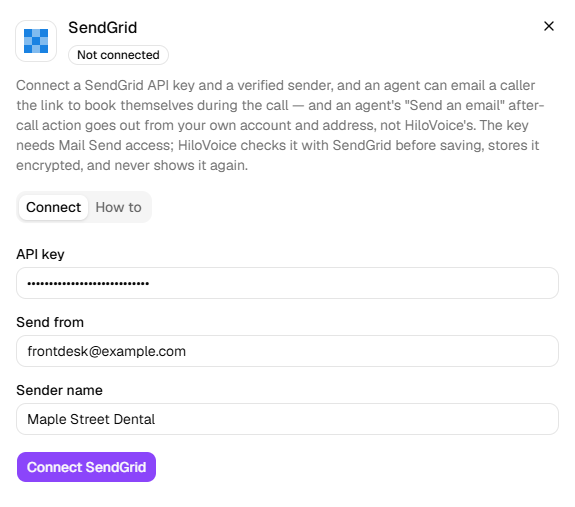
The row reads Connected, with the name and the address.
What happens next
- Every email an agent sends to the person on the call goes from your address: booking links, forms, codes sent by email, and Send an email and Ask for a review after a call. So do after-call emails to your team.
- On an agent's Appointment Booking step, the hint beside By email now says From your own sender, to an address the caller gives.
- Emails HiloVoice sends your team about the account, such as a hot lead or a campaign that paused, still come from HiloVoice.
- While SendGrid needs attention, and after you disconnect it, emails go from HiloVoice's address again.
Let callers email an answer
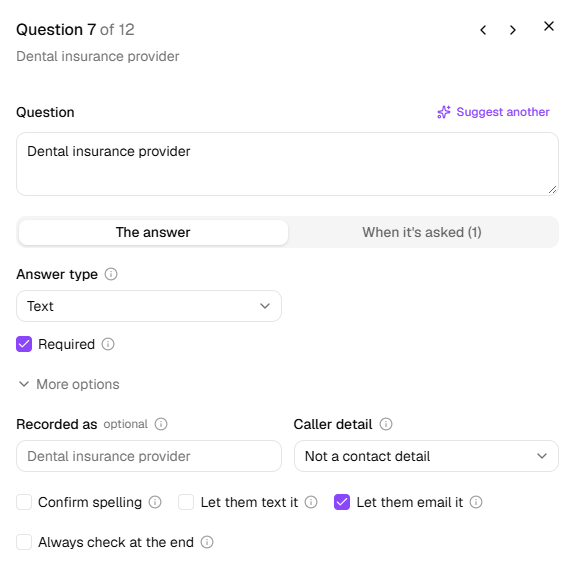
Some answers are easy to mishear on the phone: an email address, a long reference. Tick Let them email it on a question, and the agent offers to take the answer by email. It's offered on a question the caller answers in words, or with a date or time; not on a yes/no or a number, or a detail you already hold.
Open the agent, and in the step rail click Intake Questions, Details or Questions, whichever it has.
Click the question, then More options.
Tick Let them email it. The question's row now says Can be emailed. Publish to make it live.
On the call, the agent gives the caller an address for this call alone: six digits at HiloVoice's inbox. It says the digits one at a time, and texts the address too if the caller asks. The caller puts the answer in the body of the email, and the agent picks it up from there. Photos and PDFs attached to the email are kept with the call.
- The address keeps working for two days after the call. Anything that arrives after the call is kept with it, and the call is marked for review on Calls, so someone acts on it.
- A Photo (sent in) question can be sent By email to the same kind of address, and a Document (emailed) question always is.
- It runs on HiloVoice's own inbox, so it needs no SendGrid of yours. It works when you talk to the agent in your browser from Try it, too.
If it does not work
| You see | Why | What to do |
|---|---|---|
| That API key cannot send mail. Create one with Mail Send access. | The key has no Mail Send permission | Create a key with Mail Send set to Full Access. |
| <address> is not a verified sender on this SendGrid account. Verify it there first, or use one that is: <addresses>. | Send from isn't verified in SendGrid | Verify it under Sender Authentication, or use one of the addresses listed. |
| A sender email address is required — one SendGrid has verified. | Send from is empty, or isn't an email address | Type the verified address. |
| SendGrid rejected the API key. | The key is wrong, or was deleted | Create a new key and paste it under Replace credentials. |
| SendGrid refused the request — check the key's permissions and the sender address. | SendGrid turned the key down | Check both in SendGrid, then connect again. |
| On a call's After the call tab, No email sender is connected. Connect one under Integrations and emails will go out. | There's no sender of yours, and HiloVoice's isn't available | Connect SendGrid. |
Read next
- Send messages after a call — the emails an agent sends once the call ends
- Choose what the agent asks — the questions an answer by email belongs to
- Book appointments on a call — sending the booking link by email