
Hand calls to a person
For BuildersChecked against the app on October 1, 2026
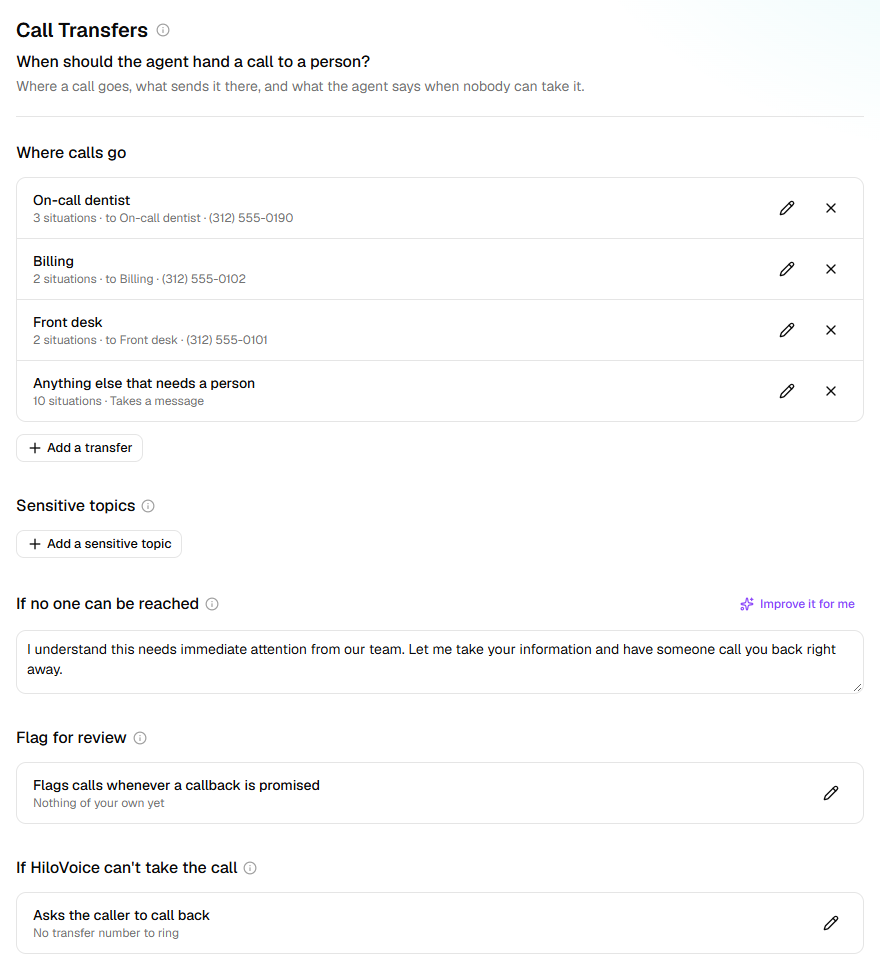
On the Call Transfers step, under Optional, you say where a call can go when it needs a person, what sends it there, and what the agent says when nobody can take it. The same step holds your own protocols for sensitive topics, and the calls to flag for someone to read afterwards. Every kind of agent has this step.
Before you start
- You're an Owner, Admin or Builder.
- Have the numbers to hand. Numbers saved under Settings → Transfer destinations can be picked by name.
- To put calls through only in opening hours, set them on Hours of Operation first. On an outbound agent, its Calling Hours stand in for them.
Steps
Open the agent. In the step rail, open Optional and click Call Transfers.
Under Where calls go, click Add a transfer. The last row, When the call needs a person, catches any call that needs a person and matches no other transfer; open it the same way. Once there are others above it, it reads Anything else that needs a person.
Under Transfer if…, type each situation in plain words (
the caller asks about a bill) and click Add. The agent judges whether a call matches. A Name is optional; without one, the first situation stands in.Under Where the call goes, pick a saved destination, or Type a number and say What to call it. Save destination keeps the number under Settings → Transfer destinations for every agent.
To have the agent help first, click Only if they keep asking and put situations there. The call goes through only on the caller's 2nd or 3rd ask, as you choose. HiloVoice keeps the count, so it's exact. An emergency still goes to the emergency number.
Under When it can be put through, choose Any time, During opening hours or At set times. For the rest of the time, Outside those hours is Take a message or Put through to someone else: an on-call line, say.
Tick Also flag the call for review to have the call listed under Needs review on Calls as well. Click Done.
Sensitive topics
Left to itself, an agent meets some subjects with a refusal or a hotline: self-harm at a clinic, say, or a criminal charge at a law firm. Give it your own protocol for each, and it follows that.
- Under Sensitive topics, click Add a sensitive topic, then one of the starters offered for your industry, or Something else.
- Fill in Topic, A caller might say… (in callers' own words, not clinical ones) and What the agent does and says: in order, the way you'd brief the front desk, with the exact words where wording matters. Name roles, not numbers. Write it for me drafts it from the topic.
- To hand the call over, choose where under Transfer to, then Put through: Right away, On the 2nd ask or On the 3rd ask. Click Done.
An agent carries up to six sensitive topics.
When nobody can take the call
- If no one can be reached is what the agent says when a caller needs a person and nobody can be reached, outside hours say. Promise a call back, not a transfer.
- If HiloVoice can't take the call matters for a Receptionist's number. On the rare occasion HiloVoice itself can't answer, the phone company sends the call here instead of playing an error. Left empty, it rings the same place as When the call needs a person; with no number there either, the caller is asked to call back.
Flag calls for review
Open Flag for review and list situations under Flag the call if… (the caller demands a refund). Flag every call where someone was promised a callback is on to start. Flagged calls
are listed under Needs review on the Calls page with the agent's reason. The call carries on,
and the caller is never told.
What happens next
- Changes reach callers when you publish on Review & Go Live.
- Change a saved destination's number once, under Settings → Transfer destinations, and every agent that uses it follows on its next publish.
- HiloVoice checks the clock when it puts a call through, in the agent's time zone.
- Numbers on Settings → Transfer list are put straight through to a person before the agent asks anything. That list is kept apart from this step.
If it does not work
| You see | Why | What to do |
|---|---|---|
| A transfer's row says Needs a situation or Needs a number | Half a transfer: nothing sends a call there, or there's nowhere to send it | Open it and add what's missing, or click Remove. |
| On Review & Go Live: <transfer>: nothing sends a call here yet. or <transfer>: there's no number to transfer the call to. | The same half transfer; it stops the agent going live | Add a situation under Transfer if…, or choose where the call goes. |
| <transfer>: it's put through during opening hours, but none are set on the Hours of Operation step. (Calling Hours step, on an agent that places calls.) | During opening hours is chosen, and the agent has no hours | Set hours on Hours of Operation (or Calling Hours), or choose Any time or At set times. |
| <transfer>: it's put through at set times, but no times are set. | At set times has no days | Add hours to at least one day. |
| A sensitive topic says Needs a protocol; on Review & Go Live, <topic>: say what the agent should do and say. | The topic has no protocol to follow | Fill in What the agent does and says, or remove the topic. |
| What the agent says when no one can be reached is over 500 characters. | If no one can be reached is too long to say | Shorten it. |
| Add a transfer is greyed out, with An agent can transfer to up to 10 different places. | Ten is the most | Put several situations on one transfer, or remove one you no longer need. |
Related
- Handle each kind of caller — transferring every call from one kind of caller
- Set your opening hours — the hours During opening hours uses
- Calls, leads and contacts — transfer destinations and the transfer list
- Review and go live — the checks a transfer has to pass