
Create a campaign
For BuildersChecked against the app on October 1, 2026
A campaign gives one outbound agent a list of people to call, with the hours it may call in and the rules for trying again. You make it from an agent and a name, add the people, check its settings and launch it. Until you launch, it's a draft and nobody is called.
Before you start
- You're an Owner, Admin or Builder.
- You have a Confirmations, Detail checks, Feedback or Follow-ups agent. A Receptionist answers calls, so it can't run a campaign.
- To launch, the agent has to be live, and have a caller ID unless the campaign is given a number of its own. You can set the campaign up before that. See Review and go live and Give an outbound agent a caller ID.
- Have your list to hand: a spreadsheet with a row for each person and their phone number. Import a campaign's recipients says which columns the agent needs.
Steps
Click Campaigns in the menu, then New campaign.
Under Agent, choose the agent that will make the calls. One that isn't live yet says (not published yet).
Under Name, type what your team will know the campaign by, such as
Cleaning reminders, week of October 5, and click Create. The campaign opens on its Add people tab.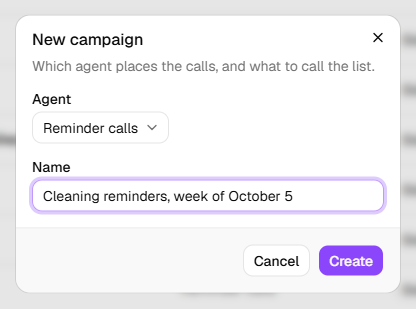
Choose your file and match its columns, as Import a campaign's recipients describes. The people on it are listed on People, each one Waiting.
Click Settings and check Call from, When calls may go out and Trying again. A new campaign starts with the agent's own caller ID, its Calling Hours and its retries. Change what this list needs, then click Save settings. See Set a campaign's calling hours and retries.
Warning: You're responsible for having permission to call the people on your list, for calling only in the hours allowed where they are, and for respecting anyone who has asked not to be called. See Your responsibilities on calls.
Click the Launch tab. Check the settings lists everything the campaign will run on. Anything under Not ready yet has to be put right first. When nothing is left, it says Ready, and how many people it will call.
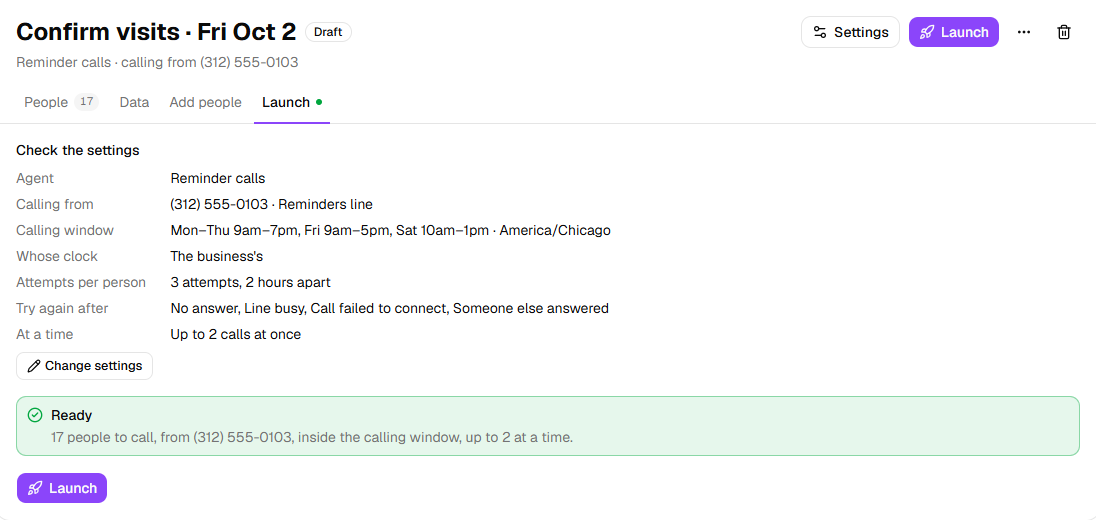
Click Launch. Choose Start now, or Start later and a time under Start at, then click Launch (Schedule for a later start).
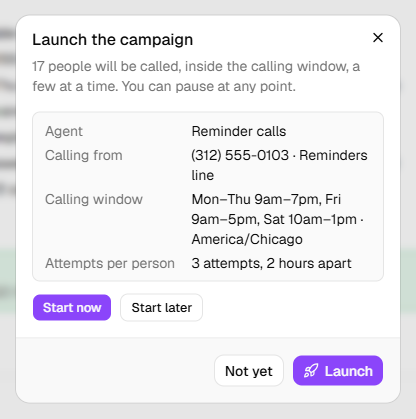
Important: Launching starts real calls to the people on the list as soon as the calling window is open. Before the first real one, run a small campaign to yourself and a colleague: see Check an agent before real calls reach it.
What happens next
- A message says Launched — calls start inside the calling window, or Scheduled — calls start at the chosen time. The campaign is now Running or Scheduled; a scheduled one says when it starts beside the agent's name.
- People are called in the order of your list, a few at a time (Calls at once in Settings, 2 to start), and only inside the calling window. Outside it, they wait. See Monitor a running campaign.
- To add people or change the settings once the campaign has launched, pause it first. Hold stops a scheduled campaign before it starts.
- The campaign keeps the hours and retries it was made with: changing the agent's Calling Hours or Goal later doesn't reach it. Left on the agent's own number, it follows the agent's caller ID if that changes.
- Publish a change to the agent while the campaign runs, and its next calls use the new version.
If it does not work
| You see | Why | What to do |
|---|---|---|
| New campaign is greyed out, with a lock beside it | Your plan doesn't include campaigns | An owner can change the plan under Settings → Billing. See Plans, minutes and limits. |
| No agent places calls yet under Agent | Your organization has no outbound agent | Create a Confirmations, Detail checks, Feedback or Follow-ups agent. |
| Under Not ready yet: The agent has not been published yet. | The agent has never gone live | Publish it on Review & Go Live. |
| The agent is paused. Resume it first. | Someone paused the agent | On Agents, open the agent's … menu and click Resume this agent. |
| The agent has no number to call from. Choose one on its Caller ID step, or choose a number for the campaign. | The agent has no caller ID, and the campaign has no number of its own | Choose a number on the agent's Caller ID step, or under Call from in the campaign's Settings. |
| No recipients yet. Upload a file first. or Nobody on the list can be called (every number is blocked or invalid). | The list is empty, or everyone on it is Skipped | Add a file of people who can be called. |
| The recipients are still being imported. | A file is still being read | Wait a moment, then reload the page. |
| Launch is refused, saying calling is paused, such as The free trial is over. Choose a plan to carry on taking and placing calls. | Your organization's calls are paused | An owner chooses a plan, or settles the bill, under Settings → Billing. |
| Your role here is Analyst: you can look at everything, but not change it. An owner or admin can make you a builder. | Analysts can't change campaigns | Ask an Owner or Admin. |
Read next
- Import a campaign's recipients — the file, its columns, and the rows it turns away
- Set a campaign's calling hours and retries — the window and the retries, for this campaign
- Monitor a running campaign — what each person's row says
- How a campaign runs — what you can do in each status
- Check an agent before real calls reach it — the checks before a first campaign