
Review and go live
For BuildersChecked against the app on October 1, 2026
Review & Go Live is the last step for every kind of agent: a Receptionist, an outbound agent or a Follow-ups agent. It lists anything that stops the agent going live, sums the agent up in plain sentences, and holds the button that puts it on real calls. It's also where you publish changes to an agent that's already live.
Before you start
- You're an Owner, Admin or Builder. An Analyst can't publish.
- The agent doesn't need a number yet. A Receptionist goes live without one and starts answering once it has one; an outbound agent can place calls once it has a caller ID.
- Going live for the first time counts towards the live agents your plan includes. Publishing changes to a live agent doesn't.
Steps
Open Agents, click the agent, and click Review & Go Live at the foot of the step rail.
Under Is it ready?, work down the red list, if there is one. Each item stops the agent going live: click it to open the step it's fixed on, fix it, and come back.
Read the list under it, if there is one. These are worth a look, such as a greeting that doesn't name the business, but they don't stop the agent going live.
Look down the steps listed below. A step that isn't done says incomplete; an optional step you haven't used says not used.
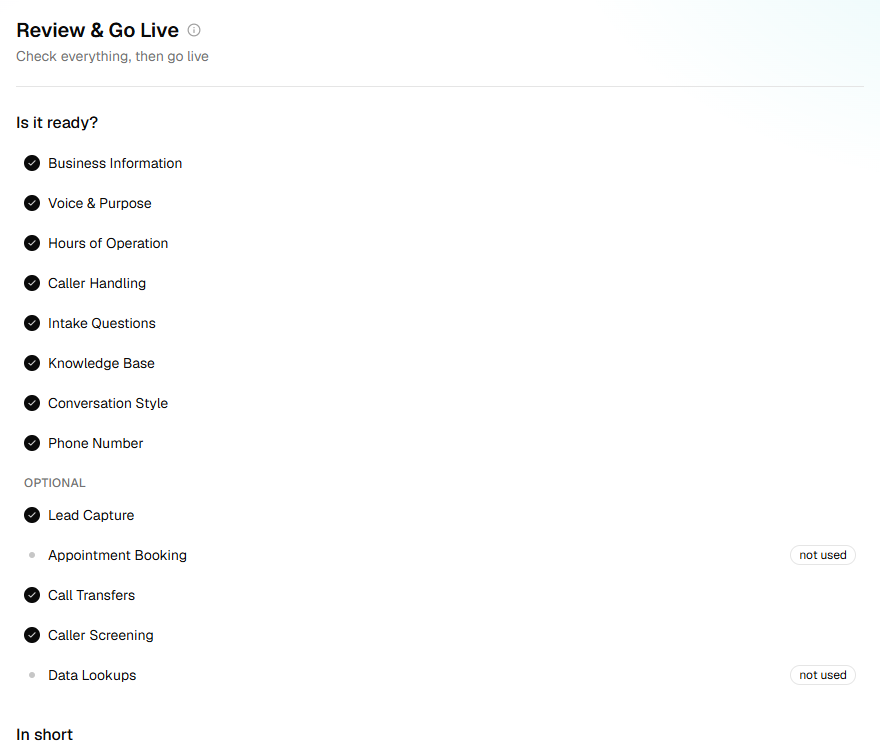
Read In short: the agent in plain sentences, such as Asks up to 9 questions, sorting callers into 5 kinds. A grey line, such as No phone number yet., is something missing. Click a line to open its step.
To hear the agent first, click Try it at the top of the page.
Click Go live. On an agent that's already live, the button is Publish changes.

Important: Going live puts the agent on real calls: a Receptionist starts answering its number, and campaigns can call people with an outbound agent. On a live agent, callers get your changes as soon as you publish them.
What happens next
- While it publishes, the button counts the seconds, and a line under it names the stage: Preparing, Checking, Sending to the phone line, then Done. It can take a few minutes.
- The step then says <name> is live as of <time>, with the number to ring to hear a Receptionist answer, or the number an outbound agent calls from. Its calls show up under Calls.
- The version is kept in the agent's History, in the … menu next to its name.
- On some organizations' agents, a pill beside Try it shows HiloVoice's rehearsal of the new version: Rehearsing…, then Rehearsal passed or how many slips it found. A slip is a warning; the version is live either way.
Change an agent that's live
Editing a live agent doesn't change what callers hear. Your edits are kept in a draft, and a banner says Unpublished changes — callers still hear the published version. Callers get them when you click Publish changes here, or Publish at the top of any step.
- Discard changes, on the banner, throws away everything since you last published and puts back what callers hear now. It can't be undone.
- An update is ready. Publish it to give callers the latest. means HiloVoice would now set the agent up differently: an improvement on HiloVoice's side, or a setting the agent depends on has changed. Nothing you set up changes. Click Publish update.
- Leaving the builder before you publish asks Leave with unpublished changes? Your edits stay saved as a draft either way.
- To go back to an earlier version, open History and click Restore on it. Its setup goes into your draft; callers get it when you publish.
What stops an agent going live
These are the items you're most likely to see on the red list, and the step each is fixed on.
| The list says | Fix it on |
|---|---|
| The agent needs a name callers will hear. | Voice & Purpose |
| The agent needs a business name. | Business Information |
| The agent needs a purpose. | Voice & Purpose |
| Add at least one question. | Intake Questions (a Receptionist) |
| Add at least one detail for the agent to establish on the call. | Details, or Questions on a Feedback agent |
| Say what HiloVoice should help complete — the goal on the Goal step. | Goal (Follow-ups) |
| Say how HiloVoice knows the follow-up succeeded — on the Goal step. | Goal (Follow-ups) |
| This agent places calls, so it has to speak first — set that on the Opening step. | Opening |
| Question 2 needs wording the agent can say. | The questions step |
| FAQ 3 needs an answer. | Knowledge Base |
| Appointments are switched on but no booking link has been checked yet. | Appointment Booking |
| <name>: there's no number to transfer the call to. | Call Transfers |
| <name> needs a voice — or remove the row. | Voice & Purpose |
A box that's over its length limit is listed too, such as The purpose is over 300 characters.
If it does not work
| You see | Why | What to do |
|---|---|---|
| Go live is greyed out | Something on the red list still stops the agent going live | Fix each item. Pointing at the button at the top of the page lists them too. |
| <name> is live and up to date., and the button is greyed out | Nothing has changed since you last published | Nothing to do. |
| We couldn't publish the agent just now. Your draft is saved — please try again. | Publishing failed on HiloVoice's side | Click the button again. If it fails again, wait a few minutes and try once more. |
| Your plan includes <n> live agents, and they're all in use. Pause one, or choose a bigger plan under Settings → Billing. | Going live would take you past your plan | Pause an agent you don't need from its … menu, or ask an owner to change the plan. |
| That voice is no longer available. Choose another one. | The agent's voice can't be used on calls any more | Choose another voice on Voice & Purpose, then publish again. |
| That transfer destination no longer exists. Choose another one. | A line the agent transfers calls to was deleted | Choose another on Call Transfers, then publish again. |
| Your role here is Analyst: you can look at everything, but not change it. An owner or admin can make you a builder. | Analysts can't publish | Ask an owner or admin to publish, or to change your role. |
Related
- How the builder works — drafts, publishing and History
- Give a Receptionist its number — the number it answers
- Give an outbound agent a caller ID — the number it calls from
- Campaigns and recipients — how an outbound agent gets people to call