
CSV columns
For BuildersChecked against the app on October 1, 2026
HiloVoice reads two kinds of spreadsheet: a campaign's list of people, and a lookup source an agent searches during a call. Both take CSV, XLSX or XLS, with the column names in the first row and one row per person or record. A workbook with several sheets asks which one to use.
There is no import for Contacts on its own. Everyone on a campaign's file becomes a contact, or brings their contact up to date, and you can add a person by hand with Add a contact.
A campaign's list
Add the file on the campaign's Add people tab: see Import a campaign's recipients. A file can have up to 50,000 rows; your plan may take fewer in one upload. You can add files while the campaign is a draft, scheduled or paused.
What a column can be
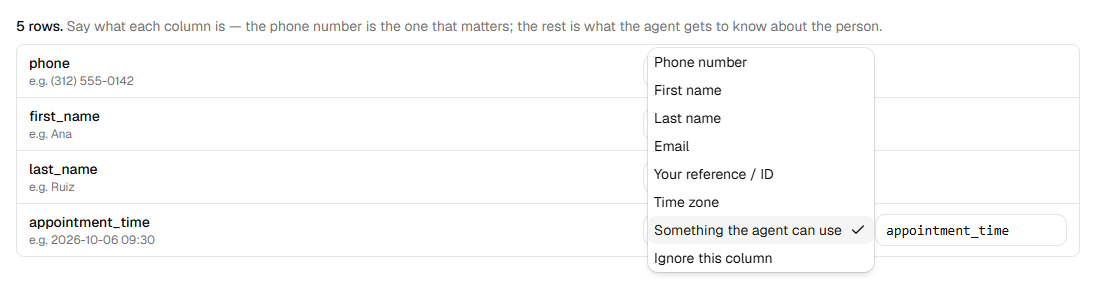
Beside each column, you say what it is. HiloVoice suggests a choice from the column's name, ignoring
capitals, spaces and punctuation, so Phone Number and phone_number are both read as a phone
number.
| Set the column to | What it holds | Suggested for a column named | Notes |
|---|---|---|---|
| Phone number | The number to call. Required: exactly one column. | phone, phone number, mobile, mobile number, cell, cell phone, telephone, tel, number, contact number | A number written the local way, such as (312) 555-0142, is read as one in your organization's country (Settings → Organization). Write a number from another country with + and its country code. |
| First name | The person's first name. | first name, first, given name, forename | |
| Last name | The person's last name. | last name, last, surname, family name | |
| Full name (split into first and last) | A whole name in one column. | name, full name, contact name, customer name, client name, patient name | Split on the first space: Mary Ann Lee is first name Mary, last name Ann Lee. A comma turns it round: Lee, Mary Ann is Mary Ann and Lee. One word is a first name. A First name or Last name column of its own wins over the split. Fix a split you don't like on the person's contact, where first and last name are separate. |
| Their email address. | email, email address, mail | Kept on their contact, so an email after the call can reach them. | |
| Your reference / ID | Your own reference for them. | id, external id, customer id, client id, record id, reference, ref, account number, account | Shows under their name on People. |
| Time zone | Their time zone, such as America/Chicago. | timezone, time zone, tz, zone | Used when the campaign calls on Each person's own, when known. One HiloVoice doesn't know is reported, and the business's is used. |
| Something the agent can use | Anything else the agent is told about the person. | Every other name | The box beside it holds the name the agent reads it under: lowercase letters, digits and underscores, starting with a letter. A column named like one of the agent's details is matched to that detail. |
| Ignore this column | Nothing: the column isn't read. |
One column only can be each of the first seven. A column named company, company name, business,
business name, organization, organisation, firm, practice, vendor or supplier is read
as business_name: the business the number belongs to. An agent set to call a business asks for it
by that name.
Names HiloVoice fills in itself
On every campaign call HiloVoice tells the agent the person's first_name, last_name, full_name,
phone, external_id and the campaign_name, from the columns above. A Something the agent can
use column can't take one of those names: the import screen says so before anything is sent. A
column called Full name or Name is suggested as Full name (split into first and last), so the
person has a first name to be greeted by and HiloVoice makes full_name from the two.
Columns each kind of agent reads
The example on Add people, and Download this example, are made from the campaign's agent: they
always show the columns it reads, starting with phone, first_name, last_name and email. The
rest come from the agent's details:
| Agent | Its own columns |
|---|---|
| Confirmations | One for each detail on Details set to We already know it: what it reads back to confirm, such as the appointment's date and time. |
| Detail checks | One for each detail on Details set to We already know it: the value you hold, which it checks with the person. |
| Feedback | Often none: it asks its Questions on the call. One for each question set to We already know it, such as the date of the visit. |
| Follow-ups | goal, current_status and due_date, each optional, then one for each question on Questions set to We already know it. Its opening asks for the person by first_name. |
A detail's column is named after its Recorded as name, or its wording when it has none: a detail
recorded as Appointment time reads a column named Appointment time or appointment_time. When a
detail has no column, the line under the list says The agent also expects … — no column gives it,
so it will be blank on the call.
On a Follow-ups campaign, goal gives a person a goal of their own, such as Return the signed service agreement; anyone without one is worked toward the goal on the agent's Goal step.
current_status says where things stand when the list is made, and due_date when it's due. All
three show on the person's See every attempt.
What becomes of each row
| In the report | Why | The row |
|---|---|---|
| (added) | It has a usable phone number. | Becomes a recipient, Waiting, and a contact. |
| No phone number | The phone column is empty. | Not added. |
| Not a phone number | The phone column can't be read as a number, such as one with no area code. | Not added. |
| Duplicate | The number appears earlier in the file, or is already on the campaign. | Not added; the first one stays. |
| On the block list | The number is on Blocked numbers. | Added as Skipped, and never called. |
| Unknown time zone | The time zone column holds a name HiloVoice doesn't know. | Added, called on the business's clock. |
Rows are numbered as a spreadsheet numbers them, with the column names as row 1. A blank row is left out. People are called in the order of the file.
What a campaign file can't be
| The app says | Why |
|---|---|
| Pick the column with the phone number. | No column is set to Phone number. |
| Variable names are lowercase letters, digits and underscores, starting with a letter. | A name beside Something the agent can use has a space, a capital or a symbol. |
| The file has no header row. | The first row is empty. |
| Every column in the header row needs a name. | A column has no name in the first row. |
| Two columns in the header row have the same name. | Two columns share a name. |
| The file has a header row and nothing under it. | There are no rows of people. |
| That file has more than 50,000 rows. Imports are limited to 50,000 rows for now. | The file is too long: split it. |
| Your plan takes up to <n> contacts in one upload, and this file has <n>. Split it into smaller files, or choose a bigger plan under Settings → Billing. | Your plan takes fewer in one upload. |
| That workbook has no sheet with anything in it. | Every sheet in the workbook is empty. |
| Recipients can only be added to a campaign that is not running. | The campaign is running: pause it first. |
| An import is still being processed. Wait for it to finish. | The last file is still being read. |
A lookup spreadsheet
Add one under Settings → Lookups: click A spreadsheet, give it a Name, choose the File (up to 10,000 rows) and click Add spreadsheet. To replace its rows later, open it and choose a file under Replace the rows. See Add a lookup source.
Any columns will do. The first row names them, and each name is turned into a short one, as the
agent uses it: lowercase, with underscores for spaces and symbols, such as Account Balance to
account_balance. Two columns with the same name become name and name_2. Rows with nothing in
them are left out.
Under Columns, each column has two settings:
| Setting | Choices | Starts as |
|---|---|---|
| Holds | Phone number, Email address, Person's name, Other text | Guessed from the column's name: one with phone, mobile, cell or tel in it holds a phone number, one with email an email address, one with name (but not a company or business name) a person's name. Anything else is other text. |
| Searchable | On or off | On. Only searchable columns can be used to find a record; the others come back with it. |
Phone numbers are kept as international numbers, in your organization's country unless a number says otherwise, so they match however they were typed. For an agent to recognise callers by the number they ring from, the spreadsheet needs a searchable Phone number column: see Let the agent check your records.
| The app says | Why |
|---|---|
| That's more than 10,000 rows — the most a lookup dataset can hold for now. Split the file, or keep only the rows the agent needs to find. | The file is too long. |
| No columns found — is the first row a header? | The first row is empty. |
| That workbook has no sheet with a header row. | No sheet in the workbook has column names. |
Files HiloVoice gives you
Export, on a campaign's People tab, downloads the people shown as a CSV, one row each, in the order of the list:
| Column | What it holds |
|---|---|
| Row, Phone, First name, Last name, External id, Time zone | What the file said about the person. |
| Status | Their status, as People shows it: Waiting, On a call, Done, Needs a person, Not completed, Skipped, Cancelled. See Recipient statuses. |
| Attempts | How many times they were called, including calls that failed on the line. |
| Last outcome | How the last call ended, as People says it, such as No answer or Moved forward. |
| Note | What the What happened column says. |
| Next attempt | When the next call is due, on the campaign's calling window's clock, named in the header, such as Next attempt (America/Chicago). |
| Last call id | The last call, to find it on Calls. |
| Calls failed on the line, Next action, In the way, Callback requested (on the same clock), Last summary | On a Follow-ups campaign only: where each job stands. |
| Each Something the agent can use column | As the file gave it. |
| Answer: and a name | Each answer the person's last call recorded. |
Export on Leads gives the leads shown as CSV or Excel (.xlsx), and Export CSV on Settings → Activity gives the activity log.
Related
- Import a campaign's recipients — adding the file, step by step
- Choose what the agent asks — the details an outbound agent reads from the list
- Add a lookup source — spreadsheets, your leads, your contacts and your own API
- Recipient statuses — what the Status column means