
Campaign statuses
For BuildersChecked against the app on October 1, 2026
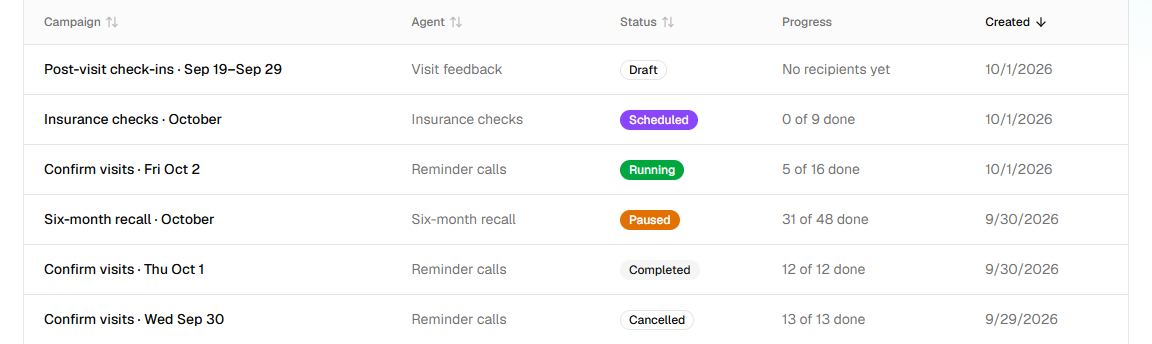
Every campaign has one status. It shows as a badge beside the campaign's name, on Campaigns and on the campaign's own page, and the tabs along the top of Campaigns filter by it. The status decides what the campaign is doing and what you can change. For how a campaign is set up and run, see How a campaign runs.
Owners, Admins and Builders can launch, pause, resume, cancel and delete campaigns. An Analyst can open every campaign but change nothing.
The statuses
| Status | What it means | What to do |
|---|---|---|
| Draft | Being set up. Nobody is called. Every new campaign starts here. | Add people on Add people, check Settings, then click Launch. The Launch tab lists anything that stops it, under Not ready yet. |
| Scheduled | Launched with Start later, and the start time hasn't come yet. The header says starts and the date and time. | Nothing: at its start time it becomes Running. Hold stops it starting. Settings and Add people stay open. |
| Running | Calling, inside its calling window. The page updates itself every few seconds. Outside the window, people wait with Outside calling hours. | Watch it on People. Pause to change its settings or add people from a file. |
| Paused | Not calling. Either someone clicked Pause or Hold, or HiloVoice paused it because it couldn't carry on. Then a banner says Paused: and the reason, with Fix that, then resume. Nobody was called in the meantime. | Fix the reason (see below), then click Resume. Calls already under way when it paused finish as usual. |
| Completed | Everyone on the list is settled: Done, Not completed, Skipped, Cancelled or Needs a person. The bell says <campaign> finished. | Read and Export the results. It never calls again: to call the same people, start a new campaign. |
| Cancelled | Stopped for good with Cancel the campaign. Anyone still Waiting became Cancelled; a call already under way finished on its own. | The same as Completed. Cancelling can't be undone. |
A campaign waiting on people marked Needs a person still completes: they don't hold it open. A Paused campaign never completes, even when everyone on it is settled; it completes once you resume it.
Moving between statuses
| From | You do this, or this happens | It becomes | The app says |
|---|---|---|---|
| Draft | Launch, then Start now and Launch | Running | Launched — calls start inside the calling window |
| Draft | Launch, then Start later, a time under Start at, and Schedule | Scheduled | Scheduled — calls start at the chosen time |
| Scheduled | The start time comes | Running | |
| Scheduled | Hold | Paused | Paused — calls already up will finish |
| Running | Pause | Paused | Paused — calls already up will finish |
| Running or Scheduled | HiloVoice can't carry on (see below) | Paused | Paused: and the reason, on the page and on the bell |
| Paused | Resume | Running, or Scheduled if its start time is still to come | Calling again |
| Running | Everyone on the list is settled | Completed | <campaign> finished, on the bell |
| Scheduled, Running or Paused | …, then Cancel the campaign, then Cancel the campaign again to confirm | Cancelled | Campaign cancelled |
Important: Launching or resuming starts real calls to the people on the list as soon as the calling window is open.
What you can do in each status
| Draft | Scheduled | Running | Paused | Completed | Cancelled | |
|---|---|---|---|---|---|---|
| Rename (in …) | Yes | Yes | Yes | Yes | Yes | Yes |
| Change Settings | Yes | Yes | No | Yes | No | No |
| Add people from a file | Yes | Yes | No | Yes | No | No |
| Add leads with Add to a follow-up campaign… | Yes | Yes | Yes | Yes | No | No |
| Call again, Skip this person, Reopen and call again | No | Yes | Yes | Yes | No | No |
| Mark as done | Yes | Yes | Yes | Yes | Yes | Yes |
| Export | Yes | Yes | Yes | Yes | Yes | Yes |
| Cancel the campaign | No | Yes | Yes | Yes | No | No |
| Delete | Delete this draft | No | No | No | Delete (in …) | Delete (in …) |
When the settings can't be changed, the Settings drawer says so: on a running campaign, The calling window, retries and the number the calls come from — as they are. Pause the campaign to change them.; once it has ended, … They can't be changed once the campaign has ended. Deleting removes the list and its file; the calls the campaign made stay on Calls.
Why a campaign pauses itself
HiloVoice checks the agent, the number and your plan before it places each batch of calls. When one of them stops it, the campaign pauses with the reason. Owners, Admins and Builders hear about it on the bell and by email, except when the agent itself was paused.
| The page says | Why | What to do |
|---|---|---|
| Paused: The agent is paused. | Someone paused the campaign's agent, or a change of plan paused it. | Resume the agent from its … menu. The campaign carries on by itself. |
| Paused: and why calls stopped, such as Paused: The free trial is over. Choose a plan to carry on taking and placing calls. | Billing has stopped the organization's calls. | An owner puts it right under Settings → Billing. The campaign carries on by itself once calls are allowed again. |
| Paused: Campaigns aren't on the organization's plan. | The organization moved to a plan without campaigns. | An owner chooses a plan with campaigns under Settings → Billing. Then click Resume. |
| Paused: The agent is not published. | The agent has never gone live. | Publish it on Review & Go Live, then click Resume. |
| Paused: The agent has no caller ID to call from. | The agent has no caller ID, or its number isn't ready to call from. | Choose a number on the agent's Caller ID step (or click Retry there), or one under Call from in the campaign's Settings. Then click Resume. |
| Paused: The number chosen to call from is no longer connected. | The number under Call from was released or disconnected. | In Settings, choose another number under Call from, click Save settings, then Resume. |
| Paused: The agent is archived. | The agent was archived. | Restore the agent and give it a caller ID, then click Resume. Or cancel the campaign. |
| Paused: The agent no longer exists. | The agent was deleted. | Cancel the campaign and start a new one with another agent. |
If you resume before the cause is fixed, the campaign pauses again with the same reason.
What stops a draft launching
The Launch tab lists every reason at once, under Not ready yet, and Launch stays greyed out until the list is empty. With nothing in the way it says Ready.

| The list says | What to do |
|---|---|
| The agent is paused. Resume it first. | Resume the agent from its … menu. |
| The agent has not been published yet. | Publish the agent on Review & Go Live. |
| The agent is archived. | Restore the agent, or make a new campaign with another agent. |
| The agent no longer exists. | Delete the draft and make a new campaign with another agent. |
| The agent has no number to call from. Choose one on its Caller ID step, or choose a number for the campaign. | Choose a number on the agent's Caller ID step, or under Call from in the campaign's Settings. |
| The number chosen to call from is no longer connected. | Choose another number under Call from in Settings. |
| The recipients are still being imported. | Wait for the file to finish; Add people shows its progress. |
| No recipients yet. Upload a file first. | Add people: see Import a campaign's recipients. |
| Nobody on the list can be called (every number is blocked or invalid). | Add a file with numbers that can be called, or take numbers off Blocked numbers if they shouldn't be there. |
| Pick at least one day on which calls may be placed. | Give at least one day hours under When calls may go out in Settings. |
| <day> must close later than it opens. | Set a closing time after the opening time for that day. |
| Attempts must be between 1 and 10. | Set Attempts per person to a number from 1 to 10. |
Launching, or resuming, can also be refused because of your plan: Campaigns are on <plan> and up. An owner can change the plan under Settings → Billing., or, while calls are paused, with the reason, such as The free trial is over. Choose a plan to carry on taking and placing calls.
Related
- How a campaign runs — the Campaigns page and a campaign's page
- Monitor a running campaign — what each person's row says while it runs
- Recipient statuses — the status of each person on the list
- Campaigns and recipients — the parts of a campaign