
Check an agent before real calls reach it
For BuildersChecked against the app on October 1, 2026
Going live takes one click. Making sure the agent is ready for your customers takes a little longer. Work through these checks before you put a Receptionist's number on your website or start a campaign with an outbound agent. Most take a few minutes in Try it; the rest need a phone.
Before you start
- You're an Owner, Admin or Builder. Getting a number or connecting one needs an Owner or Admin.
- Have a second phone to hand, one that isn't on your Transfer list or your block list.
Steps
Before you go live
- Open the agent and click Review & Go Live. Under Is it ready?, clear the red list.
- Read the list under it, if there is one. It doesn't stop the agent going live, but a caller would notice each item: “Your Company” is still in the greeting — put Maple Street Dental there., or The greeting doesn't mention Maple Street Dental — check it names the right business, or change the business name on the Business Information step. Click an item to fix it.
- Read In short as a caller would meet it: the hours, the questions, who it turns away, what it answers, when it hands over. Click any line that's wrong.
- In Try it, make one call for each of your most common callers: a new customer, an existing one, a question your Knowledge Base answers, and one it doesn't.
- Then the hard calls: someone who asks for a person, someone upset, a subject you gave a protocol under Sensitive topics, a caller you'd turn away.
- After each call, open it on Calls, with Show test calls on. Check Information collected and After the call say what you expected.
- Click Go live.
Before the number is public
Ring the agent's number from your second phone. Listen for the recording notice, then the greeting.
Ask for a person, and check the call rings the right phone. Do it again outside opening hours, if the agent hands over differently then.
If you forwarded your existing number, click Test connection on the agent's Phone Number step, and call your business number from the second phone. The page says You're connected.
Open the call on Calls. Check what it collected, and that texts or emails after it arrived.
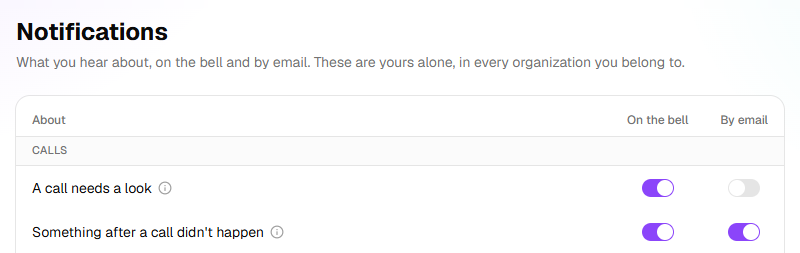
On Settings → Notifications, check that someone hears about A call needs a look. It comes on the bell, not by email, until each person chooses otherwise.
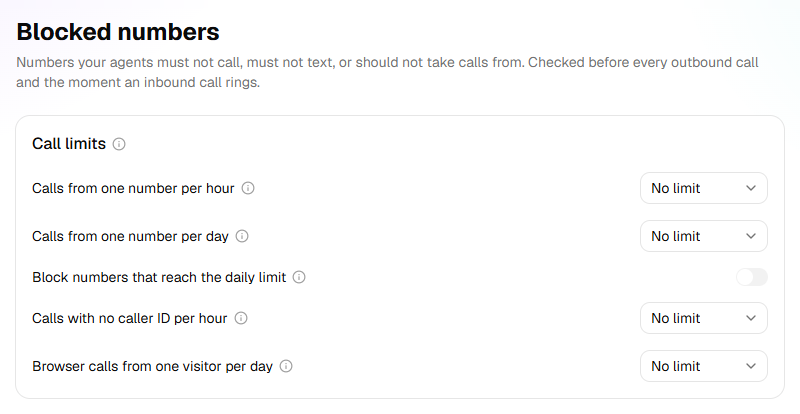
On Settings → Blocked numbers, look over Call limits. They stop one number ringing over and over and running up your minutes. None is set until you choose one.
Before a campaign starts
- On the agent's Caller ID step, the number reads Calls from this agent show this number, not Not ready to call from yet.
- In Try it, type your number under Your number and click Call me. Hear the opening as the people you call will, with This is an automated call. if you chose Say so upfront.
- Call the caller ID back from that phone. Check who answers: usually your Receptionist.
- On Calling Hours, check the days, the times and the Timezone suit the people you're calling.
- Make a first, small campaign: yourself and a colleague, with numbers you'll answer. Check the details from the list, such as a first name or an appointment time, come out right on the call.
- On the real campaign's Launch tab, read Check the settings, and clear anything under Not ready yet, such as No recipients yet. Upload a file first.
- Click Launch, and watch the first calls on the campaign's page. Pause it if anything is wrong.
Important: A campaign calls real people as soon as its window opens. Anyone on your block list is never called; anyone else on the list is.
What happens next
- On some organizations' agents, HiloVoice rehearses each version once it's live. A pill beside Try it says Rehearsing…, then Rehearsal passed or how many slips it found, such as 2 slips in rehearsal. Click it to see each moment HiloVoice played, what the caller said, and where the agent slipped. A slip is a warning: the version is live either way. Fix the step, try it, and publish again.
- Keep an eye on Calls for the first days. Flagged calls are listed under Needs review.
- Every change you make later waits in a draft until you publish it, so test each one with Try it first.
If it does not work
| You see | Why | What to do |
|---|---|---|
| The agent says you're open when you're closed | The Timezone on Hours of Operation isn't yours, or the change isn't published | Choose the right zone, then publish. |
| Your test call to the number isn't answered by the agent | The agent isn't live, or the number isn't connected | Check the Phone Number step says Live — calls reach this agent. |
| The campaign's Launch tab says The agent has not been published yet. | The agent isn't live | Go live on Review & Go Live. |
| The campaign's Launch tab says The agent has no number to call from. Choose one on its Caller ID step, or choose a number for the campaign. | The agent has no caller ID | Choose one on its Caller ID step, or a number in the campaign's Settings. |
| The campaign's Launch tab says Nobody on the list can be called (every number is blocked or invalid). | Every person on the list is on your block list, or has no number that can be called | Check the list, and the block list under Settings → Blocked numbers. |
| <n> slips in rehearsal | A reply in HiloVoice's rehearsal broke one of the agent's rules | Open the pill, read the slip, and fix the step it's about. |
Read next
- Test an agent with Try it — the panel, and Call me
- Review and go live — what stops an agent going live
- Your responsibilities on calls — recording, consent, do-not-call and calling hours
- Create a campaign — the list, the schedule and the launch