
Turn away callers you can't help
For BuildersChecked against the app on October 1, 2026
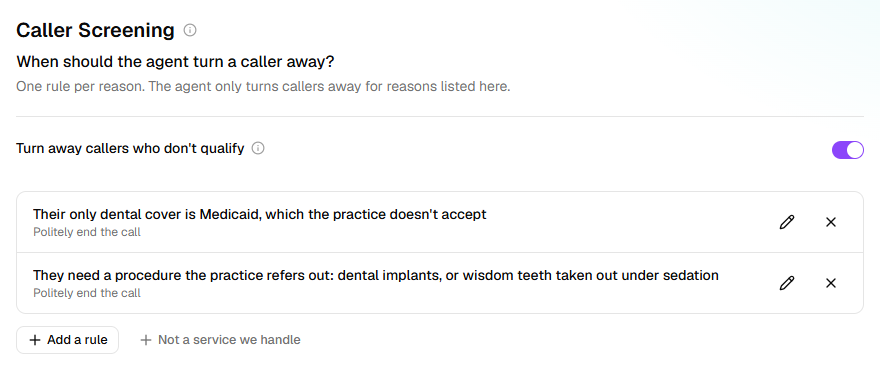
A Receptionist takes every caller's details unless you tell it otherwise. On Caller Screening you list the reasons a caller doesn't qualify, such as an area you don't cover or a service you don't offer, with what the agent says and what happens next. The agent turns callers away only for the reasons listed here, never for one of its own. The step is on a Receptionist only, under Optional.
Before you start
- To decide a reason from an answer, the agent needs a Yes / no, choice, number or date question on Intake Questions. To decide it from your records, you need a lookup source under Settings → Lookups.
- The ready-made reasons need a list on Business Information: Areas you cover for Not in the areas served, Services you offer for Not a service we handle.
Steps
Open Agents and click the agent.
In the step rail, click Caller Screening, under Optional. If the group is closed, click Optional first.
Switch on Turn away callers who don't qualify, then click Add a rule. Or click Not in the areas served or Not a service we handle to add a finished rule you can reword.
Under Doesn't qualify if…, describe the situation, not a question to ask:
The caller already has an attorney. Write it for me writes one.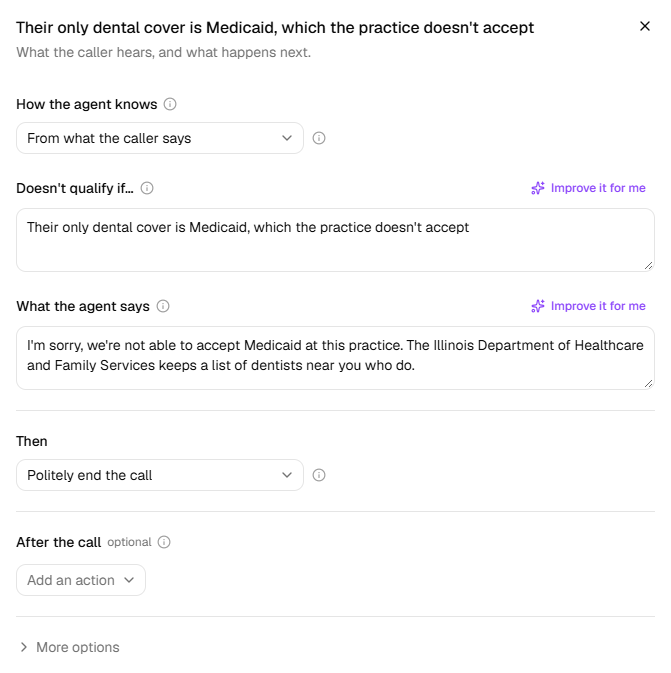
Under What the agent says, type what the caller hears. It's said exactly as written, so keep it kind and short.
Under Then, choose what happens next:
Choice What the agent does Politely end the call Says the response, thanks them, and hangs up. Transfer them to a person Says the response, then puts them through to the number you choose under Where the call goes. Still take their details Says the response, then carries on with the questions so someone can follow up. Click Done. A rule that still needs something says what on its row, such as Needs what the agent says.
Decide a rule by an answer or a record
Under How the agent knows, a rule is decided From what the caller says unless you choose otherwise. The other two take the decision away from the agent:
- From the caller's answers: under Doesn't qualify when, pick a question and the answer
that rules a caller out. A number is compared with is more than or is less than; a date
with a span from today, such as
is more than 8 years ago. With two or more conditions, choose whether all or any must be true. HiloVoice checks the moment the answer is recorded, so ask that question early. - By checking a source: choose the source under Check, and check what The agent asks the
caller for. Under Doesn't qualify when, choose Nothing is found (they're not on the
list) or A field on the record says so, such as
statusislapsed. Open Try the check to test it with a real value.
Note: A check that can't be made never turns anyone away. If the check can't be made says what the agent does instead, and Give up after sets how long it waits: up to 15 seconds.
Send something after the call
Under After the call, choose from Add an action: Send a text, Send an email, Call a webhook or Create a lead. Send to your CRM, Post to Slack and Send to Zapier appear once that integration is connected. Each runs once the call has ended, however it ended.
What happens next
- Changes reach callers once you publish on Review & Go Live. Switched off, the rules are kept but every caller's details are taken.
- Each call records the rule that turned the caller away, by its Short name in reports (under More options). A webhook or your CRM gets the same name.
- If the caller is a kind that becomes a lead, the lead is marked Disqualified.
- A call's After the call tab, on Calls, shows whether each action went out.
Important: Once published, every caller a rule fits hears its response. Try each rule with Try it before you publish.
If it does not work
| You see | Why | What to do |
|---|---|---|
| From the caller's answers can't be chosen: Add a yes/no, choice, number or date question on the Intake Questions step first. | No question has an answer a rule can compare | Add one on Intake Questions, or give a question Answer options. |
| "…": the agent has nothing to say to the caller. on Review & Go Live | What the agent says is empty | Open the rule and write it. |
| "…": the caller is transferred, but there's no number to transfer them to. | Then is Transfer them to a person, with no number | Choose a destination under Where the call goes, or type a number. |
| "…" is decided by the caller's answers, but a condition needs a number to compare with. | A number condition has no amount | Open the rule and type the amount. |
| A rule shows Source removed | The source it checks was removed under Settings → Lookups | Open the rule and choose another source under Check. |
| Another rule already has this short name — make it different. | Two rules have the same Short name in reports | Change one, under More options. |
Related
- Choose what the agent asks — the questions a rule can be decided by
- Let the agent check your records — the sources a rule can check
- Hand calls to a person — transfer destinations
- Send messages after a call — setting up a text, an email or a webhook
- Calls, leads and contacts — where a turned-away caller shows up