
Keep your contacts up to date
For OperatorsChecked against the app on October 1, 2026
Contacts is your address book: one entry per phone number. Most arrive from a campaign's file, and you add or correct the odd one by hand. An agent with a lookup on your contacts reads the whole entry, Other details included, so the details you keep here are the details it has to go on.
Before you start
- You're an Owner, Admin or Builder. An Analyst can look but not change anything.
- Adding a contact calls nobody. People are called only when they're on a campaign.
Steps
Click Contacts in the left-hand menu.
Click Add a contact, or click a contact to change it.
For a new contact, type the Number, such as
(312) 555-0129. It can't be changed later.Fill in what you know: First name, Last name, Email, Your reference (a customer or file number) and Time zone.
To give the agent more to go on, open Other details, click Add a detail, and type a Field and its Value:
planandFamily plan, say.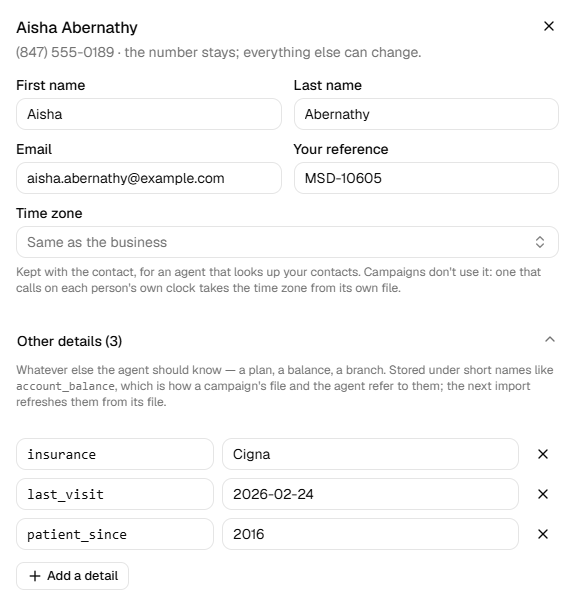
Click Save.
When you leave the Field box, its name turns into the short form campaign files and agents use:
Account balance becomes account_balance. A column with that name in a campaign file fills it in.
Find someone
- The search box finds a name, number, email or reference.
- All campaigns narrows the list to one campaign's people. Someone on two campaigns is under both.
- Filters, then Missing, finds the gaps: No name, No email or No time zone. Last updated narrows by when a contact last changed.
Remove a contact
Click the X at the end of the contact's row. It goes at once, without asking. Calls and campaigns keep their own copy of the number and name.
Important: Removing a contact can't be undone, and it doesn't stop anyone calling them. A campaign file with their number adds them back.
Warning: To make sure a number is never called again, block it: Don't call this number, under Settings → Blocked numbers. You're responsible for honouring anyone who asks not to be contacted.
What happens next
- Adding a number that's already here updates that contact rather than making a second one.
- A campaign file with the same number refreshes the contact. A filled cell replaces what's here; an empty one leaves it. If the file has other columns, they replace the contact's Other details.
- A campaign keeps its own copy of what its file said about each person. Changing a contact doesn't change what the agent is told on a campaign they're already on.
- When an outbound agent emails the person after a call and the call didn't collect an address, the email on their contact is used.
- Adding a lead to a campaign makes a contact for them, if their number isn't here yet.
If it does not work
| You see | Why | What to do |
|---|---|---|
| Save is greyed out | A new contact has no number, or a detail has a problem | Type the number, or fix the detail the message names. |
| Every detail needs a field. | A detail has a value but no name | Type a Field, or remove the row with its X. |
| "<name>" is a name HiloVoice fills in itself; call it something else. | Names such as first_name and phone are HiloVoice's own | Choose another name. |
| Two details are called "<name>". | Two rows have the same name | Rename or remove one. |
| '<number>' is not a phone number. | The number can't be read as a phone number | Check the country and the digits. |
| Nobody matches | Nothing fits your search and filters | Click Clear. |
| Your role here is Analyst: you can look at everything, but not change it. An owner or admin can make you a builder. | Analysts can't change contacts | Ask an Owner or Admin. |
Read next
- Calls, leads and contacts — how a contact differs from a lead and a recipient
- Import a campaign's recipients — the file most contacts come from
- Let the agent check your records — a lookup on your contacts
- Block a number — numbers never to call