
Give the agent answers
For BuildersChecked against the app on October 1, 2026
The Knowledge Base step holds what the agent may tell people: questions and answers you write, documents and your website for it to read from, what to say when someone hesitates, and what it must never do. Every kind of agent has it. A Receptionist answers callers' questions from it; an outbound agent answers the questions people push back with. The agent puts answers in its own words. For anything not covered, it says someone will follow up.
Before you start
- Gather what people ask most: prices, parking, what to bring, how long it takes.
- A document can be PDF, Word (.docx), text, Markdown, HTML or CSV, up to 20 MB each, and an agent can hold 20.
- Some next steps for a hesitation need another step first: Appointment Booking to book or send a booking link, Call Transfers to put someone through.
Steps
Add answers and documents
Open Agents and click the agent.
In the step rail, click Knowledge Base.
Click Add a question and answer. Type what people ask, then the Answer. Write the substance, not a script: the agent phrases it naturally in conversation.
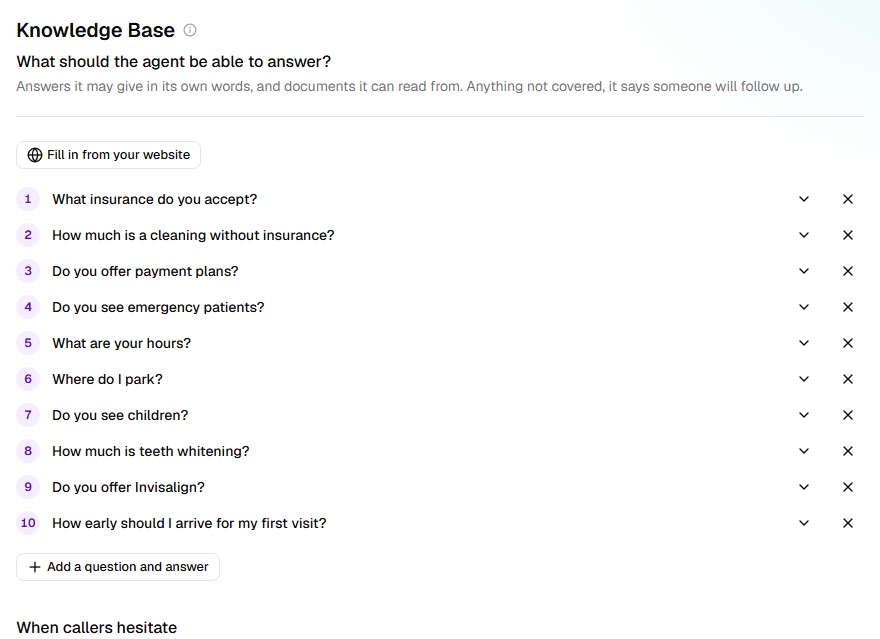
To read your website, click Fill in from your website, type its address and click Read it. Reading can take a minute or two.
In Found on …, untick any answer you don't want and click Add … answers. Check each one first: websites go stale. The site's text is already under Documents, so the agent can answer from all of it.
Under Documents, click Add a document and choose a file: a price list, a policy, a brochure.
Say what to do when someone hesitates
- Under When callers hesitate, click Add a hesitation. Suggest for me adds the usual ones, for you to read through: it's what your agent will say.
- Type what callers say, such as
It's too expensive. - Under What's true, write only what your business stands behind:
The first visit is free. The agent puts it in its own words and adds nothing. - Under Then offer, choose one next step: Book the … (your appointment's name), Send the booking link, Put them through to someone or Have someone call them back. The agent offers it once; if they're still unsure, it lets it go and carries on.
Say what the agent never does
- Under The agent never…, type one thing and press Enter. Add what it does instead after a
dash:
Diagnose — offer an appointment instead.
Whatever you list, no agent gives professional advice or its own opinion of a caller's situation, so list only what's particular to you. Suggest for me offers some.
What happens next
- Changes reach callers once you publish on Review & Go Live. Click Try it to hear them first.
- The agent has your hesitations, and what it never does, in front of it on every call.
- Review & Go Live won't go live with a half-written entry. The entry itself says what it still needs.
Important: Removing a document takes it away from the live agent at once, not at the next publish. A document you add reaches callers when you publish.
If it does not work
| You see | Why | What to do |
|---|---|---|
| That file is over 20 MB. | A document can be at most 20 MB | Split it, or save a smaller copy. |
| That kind of file can't be read. Use .pdf, .docx, .txt, .md, .html, .csv. | The file is another kind | Save it as one of those first. |
| That doesn't look like a website address. Try something like yourfirm.com. | HiloVoice can't read the address as a website | Type it as your browser shows it. |
| … doesn't look like the website of …: … Nothing was added. | HiloVoice checks the site belongs to the business named on Business Information | Check the address. If it's right, check the business name. |
| A choice under Then offer is greyed out, or Needs an appointment it can book on the call, on the Appointment Booking step. | The step that next step needs isn't set up | Set up that step, or choose another next step. Until then the agent only says what's true. |
| FAQ 3 needs an answer. or Hesitation 1 needs what's true about it, a next step, or both. on Review & Go Live | An entry is half-written | Finish it, or remove it. |
Related
- Choose what the agent asks — what the agent asks, as against what it answers
- Book appointments on a call — what booking and sending the booking link need
- Hand calls to a person — what putting someone through needs, and sensitive topics
- Review and go live — publishing your changes