
Set up transfer destinations
For OperatorsChecked against the app on October 1, 2026
A transfer destination is a line an agent can put a caller through to: the front desk, the dentist on call, an answering service. Each one is a name and a number, kept once under Settings → Transfer destinations and chosen by name on any agent. When a number changes, you change it here once, and every agent that uses it follows.
Before you start
- You're an Owner, Admin or Builder. An Analyst can see the list but not change it.
- When a call goes to a destination is set on each agent, mostly on its Call Transfers step. This page keeps the lines themselves.
Steps
Click your name at the foot of the left-hand menu, then Settings.
Under Calls, click Transfer destinations.
Under Add a destination, type a Name your team will know it by, such as
On-call dentist.Type the Number, such as
(312) 555-0142. For a number in another country, choose the country first.Click Add destination. It's listed under Your destinations as Available.
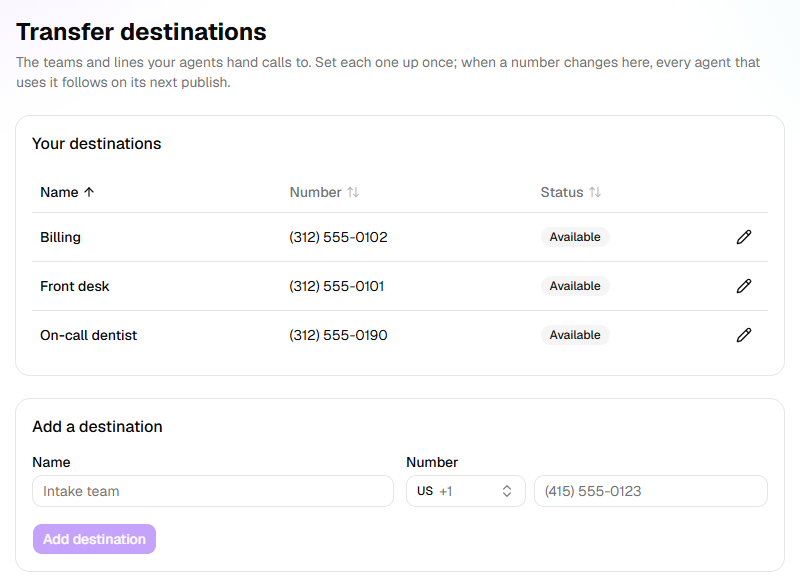
A number saved from an agent's Call Transfers step, with Save destination, lands here too.
Change a number, or stop offering a line
Click the pencil at the end of the destination's row.
Change the Name or the Number, or switch off Available to choose.
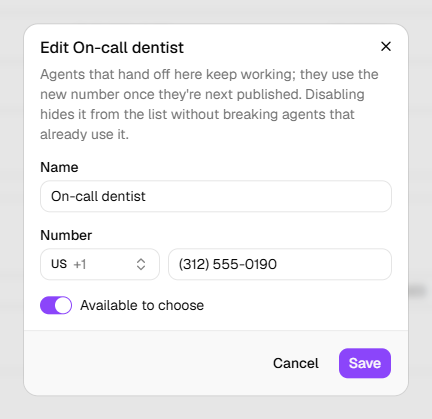
Click Save.
Switched off, a destination reads Disabled. It's no longer offered when you choose where a call goes, and nobody on your Transfer list is put through to it: the agent answers them like anyone else. Agents that already transfer there carry on. A destination can't be deleted.
What happens next
- Agents pick up a new name or number the next time they're published. Until then, each live agent that uses the destination says An update is ready. Publish it to give callers the latest. on its builder: click Publish update.
- People on your Transfer list go to the new number from their next call, with nothing to publish.
- With six destinations or more, a search box and All, Available and Disabled appear above the list.
Important: Until an agent has been published again, the calls it transfers still go to the old number.
When a call is put through
The caller waits on hold while the destination rings. Say hello when you answer: HiloVoice listens for it, or waits a few seconds, then tells you who's calling, in the agent's voice: Juliet from Maple Street Dental, with a call for you, and a line on what the caller needs. Then it asks you to Press 1 to take it, or 2 to decline.
Only 1 puts the caller through. If you press 2 or nothing, don't answer in time, or your voicemail picks up, the agent stays with the caller. It says what's set under If no one can be reached on its Call Transfers step, or that nobody could take the call, then takes their name and number and says someone will call them back.
Callers on your Transfer list are put straight through, with no key to press.
If it does not work
| You see | Why | What to do |
|---|---|---|
| Transferred calls still reach the old number | The agents haven't been published since you changed it | Open each agent that uses it and click Publish update. |
| A destination isn't offered on Call Transfers | It's Disabled | Click its pencil and switch on Available to choose. |
| Couldn't add that destination. or Couldn't update that destination. | The change wasn't saved | Try again in a moment. |
| Your role here is Analyst: you can look at everything, but not change it. An owner or admin can make you a builder. | Analysts can't change destinations | Ask an Owner or Admin. |
Read next
- Hand calls to a person — when an agent transfers, and to which destination
- Put callers straight through to a person — people who skip the agent
- Calls, leads and contacts — the three lists that decide who gets through