
Book appointments on a call
For BuildersChecked against the app on October 1, 2026
On the Appointment Booking step, under Optional, you give the agent an appointment to book. From a connected calendar it finds open times, offers up to three at a go, takes a name and email, and books: the same booking your page makes, confirmation email and all. Any other booking page it offers, and can text or email to the person. Every kind of agent has this step.
Before you start
- You're an Owner, Admin or Builder.
- To book on the call, connect your calendar under Settings → Integrations first: Calendly, Cal.com, Acuity Scheduling, HubSpot, Square Appointments, YouCanBookMe or Google Calendar. An Appointlet page books on the call with nothing to connect. Any other page is offered as a link.
- A Google Calendar appointment is booked in the agent's hours unless it has its own. Those are the hours on Hours of Operation, or on an outbound agent's Calling Hours.
Steps
Open the agent. In the step rail, open Optional and click Appointment Booking.
Switch on Book appointments. Off, the agent says someone will follow up about an appointment.
Under Booking link, paste your booking page's link and click Use this link. HiloVoice checks it and shows the appointment's name, length and place, then books on the call or link only. With a calendar connected, you can instead click the calendar icon in the box (Choose from your calendars) and pick one.
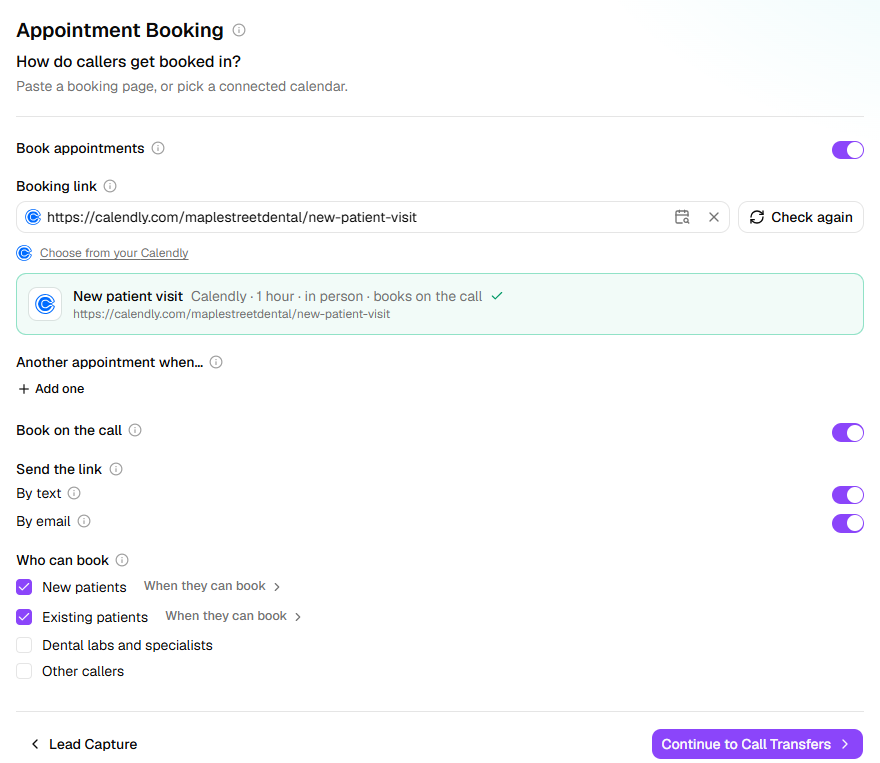
When Book on the call is offered, it lets the agent book, move and cancel appointments in the conversation; every booking needs the caller's email for its confirmation. Off, the agent only offers the link and never states a time.
Under Send the link, choose By text, By email or both: how the agent sends the link to someone who'd rather book themselves, or when the appointment is a page it can't book.
Under Who can book, tick the kinds of caller the agent books for. Nothing ticked means anyone; with some ticked, it takes a message for anyone else who asks. The kinds come from Caller Handling; an agent that doesn't sort its callers shows Anyone.
Click When they can book beside a kind, or beside Anyone, to narrow it: Only if… an answer, Only for certain services…, Only if they qualify…, or A different appointment… for that kind alone (Same as everyone undoes it). Click Done.
Someone a rule leaves out is told the agent can't book that for them and someone will call back.
Book a different appointment by answer
Under Another appointment when…, click Add one to book something else when the caller's answers match: a telehealth session for anyone who asks for one, say. Choose the answers under Book it when all of these are true, paste the Appointment's own link and click Use this link, then click Done. The agent checks times for that appointment and books it instead; the first that matches wins.
A Google Calendar appointment
Google Calendar holds only events, so the appointment's rules are set here. Pick the calendar from Choose from your calendars and the Google Calendar appointment drawer opens; Settings on the appointment opens it again.
- Calendar, Name (what the agent calls it; the event reads "Consultation with Jane Smith"), Length and Where: a Google Meet video call, in person, or by phone either way.
- When it can be booked: Opening hours uses the agent's hours; Its own hours sets hours for this appointment alone.
- More settings: Gap either side, Notice (how soon the earliest time can be), Book up to (how far ahead), Also keep clear of (other calendars whose events block a time) and an optional Booking page for someone who'd rather book themselves.
Next open times shows what callers would be offered with these settings.
What happens next
- Changes reach callers when you publish on Review & Go Live.
- The agent never states a time or confirms a booking the calendar hasn't returned. If the calendar can't be reached, it takes the person's details for someone to confirm.
- A booking made on a call shows on that call's Information collected tab on Calls.
- Each time you open the step, HiloVoice checks the link with its calendar again, so a page switched off since shows as such.
If it does not work
| You see | Why | What to do |
|---|---|---|
| Paste the full booking link, starting with https://. | What's in the box isn't a whole web address | Copy the full link from your booking page. |
| Connect <calendar> to use this link. | The page can be booked on the call, and that calendar isn't connected | Click Connect <calendar> →, connect it, then click Use this link. |
| That link is not one of the event types on the connected <calendar> account. Check the link, or connect the account it belongs to. | The link belongs to a different account | Use a link from the connected account, or connect the one it belongs to. |
| Booking on the call isn't available on this <calendar> account (<plan> plan); the agent will offer the link instead. | That calendar account's plan doesn't allow it | Nothing breaks: the agent offers the link. To book on the call, the account needs a plan that allows it. |
| Google Calendar isn't connected, so the agent takes the caller's details instead. | The Google Calendar connection is missing or was removed | Click Connect it →. |
| No opening hours are set, so no time is open. Set them on the Hours of Operation step, or give this appointment its own. (Calling Hours step, on an agent that places calls.) On Review & Go Live: A Google Calendar appointment is booked in your opening hours, and none are set — set them, or give the appointment hours of its own. | A Google Calendar appointment uses Opening hours, and the agent has none | Set hours on Hours of Operation (or Calling Hours), or choose Its own hours. |
| On Review & Go Live: Appointments are switched on but no booking link has been checked yet. | Book appointments is on with no appointment | Paste a link and click Use this link, or switch Book appointments off. |
| Add one is greyed out, with Needs a question with fixed answers, such as in person or telehealth. | Another appointment when… reads an answer, and no question has fixed answers | Add a yes/no or fixed-options question first. |
Related
- Handle each kind of caller — the kinds of caller Who can book lists
- Choose what the agent asks — the answers a rule or another appointment reads
- Set your opening hours — the hours a Google Calendar appointment books in
- Send messages after a call — a follow-up text or email once the call ends