
The Usage page
For OperatorsChecked against the app on October 1, 2026
Usage is the page HiloVoice opens on, and the first entry in the left-hand menu. It's headed with your organization's name and How HiloVoice has been used over the last 30 days. Every figure on it counts real calls only: a test call in your browser, from Try it, is never counted. (Call me places a real call, so that one is.) The page fetches fresh figures every minute, so you can leave it open.
Until your organization is set up, a card at the top names the next thing to do and how many steps are done. Open the guide lists them all. Don't show this again puts the card away for you; the menu under your name still has Setup guide.
Note: Usage doesn't show your plan's minutes. Owners and Admins find those under Settings → Billing; see Plans, minutes and limits.
The tiles
Each figure covers the last 30 days, counted back from now. Where a tile says vs the 30 before, it compares them with the 30 days before that. Needs attention is the exception: it lists everything still waiting, however old.
| Tile | What it shows | A click opens |
|---|---|---|
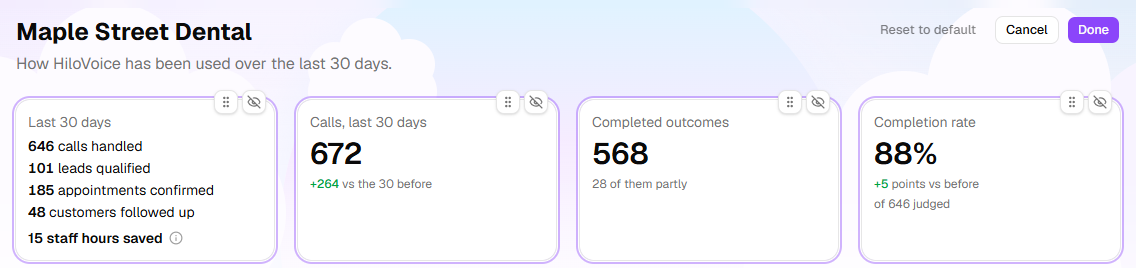
| Last 30 days | The month in plain terms, a line each: calls handled (someone spoke to an agent), leads qualified, appointments confirmed (booked on a call and still booked) and customers followed up (people a Follow-ups agent reached, each counted once). At the foot, the staff hours saved: the time on every call someone spoke to an agent. A line with nothing to count is left out. | The calls, leads or campaigns a line counts |
| Calls, last 30 days | Every call, in and out, answered or not. | |
| Completed outcomes | Calls that did what they were for. The line under the number says how many did so only partly. | |
| Completion rate | Of the calls whose result is known, the share that did what they were for, wholly or partly. The change is in percentage points. | |
| Handed to a person | Escalations and transfers to your team, callers on your Transfer list included. | |
| Leads created | New leads. Shown once there are any. | Leads |
| Answer rate | The share of calls where someone spoke. | |
| Average length | How long a completed call lasted, in minutes and seconds. | |
| Failed calls | Calls that never connected because something failed on the line. | |
| Needs attention | What needs one of your team now. See below. | The page each line names |
| Calls per day | The last 14 days, a bar a day. | |
| How calls went | The month's calls by how they ended: Went well, Partly done, Didn't go well, Handed off, Didn't connect and Ended. | |
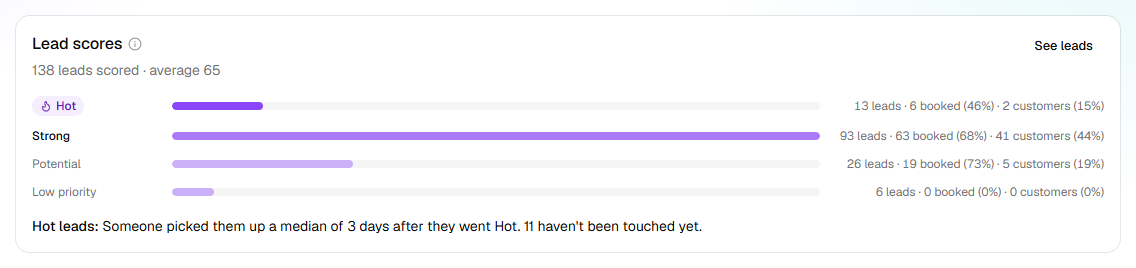
| Lead scores | Leads first made in the 30 days that were scored, band by band, with how many booked an appointment and how many became customers. Under it, Hot leads: how long a Hot lead typically waited before someone added a note, changed its status or outcome, or marked it a customer, and how many nobody has touched. Shown once a lead has been scored. | See leads |
| What calls were about | The most common subjects, from each call's summary. The rarer ones share a line at the foot. | |
| Latest calls | The five most recent calls: who, what about, which agent, when, how long and how it went. | All calls opens Calls |
Point at the ⓘ beside the staff hours, or beside Lead scores, for how each is counted.
Needs attention
Each line is something waiting for a person. When there's nothing, the tile reads Nothing needs your attention.
| The line says | What it means | What to do |
|---|---|---|
| <n> calls need a look | Calls flagged for a person that nobody has marked handled | Click it. Calls opens on Needs review; see Review your calls. |
| <n> after-call actions failed | A text, email, webhook or CRM update didn't go through, after HiloVoice tried again | Open the notification Something after a call didn't happen: it opens the call, and its After the call tab says why. |
| Campaign "<name>" is paused | The campaign stopped calling. The line under it says why | Click it, put the cause right, and resume the campaign. |
| <agent> failed to publish | The agent's last publish didn't go through, so callers get the version before | Open the agent and publish again. |
| <connection> isn't working | A connection under Settings → Integrations has a problem. The line under it says what | Reconnect it under Settings → Integrations. |
Note: Who can put each one right depends on your role. An Analyst can mark a call handled, but resuming a campaign, publishing or reconnecting needs an Owner, Admin or Builder.
Choose what the page shows
The layout is yours: each person arranges their own, and it follows you to any device.
Click Customize at the top right. Every tile gets a handle to drag it by and a button to hide it. Hidden tiles wait in a box under the rest, Hidden — add back anything you want on the page.: click one to put it back. Reset to default puts every tile back where it started. Click Done to keep your layout, or Cancel to leave it as it was.
A tile with nothing to show yet, such as Lead scores before a lead is scored, stays off the page. While you customize, it shows as a dashed box, Appears once there's something to show., so you can place it anyway. Under Customize, the Calls, last 30 days tile is called Calls.
If it does not work
| You see | Why | What to do |
|---|---|---|
| Nothing to show yet | The organization has no agent | Click Create my first agent. |
| Waiting for the first call | There's an agent, but no real call yet | If it isn't live, click Finish setting up. Otherwise ring its number. |
| No Customize button | There's no call yet | It appears with the first call. |
| A test call isn't counted | Usage counts real calls only | Find it on Calls, with Show test calls on. |
| The numbers couldn't be loaded | The figures didn't arrive | Reload the page in a moment. |
| Couldn't save the layout. Try again in a moment. | Your layout wasn't saved | Click Done again. |
Related
- A tour of HiloVoice — every page, two months in
- Review your calls — the calls behind the figures, and Needs review
- Follow up your leads — the leads and their scores
- Turn callers into leads — scoring, and its bands