
Monitor a running campaign
For BuildersChecked against the app on October 1, 2026
Once a campaign is running, its page shows how far it has got and what happened with each person on the list. It updates itself every few seconds while the campaign runs; Updated, beside the tabs, says when it last did. If the campaign stops itself, the page says why and what to fix.
Before you start
- The campaign has launched: see Create a campaign.
- Anyone on your team can watch a campaign. Pausing it, resuming it and changing a person's row need an Owner, Admin or Builder.
Steps
Click Campaigns, then the Running tab, and click the campaign.
Read the progress line under the header, such as 12 of 40 done · 2 on a call now · 26 waiting. The line beside it splits the ones done: 9 reached · 2 not reached · 1 skipped, then any that need a person or were cancelled. A Follow-ups campaign says completed and not completed.

On People, choose a status in the list that says Everyone to see only those people, or type in Search name, number or note.
Read each person's row: their Status, their Tries so far, and What happened (see the table below).
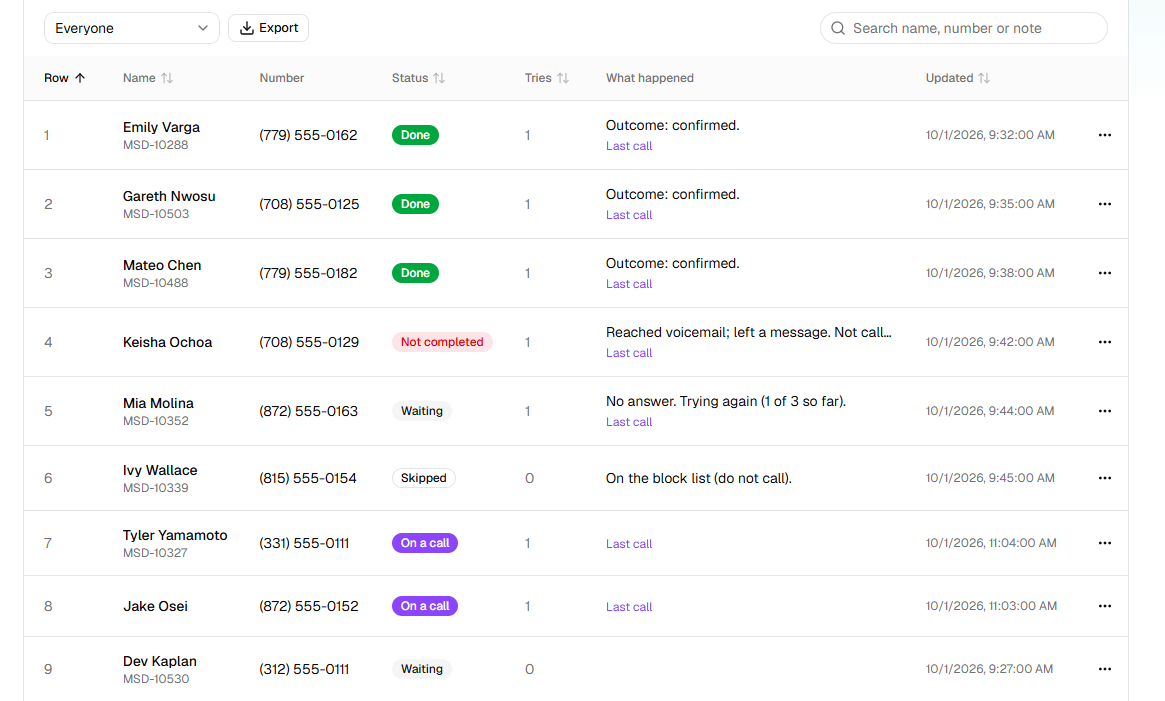
Click a row to open the person's last call: the conversation, the recording and how it ended. For every call to them, click … at the end of the row, then See every attempt.
Click Data to see, for each person, what the list told the agent (columns marked known) and what their last call found out (marked asked). An empty asked column means nobody has answered yet.
To stop calling for a while, click Pause. The message says Paused — calls already up will finish; nobody else is called until you click Resume.
Export, beside the status list, downloads the people shown as a CSV, with what happened to
each and every answer their last call recorded. Its Status column uses short names: pending
for Waiting, completed for Done, failed for Not completed, needshuman for Needs a person.
What a row says
| Status | What happened, for example | What it means |
|---|---|---|
| Waiting | (empty) | Not called yet. People are called in the order of the list. |
| Waiting | No answer. Trying again (1 of 3 so far). | Called before, and due again once the wait is over. |
| Waiting | Outside calling hours; next window opens … | Due, but the window is shut. The time it gives is in your own time zone. |
| Waiting | This campaign has as many calls up as it is allowed at once. | Every line the campaign may use is busy. They're called within a minute or so. |
| Waiting | They called back — on the line now | They rang the campaign's number back and a Receptionist has them. Nobody calls them meanwhile. |
| On a call | A call to them is under way. | |
| Done | Outcome: confirmed., on a Confirmations campaign | The agent finished the job with them. |
| Not completed | No answer after 3 attempts. or … Not called again: they declined. | Over, with the job not done. |
| Skipped | On the block list (do not call). or Skipped by hand. | Never called. |
| Needs a person | … Needs a person: and the agent's reason | A Follow-ups agent handed them to your team: see Work the Needs a person queue. |
| Cancelled | The campaign was cancelled before they were called. |
On a Follow-ups campaign, rows also show Next:, the step the last call agreed, and In the way:, what's stopping it. See Read a follow-up's progress.
Why a campaign pauses itself
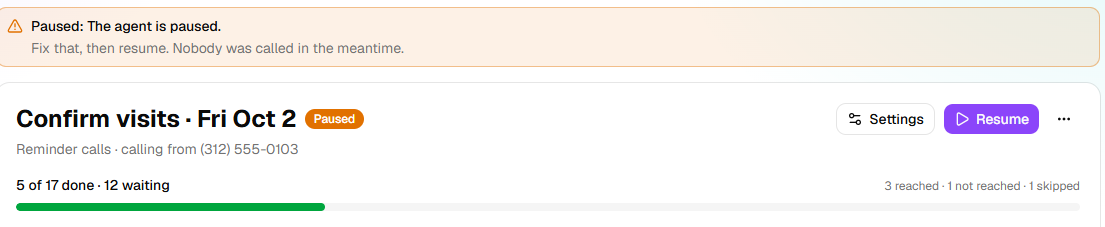
When a campaign can't carry on, HiloVoice pauses it and nobody is called until it's put right. The page says Paused: and the reason, with Fix that, then resume. Nobody was called in the meantime. The same reason is under Needs attention on Usage. Unless the campaign paused because someone paused its agent, Owners, Admins and Builders hear about it on the bell and by email too.
| The page says Paused: … | What to do |
|---|---|
| The agent is paused. | Resume the agent: on Agents, open its … menu and click Resume this agent. The campaign carries on by itself. |
| Why calls stopped, such as The free trial is over. Choose a plan to carry on taking and placing calls. | An owner chooses a plan, or settles the bill, under Settings → Billing. The campaign carries on by itself once calls are allowed again. |
| Campaigns aren't on the organization's plan. | An owner moves to a plan with campaigns. Then click Resume. |
| The agent is not published. | Publish the agent on Review & Go Live, then click Resume. |
| The agent has no caller ID to call from. | Choose a number on the agent's Caller ID step, or one under Call from in the campaign's Settings, then click Resume. |
| The number chosen to call from is no longer connected. | In Settings, choose another number under Call from, click Save settings, then Resume. |
| The agent is archived. | Restore the agent and give it a caller ID again, then click Resume. Or cancel the campaign. |
| The agent no longer exists. | Cancel the campaign, and start a new one with another agent. |
What happens next
When everyone on the list is settled, the campaign is Completed, and the bell says All 40 people on it have been called, with how many are waiting for a person.
People marked Needs a person wait for your team: see Work the Needs a person queue.
To put someone back on the list, use their row's … menu: see Call a recipient again.
To stop the campaign for good, open … beside Pause and click Cancel the campaign. Nobody still waiting is called; a call under way finishes.
Important: Cancelling can't be undone. To call the people left waiting, you'd start a new campaign.
If it does not work
| You see | Why | What to do |
|---|---|---|
| Nobody is being called, and everyone waiting says Outside calling hours | The calling window is shut | Nothing: they're called when it opens. To change the window, see Set a campaign's calling hours and retries. |
| The status is Scheduled | Its start time, shown beside the agent's name, hasn't come | Wait, or click … → Change the start… to move it or start now. |
| You resumed, and it paused again with the same reason | What stopped it isn't fixed yet | Fix that first, using the table above. |
| A row has said On a call for a long time | The call is long, or its end never reached HiloVoice | Nothing. If HiloVoice hears nothing more about a call, it closes it as no answer within the hour and moves on. |
| The numbers on the page don't change | The page only updates itself while the campaign is Running | Reload the page. |
Read next
- Work the Needs a person queue — the people waiting for your team
- Call a recipient again — Call again, and Reopen and call again
- Read a follow-up's progress — where each Follow-ups job stands
- Set a campaign's calling hours and retries — when it calls, and when it tries again
- Recipient statuses — every status and note a row can show