
Set up a receptionist for a clinic
For BuildersChecked against the app on October 1, 2026
This playbook takes a clinic from no agents to a Receptionist that answers its line: it books patients in, answers their questions, and puts an emergency through to a person. The example is Maple Street Dental, a family dental practice. Set up your first agent is the quick path through the same builder; this one stops at each choice a clinic makes. Allow an hour.
Before you start
- You're an Owner, Admin or Builder. Setting up the number needs an Owner or Admin: at Maple Street Dental, Maya Patel, the owner, does that part.
- Have to hand:
- your opening hours;
- what your front desk asks a new patient;
- the answers to what patients ask most, such as the insurance you take, what a first visit costs and where to park;
- the numbers to put calls through to: the dentist on call, billing, the front desk;
- your booking page, or your calendar connected under Settings → Integrations.
Steps
Create the agent
- In the menu, open Agents and click Create my first agent.
- Under What kind of business is this?, click the box, type
dental, and choose Dental practice. - Under What should it handle?, choose Receptionist. Under What should we call it?,
type
Front desk. - Click Create my agent. In about half a minute the builder opens, with a card that says <name> is ready to answer for Maple Street Dental.
- On the card, click See the questions.
Tip: To start from your website, click Create it from our website at step 2, type the address, and click Read it. Check what it found, click Use these details, and carry on from step 3. Each person left ticked under People to put calls through to becomes a transfer.
Decide what it asks
The starting point asks each kind of caller its own questions: a new patient's date of birth, say, or how much pain someone is in.
On Intake Questions, read the list from the top. As one caller hears it shows what one kind of caller is asked.
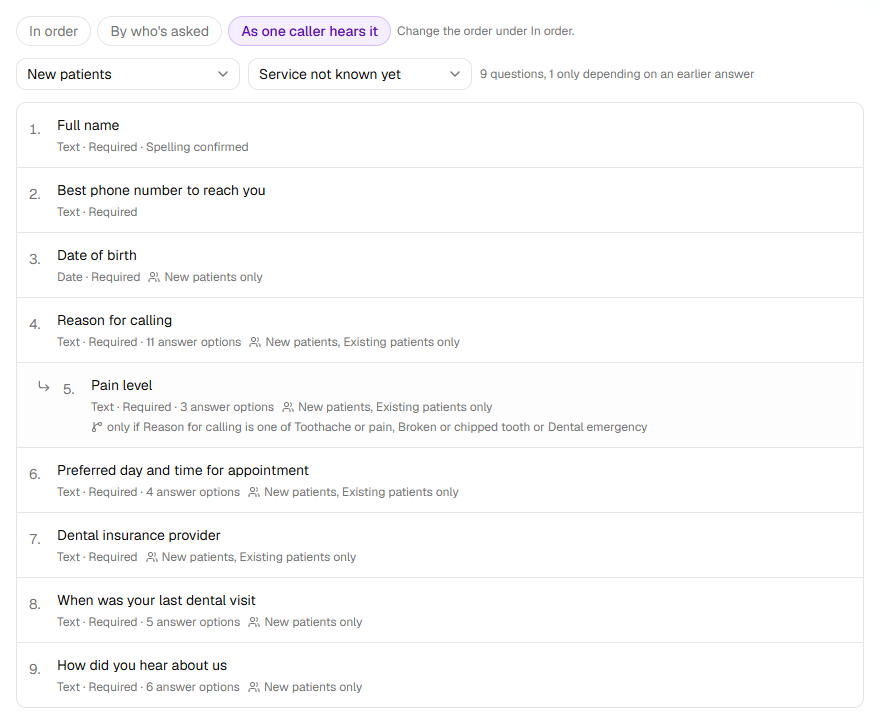
Click a question to reword it the way your front desk says it.
Click X on any question you never ask on the phone.
With the arrows, move the questions that decide a booking near the top: the reason for the visit, and how urgent it is.
Click Caller Handling and open the kind for new patients.
On its After the call tab, click Add an action, then Send a text, and write what to bring to a first visit.
Open Optional, click Lead Capture, and switch on Make leads from calls if it's off. New patients are ticked to start, so each one lands on the Leads page.
Choose what the agent asks, Handle each kind of caller and Turn callers into leads have every setting.
Give it answers
- Click Knowledge Base. Some answers it starts with may only promise that someone will confirm, your hours or your address say. Open each one and write the fact in its place.
- Click Add a question and answer for anything else patients ask:
How much is a cleaning without insurance?, answeredNew patients without insurance get an exam, cleaning and X-rays for $99. - Under The agent never…, add what your front desk never does on the phone, such as
Diagnose a problem — offer an appointment insteadandPromise that insurance will cover a treatment.
Give the agent answers covers documents and your website.
Set the hours
- Click Hours of Operation and check the Timezone.
- Set each day you're open: Monday to Thursday 8 to 6, Friday 8 to 2, Saturday 9 to 1.
- Under After hours, choose Handle calls normally to let patients book at night, or Take a message.
Set your opening hours has the rest.
Hand calls to a person
The starting point may list situations that need a person, such as a knocked-out tooth, under When the call needs a person. If that row reads Takes a message, it has nowhere to put them through yet.
Open Optional in the step rail and click Call Transfers.
Click Add a transfer. Under Transfer if…, add
Severe tooth pain or facial swellingandA knocked-out tooth.Under Where the call goes, choose Type a number, enter the on-call line and call it
On-call dentist. Click Save destination, then Done.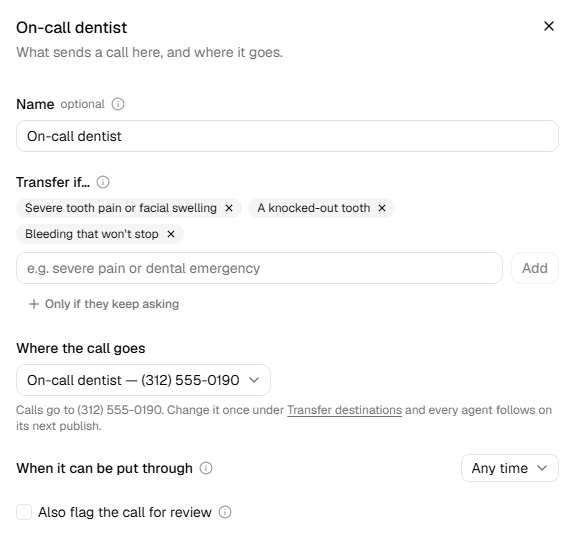
Add a transfer for questions about a bill, to your billing line. Under When it can be put through, choose During opening hours, and leave Outside those hours on Take a message.
Open When the call needs a person and choose your front desk under Where the call goes.
Under Sensitive topics, click Add a sensitive topic, then A possible overdose or poisoning. Change What the agent does and says to what your practice does, and click Done.
Hand calls to a person has every setting.
Book appointments
- In Optional, click Appointment Booking and switch on Book appointments.
- Under Booking link, paste your booking page's link and click Use this link. If you started from your website, click Use it beside Your website books appointments at … instead.
- Leave Book on the call on, where it's offered: the agent books, moves and cancels appointments on the call. Each booking needs the caller's email for its confirmation.
- Under Who can book, tick the kinds for new and existing patients. Anyone else who asks has a message taken.
- Back on Knowledge Base, under When callers hesitate, click Add a hesitation. Type
It sounds expensive, write what's true about your prices, and choose Book the … under Then offer.
Book appointments on a call covers calendars and booking rules.
Answer with a greeting
A new Receptionist gives the recording notice, then greets the caller: Thanks for calling Maple Street Dental, this is and the agent's name, How can I help you today? To make it your own:
- Click Conversation Style. Under Who speaks first, check it says The agent.
- Under Greeting, write
Thanks for calling Maple Street Dental — how can I help?, or click Write it for me. If you started from your website, its suggested greeting is already there.
Shape how a call sounds has the rest of the step.
Try it, then go live
- Click Try it at the top, then Start the call. Be a new patient with a toothache.
- Call again as a patient moving a visit, then as one in severe pain.
- Change whatever doesn't sound like your practice. The voice, and the name callers hear with it, is on Voice & Purpose.
- Click Review & Go Live and work down Is it ready?. Each red line opens the step it's fixed on.
- Read In short: the whole agent in plain sentences.
- Click Go live.
Warning: Patients tell a clinic about their health. Every call is transcribed, and recorded with a notice at the start unless you change that on Conversation Style. Check what applies to recording calls and keeping patients' information where you practise; you're responsible for your own compliance. See Your responsibilities on calls.
Important: Going live puts the agent on real calls. Once it has a number, everyone who rings it talks to the agent.
Give it the clinic's number
- Click Phone Number.
- To keep the number patients know, choose Use my existing number, then Set up call forwarding, and follow Keep your number and forward it to your agent. For a new number, click Get a number under Get a new number instead.
- Ring the number from your own phone. The agent answers as your patients will hear it.
Give a Receptionist its number covers each way.
Important: A number you get is yours as soon as you confirm it, and it counts towards the numbers your plan includes.
What happens next
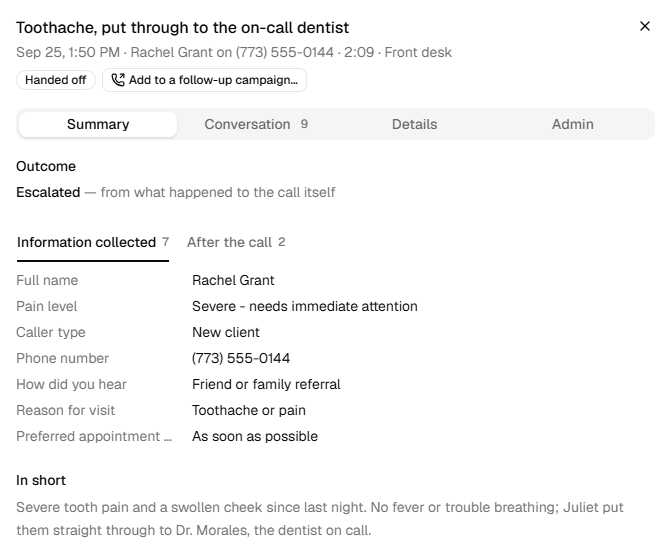
Calls appear under Calls, and the new patients the agent speaks to appear under Leads. Lead scoring, on Lead Capture, puts the strongest at the top.
Changes you make now wait in a draft until you click Publish changes. Callers hear the live version until then.
The same number can be the caller ID for agents that call your patients. A patient who rings it back reaches this agent, which is told what the other agent called about.
If it does not work
| You see | Why | What to do |
|---|---|---|
| Couldn't create a starting point for that industry — you can try again from the builder. | HiloVoice couldn't write the starting point this time. The agent is made from the general one. | On Business Information, click Create it for me. |
| On Review & Go Live: On-call dentist: there's no number to transfer the call to. | The transfer has nowhere to go | Open it on Call Transfers and choose where the call goes. |
| HiloVoice needs your microphone for this. Allow it in your browser, then try again. | Your browser blocked the microphone for Try it | Allow it in the browser's address bar, then click Try again. |
| An owner or admin can get a number or set up forwarding. | Your role is Builder | Ask an Owner or Admin to do the Phone Number step. |
Read next
- Keep your number and forward it to your agent — keep the number your patients know
- Test an agent with Try it — test calls, and reading the transcript
- Turn callers into leads — who becomes a lead, and scoring
- Confirm tomorrow's appointments — the next playbook