
Put callers straight through to a person
For OperatorsChecked against the app on October 1, 2026
Some people should never have to talk to an agent: a partner, the practice's accountant, a key client. Put their number on the Transfer list, and when they ring a Receptionist's number the agent says One moment, I'll put you straight through to <name>. and transfers them, with no questions asked.
Before you start
- You're an Owner, Admin or Builder. An Analyst can see the list but not change it.
- Each person goes to a transfer destination, so the line has to be there first. See Set up transfer destinations.
- You need the number they call from. A caller with their number hidden can't be recognised.
Steps
Click your name at the foot of the left-hand menu, then Settings.
Under Calls, click Transfer list.
Under Add a caller, type Their number, such as
(312) 555-0187.Under Put them through to, choose a destination.
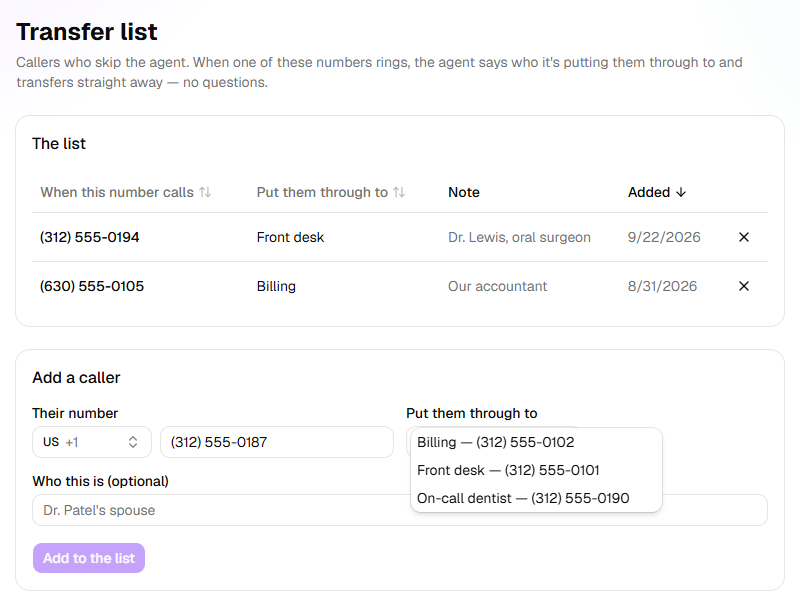
Under Who this is (optional), type a note for your team, such as
The practice's accountant.Click Add to the list. The message says <number> now goes straight to <destination>.
The note is for your team only: the agent never reads it out.
What happens next
- When the number rings any of your Receptionists, the caller hears the recording notice, if the agent gives one, then One moment, I'll put you straight through to <destination>. That's at any hour: the hours set on an agent's own transfers don't apply.
- If the call can't be put through, the agent apologises, takes their name and number, and says <destination> will call them back.
- On Calls, the call is marked Straight to <destination>. Calls from people on the list never count towards your call limits.
- A number is on the list once. Adding it again with another destination moves it there.
- To take someone off, click the X at the end of their row.
- If the list was empty before, each live Receptionist needs publishing again before it can put anyone straight through. Its builder says An update is ready. Publish it to give callers the latest.: click Publish update. Until then, people on the list are answered like anyone else.
Important: The list acts on live calls as soon as an agent can use it. Someone on it skips everything the agent would ask, including Caller Screening.
If it does not work
| You see | Why | What to do |
|---|---|---|
| This number is on your blocked list (calls from it are turned away). Remove it from Blocked numbers first. | The number is blocked as Don't take calls from it | Remove that entry under Settings → Blocked numbers, then add the number here. |
| First add somewhere to send them under Transfer destinations., instead of the form | There's no destination, or every one is Disabled | Add a destination, or switch one back on. |
| Someone on the list talks to the agent as usual | The agent hasn't been published since the list started; their destination is Disabled; or they rang from another number, or with it hidden | Click Publish update on the agent; switch the destination back on; or add the number they ring from. |
| Couldn't add that entry. or Couldn't remove that entry. | The change wasn't saved | Try again in a moment. |
| Your role here is Analyst: you can look at everything, but not change it. An owner or admin can make you a builder. | Analysts can't change the list | Ask an Owner or Admin. |
Read next
- Set up transfer destinations — the lines people are put through to
- Block a number — the opposite list: numbers turned away
- Hand calls to a person — transfers the agent decides on during a call