
Choose what the agent asks
For BuildersChecked against the app on October 1, 2026
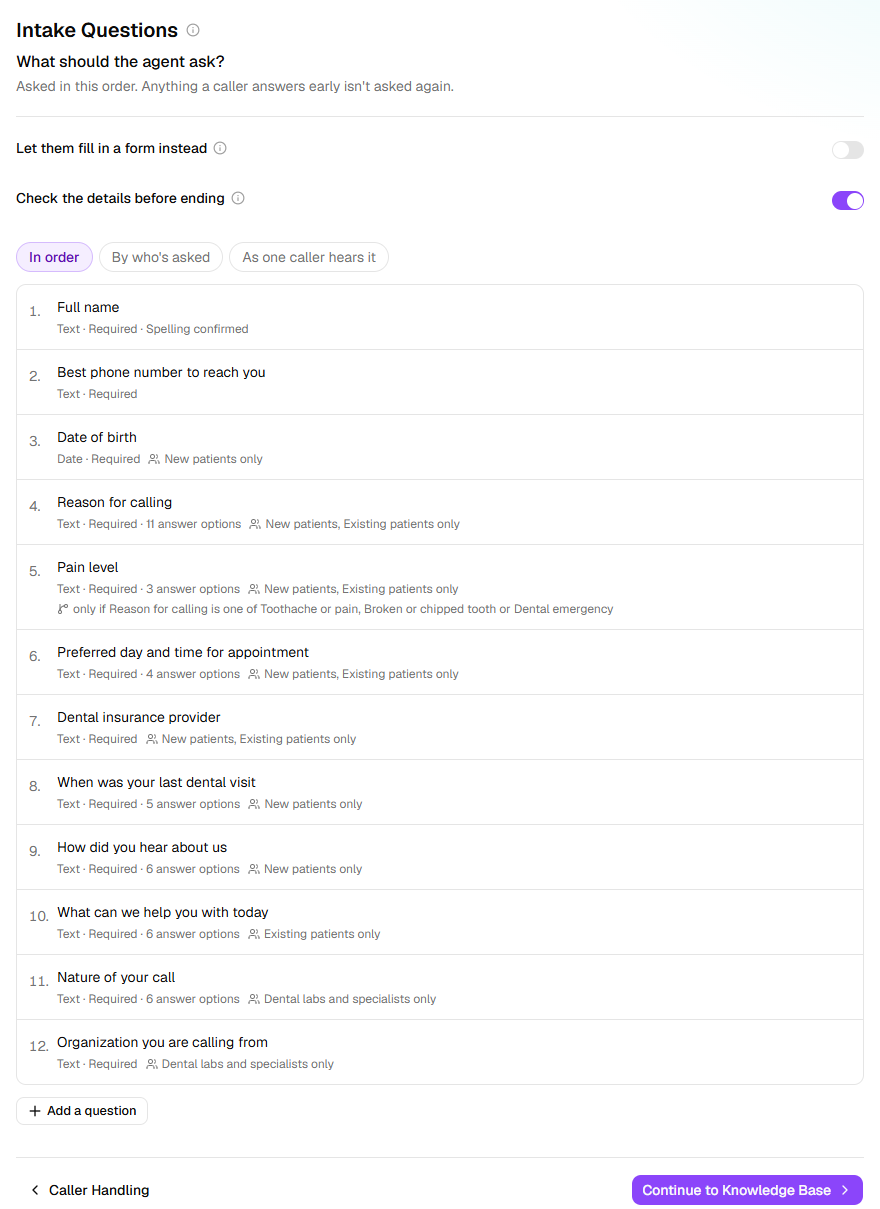
Every agent works down a list, in order: what a Receptionist asks each caller, or what an outbound agent reads back, checks or asks. On a Receptionist the step is Intake Questions. On Confirmations and Detail checks it's Details, on Feedback it's Questions, and on Follow-ups it's Questions under Optional. Every kind needs at least one to go live, except Follow-ups, whose job is the goal.
Before you start
- To limit questions to some services, list them under Services you offer on Business Information. To limit them to some kinds of caller, switch on Treat kinds of caller differently on Caller Handling (Receptionist).
- On an outbound agent, know which details you already hold: they come from the campaign's list.
Steps
Add and order the questions
Open Agents and click the agent.
In the step rail, click Intake Questions, Details or Questions, whichever the agent has.
Click Add a question (Add a detail on Confirmations and Detail checks).
In the drawer, type the question as the agent should ask it (for a detail, What to establish), or click Write it for me. With wording in the box, Suggest another writes a different one.
Click Done. A question left with no wording is removed.
To reorder, hover over a row and click its up or down arrow. On a Receptionist, anything a caller answers early isn't asked again.
Tip: With the list empty, click write them for me for a full set written for your business. It needs an industry or services on Business Information first. If the agent already has answers on Knowledge Base, HiloVoice asks before the set's own answers and transfer rules replace them.
Decide how each one is answered
- Click a question to open it.
- On The answer tab, choose the Answer type and whether it's Required.
- Click More options for the rest.
| Setting | What it does |
|---|---|
| Answer type | Text, Yes / no, Number, Date, Time, Date and time, Photo (sent in) or Document (emailed). HiloVoice picks one from the wording until you choose: Were you injured? is Yes / no. |
| Required | The agent keeps trying for an answer rather than moving on. |
| The date is | For a date: Today or before (an accident) or Today or after (an appointment). A date on the wrong side goes back to the caller to check. |
| Answer options | A fixed set of answers. The agent asks openly and fits the reply to one, reading them out only if it doesn't fit or the caller asks. A reply that fits none is recorded as other, in the caller's words. |
| Recorded as | The short name the answer is filed under: its column on the Leads page, its heading in an export. |
| Caller detail | For a Text answer: marks the caller's own name, phone number or email, so the lead takes them from here and a returning caller is recognised. |
Ask a question only sometimes
- Open the question and click When it's asked.
- Click Only ask this if… and choose an earlier question and its answer:
Which hospital?only whenWere you injured?is Yes. Add more with Add another condition; all must be true. - Or click Only for certain services… or Only for certain callers… and pick which. The agent works out the service, and the kind of caller, from what the caller says.
A question can only depend on one above it, so a move that breaks that removes the condition. As one caller hears it, above the list, shows what one kind of caller can be asked.
Use what an outbound agent already knows
- Open a detail or question. Under Where it comes from, choose We already know it for a value on the campaign's list, or Ask on the call.
- For a value you hold, choose Read it back to them or Check it's right under What to do with it. With Check it's right, tick Take corrections to record what the person says when what you hold is wrong.
Note: On a Confirmations or Detail checks agent, a new one starts as We already know it. On Feedback and Follow-ups, it starts as Ask on the call.
Offer a form, and check the answers (Receptionist)
- Switch on Let them fill in a form instead. The agent can text or email the caller a link to these questions as a web page, to fill in while it waits or after hanging up. When they call back, it picks up where they left off.
- Click Change under the switch to choose how the link goes and how long it works (an hour unless you change it). To keep a question off the form, open it and tick The agent asks this one under More options. Photo and document questions are never on it.
- Leave Check the details before ending on. Once everything is asked, the agent reads back the few answers most likely misheard, in one turn, and fixes what the caller corrects.
- To always read one answer back, such as the email a booking goes to, open it and tick Always check at the end under More options.
What happens next
- Edits save as you go. Callers get them once you publish on Review & Go Live.
- On a Receptionist, Lead Capture chooses which answers become columns on the Leads page.
- A campaign's list needs a column for each We already know it detail. When you import it, HiloVoice matches columns to details by name and says which no column fills: those would be blank on the call.
- A Follow-ups goal of Information has been given is met once everything asked here has been given and recorded.
If it does not work
| You see | Why | What to do |
|---|---|---|
| Only ask this if… is greyed out: Conditions need an earlier yes/no question or one with fixed options. | No question above has a definite answer to compare | Move it below a Yes / no question, or give an earlier one Answer options. |
| Add at least one question. or Add at least one detail for the agent to establish on the call. on Review & Go Live | The list is empty | Add one. |
| The form needs a way to reach the caller — send it by text, by email, or both. | Both ways of sending the form are off | Click Change under the form's switch and turn one on. |
| Every question is kept for the agent, so the form would be empty. | Every question is ticked The agent asks this one, or is a photo or document | Untick one, or switch the form off. |
| Two questions share the key "…" — give one a different wording. | Two questions have the same wording or Recorded as name | Reword one, or change its Recorded as. |
Related
- Handle each kind of caller — the kinds of caller a question can be limited to
- Turn callers into leads — which answers become columns on the Leads page
- Turn away callers you can't help — rules an answer decides
- Campaigns and recipients — where an outbound agent's known details come from