
Connect HubSpot
For OwnersChecked against the app on October 1, 2026
Connect HubSpot and HiloVoice keeps your CRM up to date. An agent with a Send to your CRM action logs each call on the person's contact, and can open a deal for them. Any lead can be sent over from the Leads page. With one more scope, an agent books your HubSpot meetings on the call.
Before you start
- One CRM at a time. If Salesforce is connected, disconnect it first.
- You're an Owner, Admin or Builder, and you can create a private app in your HubSpot account.
- HubSpot is on Growth and up. On a smaller plan, its row on Integrations shows Growth and up. The free trial includes it.
Steps
- In HubSpot, open Settings (the gear), then Integrations, then Private Apps, and choose
Create a private app. Name it
HiloVoice. - On the Scopes tab, add the scopes you need, from the table below.
- Create the app and copy its access token. It starts with
pat-, and HubSpot shows it again on the app's Auth tab whenever you need it. - In HiloVoice, open Settings → Integrations and click HubSpot.
- Paste the token under Private app access token and click Connect HubSpot. HiloVoice checks it with HubSpot before saving it.
The row reads Connected, with your HubSpot account's name and its portal number.
| Scope | What it's for |
|---|---|
crm.objects.contacts.read and crm.objects.contacts.write | Always needed: finding a contact by phone number, making one, and logging calls and notes on it. |
crm.objects.calls.write and crm.objects.notes.write | Tick these too if your scope list offers them. |
crm.objects.deals.read and crm.objects.deals.write | Also open a deal. |
scheduler.meetings.meeting-link.read | Booking your HubSpot meetings on the call. |
Log each call in HubSpot
Open the agent's after-call list. On a Receptionist, click Caller Handling, then a kind of caller's After the call tab, or use After every call. On an outbound agent, open Optional and click After the Call.
Click Add an action, then Send to your CRM. It's offered once HubSpot is connected.
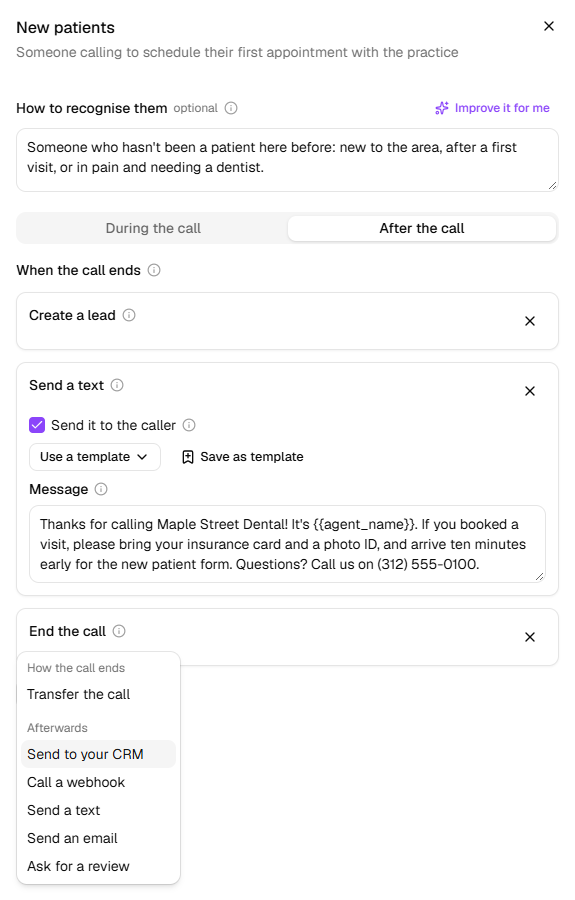
To open a deal too, tick Also open a deal. Choose the Pipeline, and the Stage a new deal starts at. Only open stages are offered.
Under Deal name, type a name if you want one; type
{{to drop in an answer. Left blank, it's the person and what the call was about, such as Jordan Ellis — New patient cleaning booked.To move deals along as calls go, set a stage beside each of the agent's outcomes under Stage by the call's outcome, such as appointment booked to Appointment scheduled. Leave the rest on Leave it.
Publish on Review & Go Live.
A screening rule on Caller Screening has an After the call list of its own, with the same Add an action.
After each call the list covers, HiloVoice looks the person up in HubSpot by the number on the line, then by the email the call captured, and makes a contact if there's none. It logs the call on the contact: the outcome, the agent, how long it took, the summary, any appointment it booked, moved or cancelled, what was captured, and a link to the recording and transcript in HiloVoice.
With Also open a deal, each person has one open deal per pipeline. Someone who already has an open deal there gets the call added to it; once their deal is closed, a new call opens another. A call whose outcome has a stage under Stage by the call's outcome opens a new deal at that stage, and moves an open one there when it's further along the pipeline. It never moves a deal back. The call is logged on the deal as well as the contact. On the call's After the call tab, the line reads Synced to HubSpot, Synced to HubSpot and opened a deal, Synced to HubSpot, and moved their deal to …, or Synced to HubSpot, on their open deal.
Send a lead to HubSpot
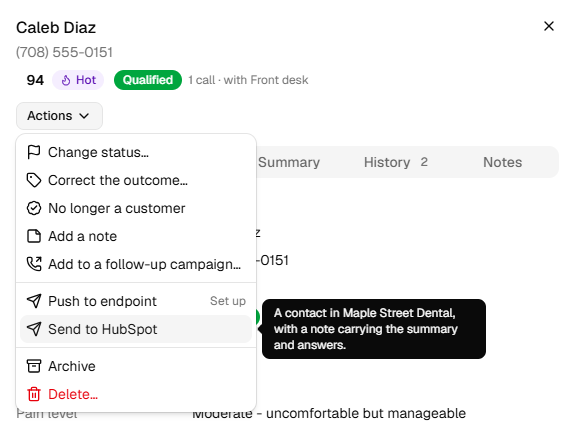
On Leads, open a lead, click Actions, then Send to HubSpot. HiloVoice finds or makes the contact and adds a note to it: the lead's status, outcome, score and what counted, the summary and every answer. The message says Created in HubSpot with a note. or Added a note to the existing HubSpot contact., with Open in HubSpot. The lead's History records it.
Book HubSpot meetings
With the meetings scope, your HubSpot meeting links are listed under Choose from your calendars, on an agent's Appointment Booking step. See Connect your calendar.
What happens next
- Calls from Try it are logged too, when there's a number or an email to log them against.
- If HubSpot turns the token down, the row says Needs attention and owners, admins and builders are told. Each Send to your CRM fails until it's fixed.
- After Disconnect, agents skip Send to your CRM, a lead's menu says Send to CRM with Set up, and HubSpot meeting links are offered as a page.
If it does not work
| You see | Why | What to do |
|---|---|---|
| HubSpot did not accept the token. Check it was copied whole, and that the private app is still installed. | The token is wrong, or the private app was removed | Copy the token again from the app's Auth tab, and paste it under Replace credentials. |
| The token lacks a scope HubSpot needs (crm.objects.contacts.read and crm.objects.contacts.write)., or HubSpot's own words about scopes | The private app is missing the contacts scopes | Add both on its Scopes tab, then connect again. |
| CRM connections are on Growth and up. An owner can change the plan under Settings → Billing. | Your plan doesn't include HubSpot | Ask an owner to change the plan. |
| Under Also open a deal: HubSpot won't let this token work with deals. In your private app's Scopes, add crm.objects.deals.read and crm.objects.deals.write. On a call, the same words follow The call was logged on the contact, but no deal was opened:, and HubSpot's row says Deals aren't opened: … while staying Connected | The private app has no deals scopes | Add both scopes in HubSpot. The call itself was logged; the warning goes once a deal opens. |
| On a call's After the call tab: Nobody to log the call against: no number on the line and no email captured. | The call had no number and no email | Have the agent ask for an email address. |
| Send to your CRM isn't offered under Add an action | HubSpot isn't connected, or needs attention | Connect it, or put it right, on Settings → Integrations. |
Read next
- Send messages after a call — every after-call action, and when each list runs
- Connect your calendar — HubSpot meetings among your other calendars
- Connect Salesforce — the other CRM
- Calls, leads and contacts — what a lead is