
Follow up your leads
For OperatorsChecked against the app on October 1, 2026
Leads lists the people your agents decided are worth following up: one row per person, however many times they call, strongest first. Open a lead to see everything their calls captured, why it scored as it did, and what your team has done with it. Then mark where it stands, put right what a call got wrong, send it on, or have a campaign call them back.
Before you start
- You're an Owner, Admin or Builder. An Analyst can open, filter and export leads, but not change them.
- Most leads come from a Receptionist's Lead Capture step, with Make leads from calls switched on; Lead scoring, on the same step, gives them scores. Any agent can also make a lead with Create a lead among its after-call actions.
Steps
Click Leads in the left-hand menu.
To see one agent's leads with the columns chosen for them, click All agents and choose it. With more than one kind of caller, a second list picks the kind.
Click Filters to narrow the list by Status, Score or Last activity.
Click a lead. It opens on What we know: their contact details and every answer their calls captured, under the agent that asked when more than one has spoken to them.
Click Score to see why it scored as it did, or History for every call and change, newest first.
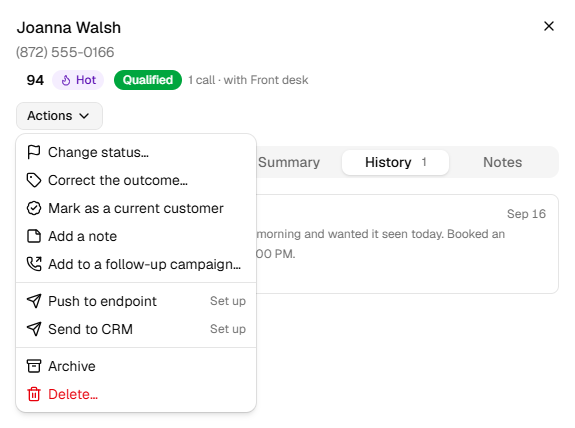
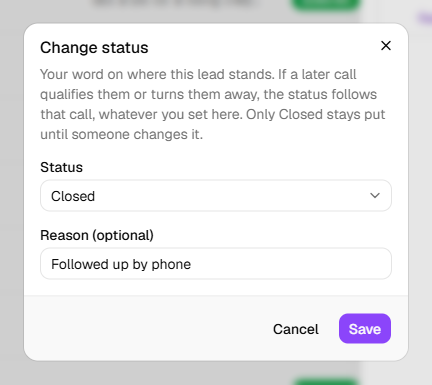
To record where the lead stands, click Actions, then Change status….
Choose the Status and click Save. A Reason (optional) goes on the lead's History.
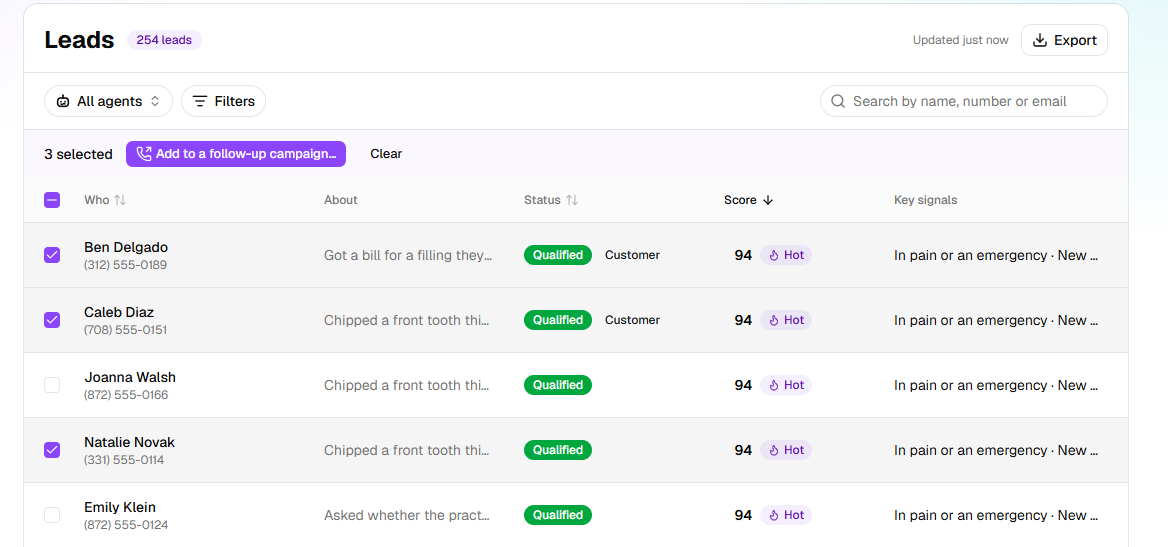
The search box finds a lead by name, number or email. On a phone, each lead is a card: its name, score, key signals and last call.
What the score says
Clicking a lead's score opens it on Score. A lead without a number says why instead:
| Score shows | Means | What to do |
|---|---|---|
| A number with Hot, Strong, Potential or Low priority | How strong the lead is, out of 100 | Call the strongest first. |
| Scoring… | HiloVoice is reading the call. It takes a few seconds | Nothing; the score arrives on its own. |
| Too little to score | The call showed none of the signals that make a lead stronger | Nothing is wrong. |
| Score unavailable | The call couldn't be scored | On Score, click Try again. |
| Disqualified | Caller Screening turned them away. They're never scored | Nothing to do. |
| —, and Not scored… when you point at it | The agent doesn't score its leads | Switch on Lead scoring on its Lead Capture step. |
On Score, Why this lead scored highly (or What counted for it) lists each signal with its points and the caller's own words. Counted against it takes points off. Signals under Not covered on the call count neither way. Rescore reads the last call again against the agent's published signals: use it after changing them.
How a lead's status moves
A later call that shows whether the caller qualifies moves a lead between Open, Qualified and Disqualified, even one you set by hand. Only Closed stays as you left it: use it when you've finished with someone either way. Open a lead that Caller Screening turned away, and the rule's short name is beside its status.
Put right what a call got wrong
- A misheard name or email: on What we know, point at Name or Email and click the pencil. Enter saves; History keeps both values.
- The wrong outcome: click Actions, then Correct the outcome…. The call keeps the agent's word, and the lead shows yours, with your name. Put the agent's word back undoes it. Their next call's outcome replaces your correction.
- They're now a customer: click Actions, then Mark as a current customer. The list shows Customer beside the status, and a Receptionist can use the mark to recognise existing clients (see Handle each kind of caller).
Notes keeps what your team wants to remember about the person: type it and click Add note.
Archive or delete a lead
Actions, then Archive, takes a lead off the list and keeps everything. A new call from them makes a new lead. To see the archive, switch on Show the archive instead under Filters; open a lead there and click Actions, then Restore from the archive.
Actions, then Delete…, removes the lead and its history once you confirm. Its calls stay on Calls.
Important: Deleting a lead can't be undone. If you might want it back, archive it.
Send a lead to your CRM or your own system
Under Actions:
- Send to HubSpot or Send to Salesforce, once that CRM is connected, finds or makes the contact there (a Contact or Lead in Salesforce) and adds a note with the lead's status, score, summary and answers. Open in HubSpot or Open in Salesforce in the message takes you to it.
- Push to endpoint, once a lead endpoint is connected, sends the lead to your own system.
Without a connection, the item says Set up and opens Settings → Integrations; for a CRM it reads Send to CRM until then. Each send is on the lead's History, whether it worked or not. To connect them, see Connect HubSpot, Connect Salesforce and Send leads to your own system.
Have a campaign call them back
Tick the box at the start of each lead, or the box in the heading for the whole page. Ticks stay as you change pages and filters, up to 200.
Click Add to a follow-up campaign…, in the line above the list.
Under Campaign, choose one, and click Add (Add <n> for several).
A lead without a phone number isn't added, and the message says so. For one lead, use Actions, then Add to a follow-up campaign….
Important: On a running campaign, they can be called within minutes, inside its calling hours.
Export the list
Click Export, then CSV or Excel (.xlsx). The file holds what your filters show, every page of it, up to 10,000 leads.
Warning: An export holds people's names, numbers and what they told your agent. Keep the file somewhere safe and delete it when you're done; how you handle it is your responsibility.
What happens next
- Every change goes on the lead's History with your name, and a returning caller adds a line there with what their call recorded or updated.
- When a lead first scores Hot, Owners, Admins and Analysts hear about it: A hot lead.
- Usage counts your leads and shows how soon Hot ones were picked up.
If it does not work
| You see | Why | What to do |
|---|---|---|
| No leads yet | No Receptionist makes leads, or none has had a call that made one | Switch on Make leads from calls on its Lead Capture step. |
| No leads match | Nothing fits your search and filters | Click Clear. |
| A status you set has changed | A later call showed whether they qualify | Set Closed to keep a lead as it is. |
| The agent this lead last spoke to isn't live, so there are no signals to score it on. | Rescore needs a live agent | Publish the agent, then try again. |
| <agent> doesn't score its leads. Choose what makes a lead strong on its Lead Capture step, then publish. | The agent has no scoring | Set up Lead scoring, publish, then Rescore. |
| HubSpot didn't take it or Salesforce didn't take it, with the reason | The CRM refused the lead | Check the connection under Settings → Integrations, then send again. |
| The endpoint didn't take it, with the reason | Your system refused the lead, or couldn't be reached | Check your system, then push again. |
| At most 200 at a time | You ticked more than a campaign takes at once | Add these, then tick the rest. |
| Your role here is Analyst: you can look at everything, but not change it. An owner or admin can make you a builder. | Analysts can't change leads | Ask an Owner or Admin. |
Read next
- Calls, leads and contacts — what a lead is, and its statuses
- Turn callers into leads — who becomes a lead, and how scoring works
- Review your calls — the calls behind each lead
- Campaigns and recipients — what happens once a lead is on a campaign